Reconnecting a Mailbox: Connection Lost Errors
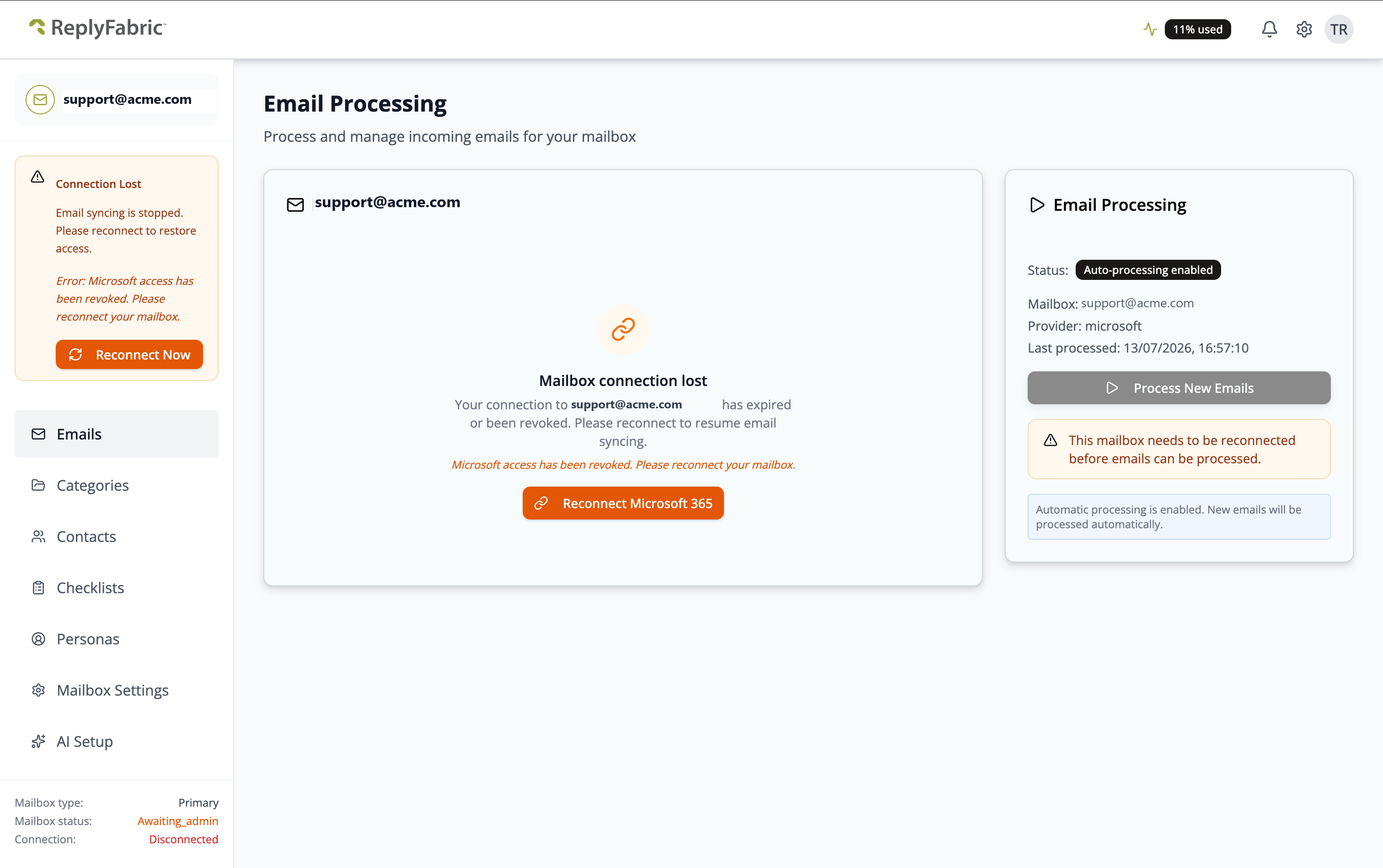
If a connected mailbox loses its authentication with your email provider, ReplyFabric shows a Connection Lost warning and stops syncing new email. Reconnecting restores it.
How to tell: at the bottom of the left sidebar, Mailbox status reads Awaiting_admin and Connection reads Disconnected. The mailbox's Emails page shows a Mailbox connection lost message in place of your inbox, with a Connection Lost banner above the sidebar navigation.
Why it happens
The authentication token granted by Google or Microsoft has been revoked or has expired — commonly due to IT password resets, changes in organization security policies, or OAuth token expirations (often set to 90 days by default).
How to fix
- Go to Mailbox Management, select the affected mailbox, and open its Emails page.
- Click Reconnect Now in the warning banner, or Reconnect Microsoft 365 (or the equivalent Google button) in the main panel.
- Re-authenticate through the Google or Microsoft OAuth prompt. This refreshes the tokens without losing any history or settings.
If the mailbox still won't connect, contact our support team at support@replyfabric.ai or submit a ticket.