Billing: Upgrade Your Plan and Manage Your Subscription
ReplyFabric organizations start on a trial. Upgrading takes about two minutes — choose a plan, confirm payment, and you're back in your inbox. This guide walks through that upgrade, then everything you can do afterward from the billing portal: changing plans, updating payment details, downloading invoices, and cancelling.
You can switch plans or cancel at any time from the billing portal — see The billing portal below.
Prerequisites
- An active ReplyFabric trial with access to Organization Details (see Sign In & Connect if you haven't created your account yet).
1. Choose your plan
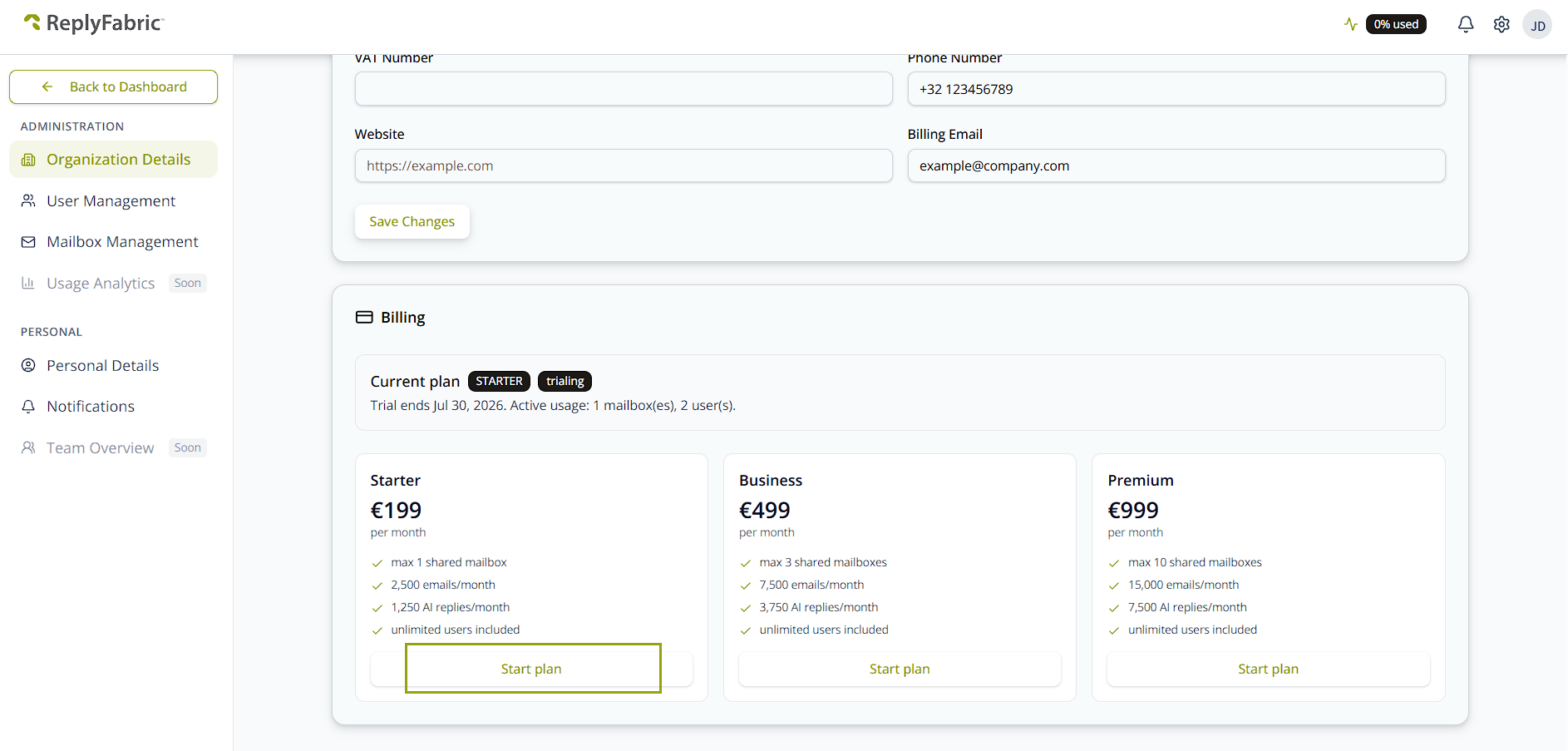
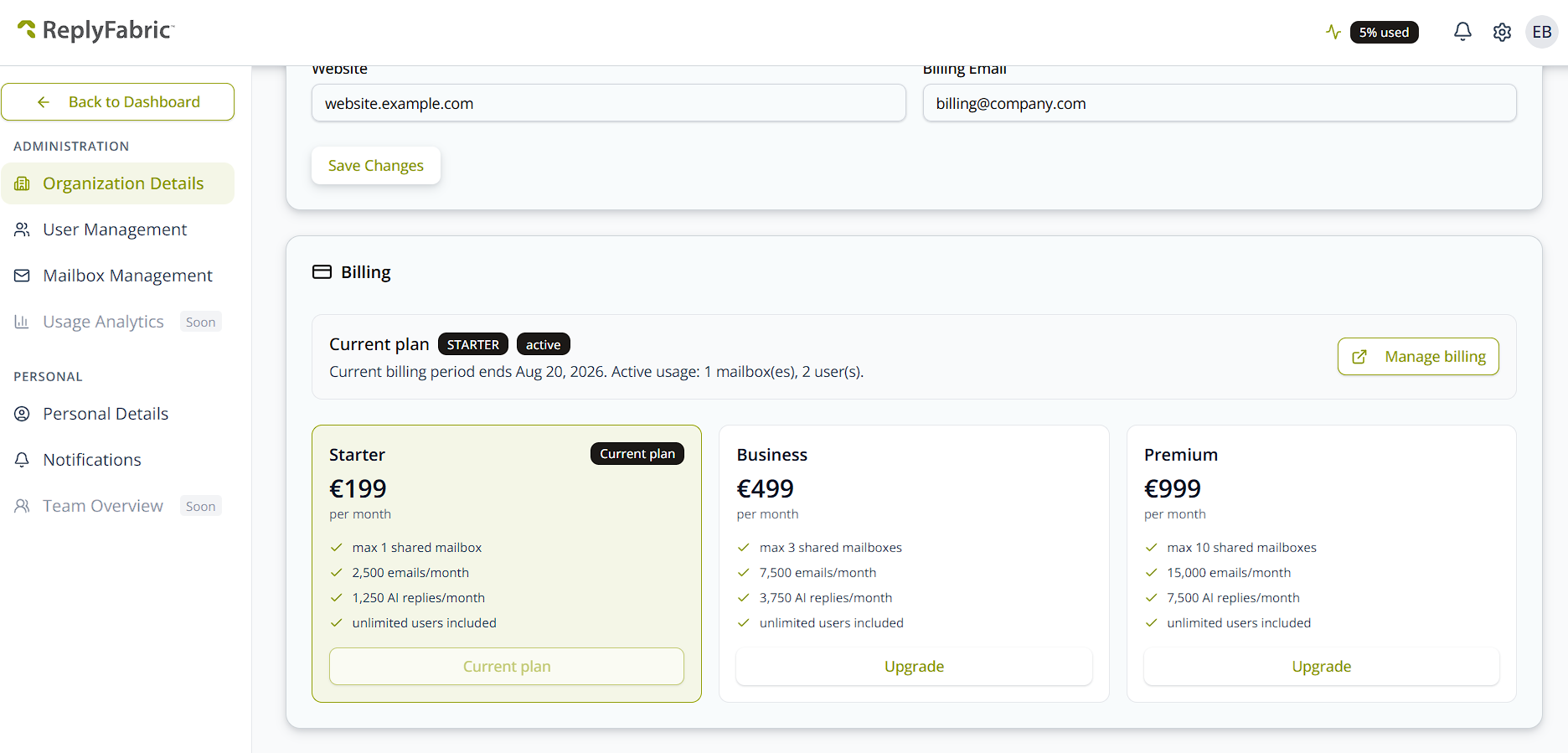
Go to Organization Details → Billing. The Billing section shows your current plan, trial end date, and active usage (mailboxes and users). Compare the three plans:
| Plan | Price | Shared mailboxes | Emails/month | AI replies/month |
|---|---|---|---|---|
| Starter | €199/mo | max 1 | 2,500 | 1,250 |
| Business | €499/mo | max 3 | 7,500 | 3,750 |
| Premium | €999/mo | max 10 | 15,000 | 7,500 |
All three plans include unlimited users. Click Start plan under the plan you want.
2. Confirm your identity
Start plan takes you to a secure Stripe checkout page. Stripe uses a network-wide feature called Link to speed up checkout — if it recognizes your email from anywhere else Link has been used, it asks you to confirm a one-time code sent to your phone (or email) before showing your saved payment details.
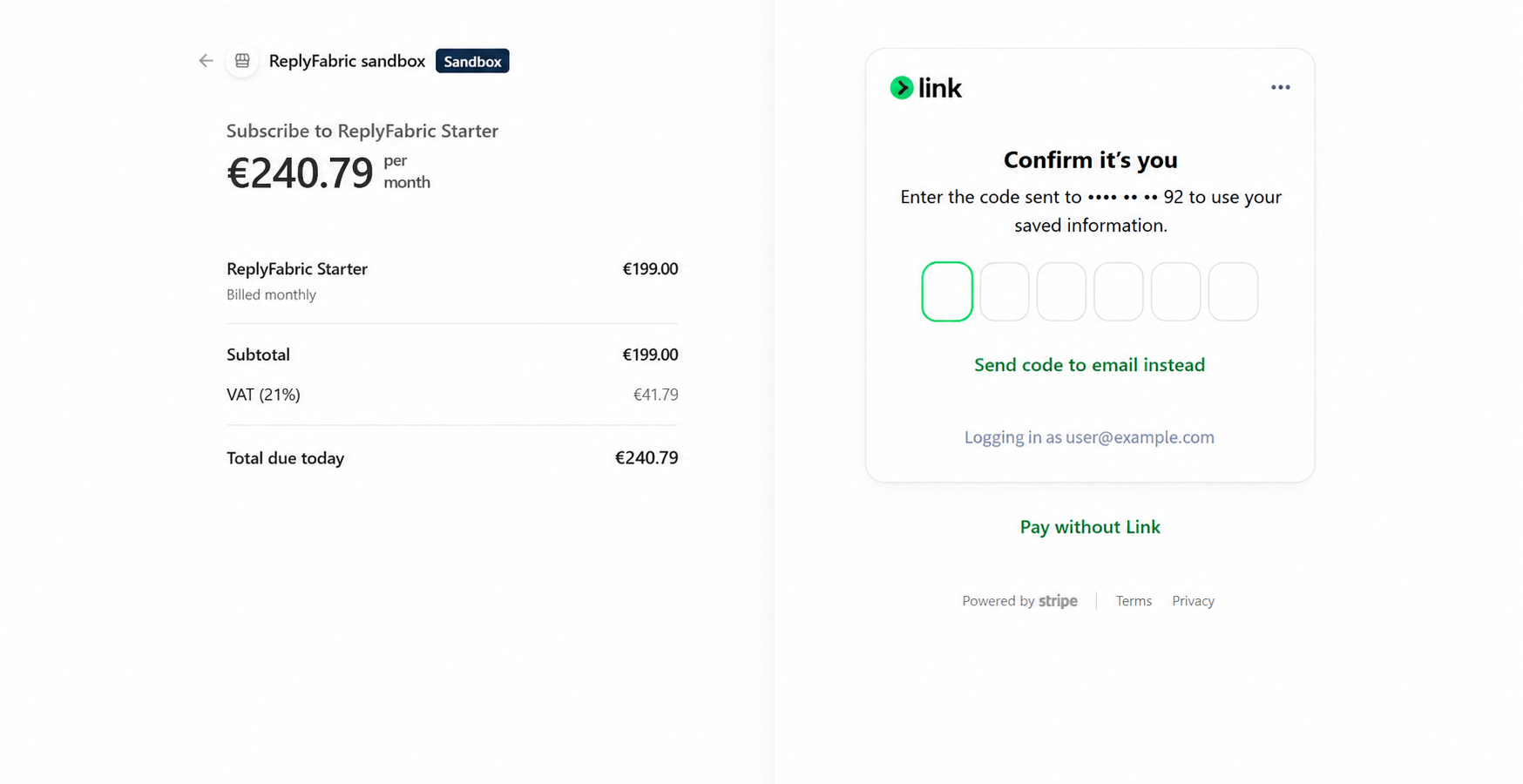
Enter the code, or tap Send code to email instead if you'd rather not use your phone. In a hurry, or don't want to use a saved card? Click Pay without Link to skip straight to a manual checkout — covered in the next step.
Don't see this screen at all? That's normal — it only appears when Stripe recognizes your email through Link. Otherwise, you'll land directly on the payment form in step 3.
3. Choose how to pay
Stripe gives you two ways to pay. Either is fine — pick whichever you'd rather do:
| Pay with Link | Pay without Link | |
|---|---|---|
| Best if | You want faster checkout everywhere next time | You'd rather not save anything to Link |
| You'll use | A card, saved to Link | Apple Pay or a card |
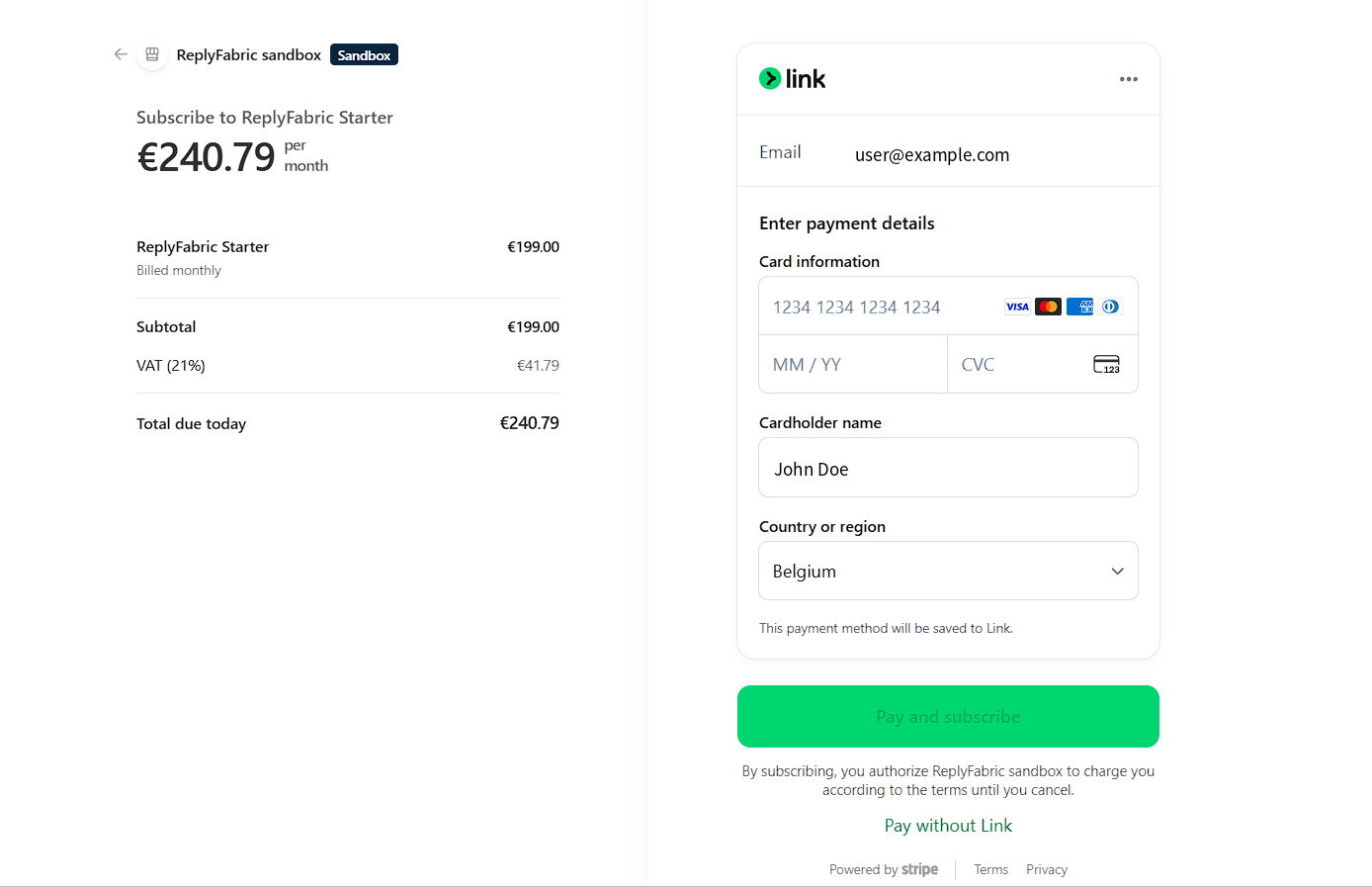
Option A — Pay with Link: fill in your card number, expiry date, CVC, cardholder name, and country, then click Pay and subscribe. Stripe saves the card to Link, so this — and any other Link-enabled checkout — gets faster next time (that's the confirmation-code screen from step 2).
Option B — Pay without Link: click Apple Pay for a one-tap payment, or choose Card under Payment method, then click Pay and subscribe. Nothing is saved to Link.
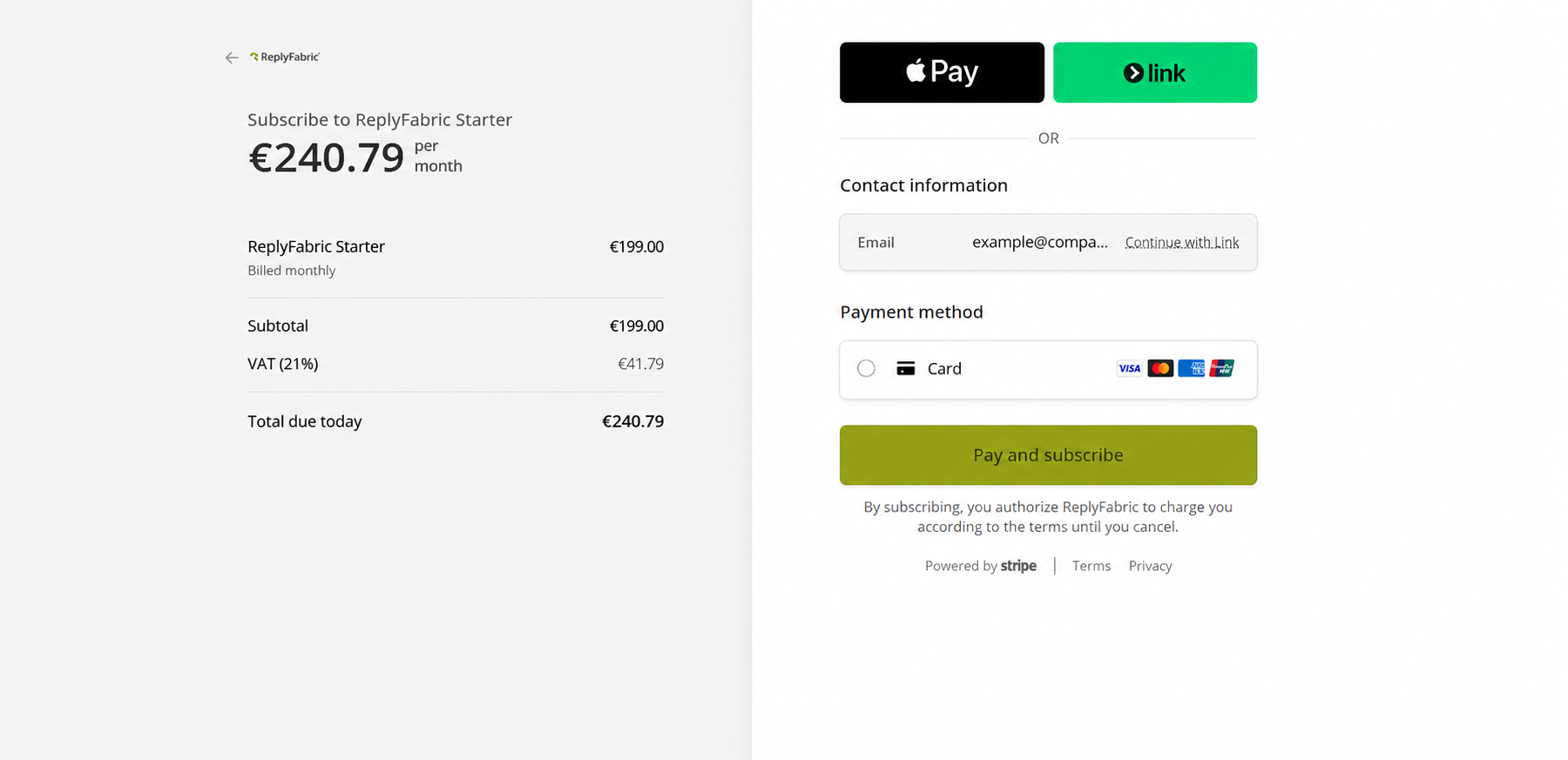
Either way, the order summary on the left stays the same — for Starter, that's €199.00 + €41.79 VAT = €240.79 due today (VAT is calculated from your billing country).
4. You're in
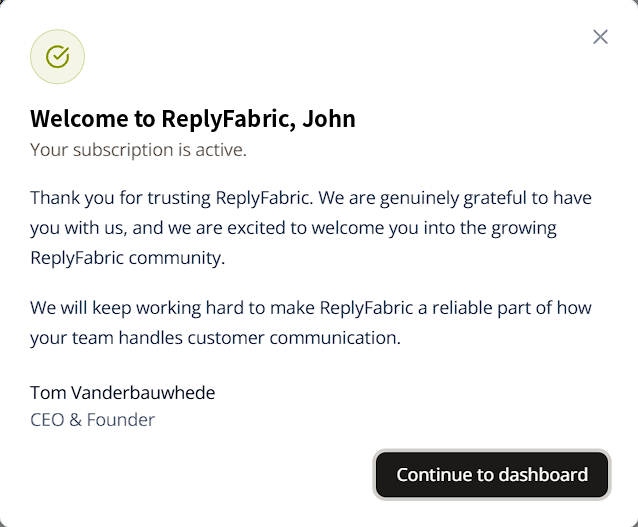
Once payment succeeds, ReplyFabric welcomes you and confirms your subscription is active. Click Continue to dashboard — your mailbox, email processing, and team settings all carry over from the trial unchanged. Nothing to reconfigure.
5. Manage your subscription
Back in Organization Details → Billing, your plan now shows as active, with the current billing period end date and your active usage. From here you can:
- Upgrade — click Upgrade under Business or Premium to move to a higher plan.
- Manage billing — click Manage billing to open the Stripe customer portal.
6. The billing portal
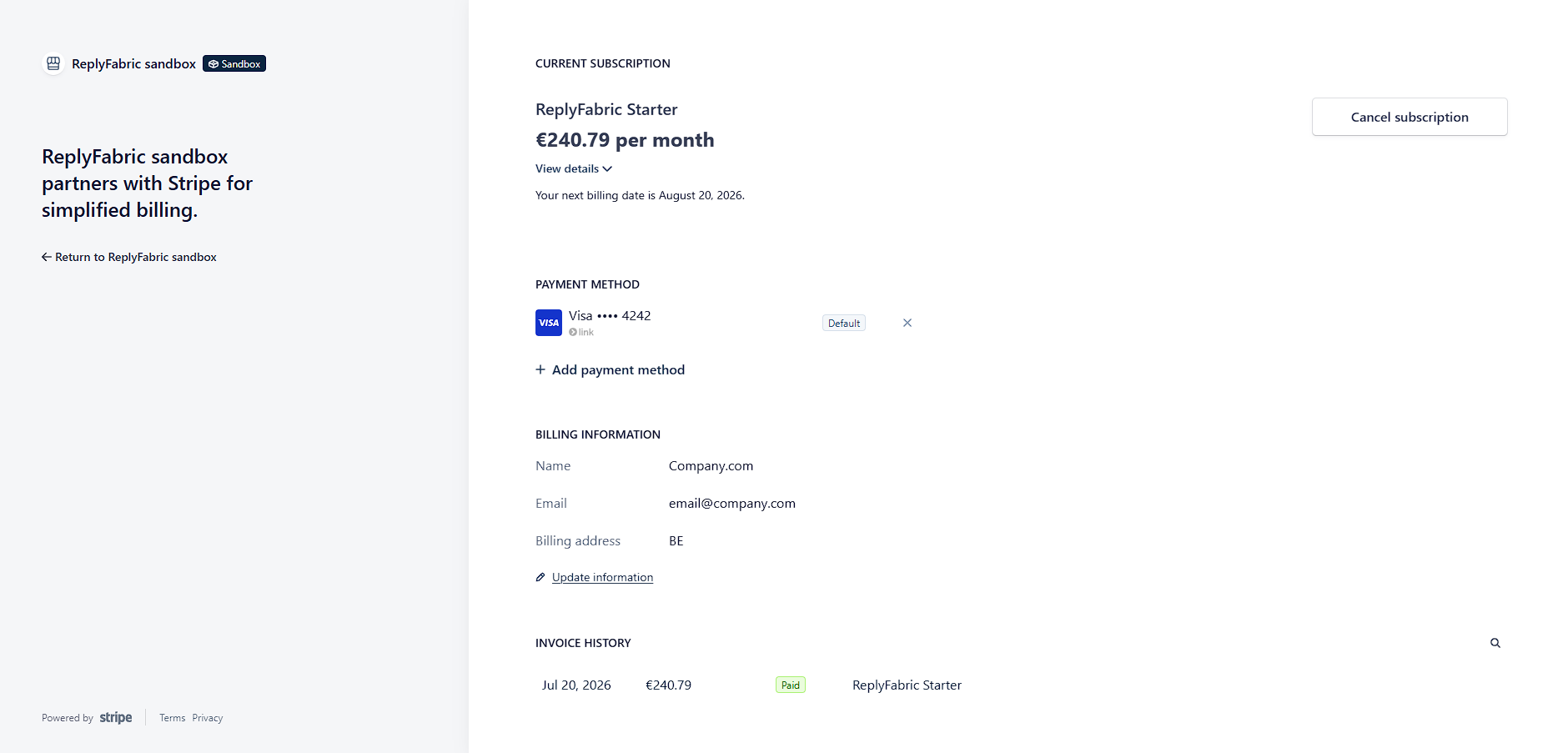
Manage billing opens the Stripe customer portal, where you can:
- View your current subscription, price, and next billing date.
- Update or add a payment method, and set a default card.
- Update your billing information — name, email, and address.
- Review your full invoice history.
- Cancel your subscription with Cancel subscription.
7. Download invoices and receipts
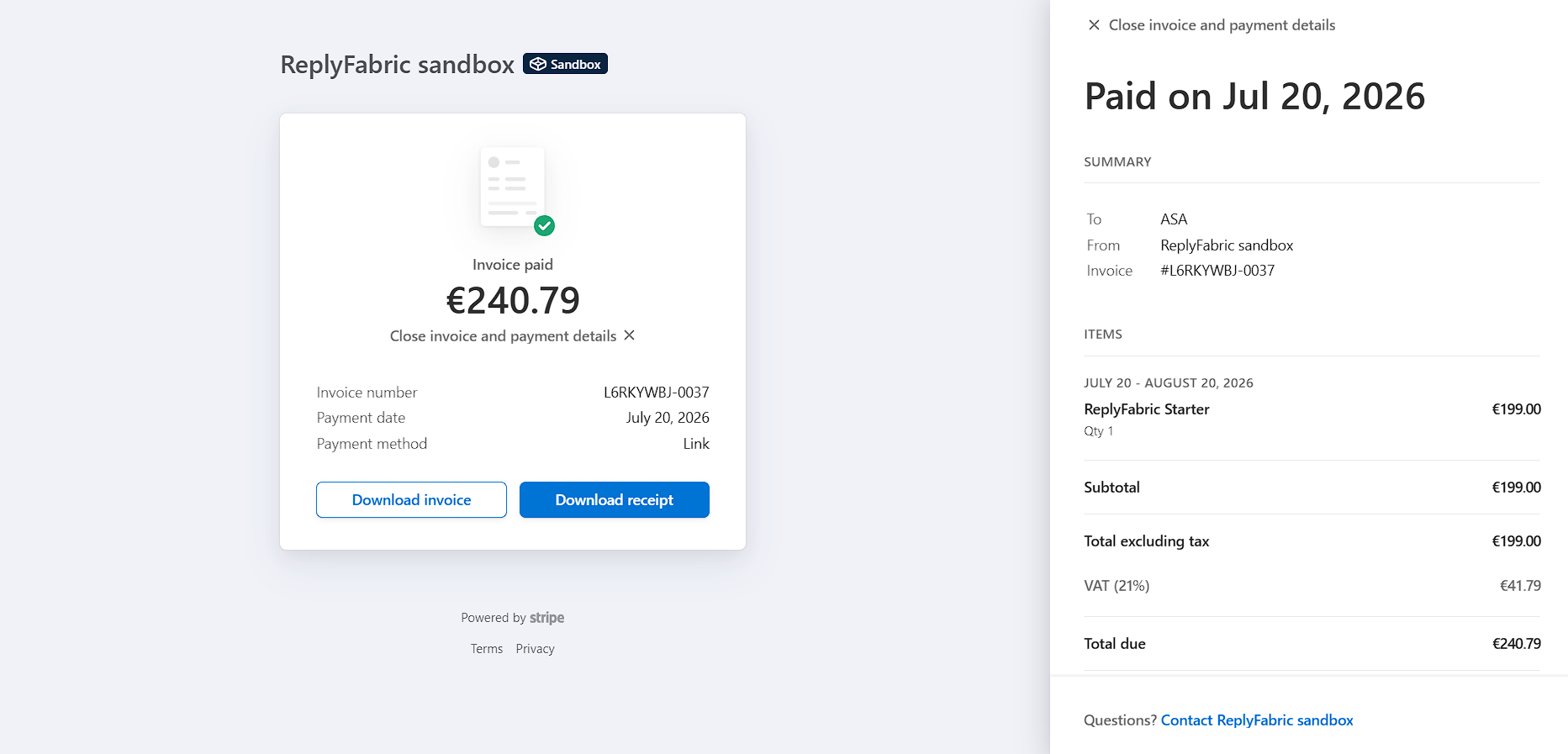
Select any invoice in the history to open its details — invoice number, payment date, and payment method, plus a line-item breakdown with subtotal, VAT, and total. Use Download invoice or Download receipt to save a copy for your records.
What's next
- Bring the rest of your team in — see Inviting Users: Bring Your Team into the Shared Workspace.