Demo Mailbox: Try ReplyFabric Without Touching a Real Inbox
A demo mailbox lets you see exactly what ReplyFabric does with your email — draft replies, categorize, route to the right person — without connecting your team's real inbox first.
What a demo mailbox can do
- Receive real email, either forwarded from your own inbox or sent to it directly, so you can test with real conversations instead of made-up examples.
- Draft AI replies, assign categories and intents, and apply actions on that email, exactly like a connected mailbox does.
- Let you review and adjust categories, intents, actions, FAQs, and knowledge base content ahead of time, so your real mailbox starts from settings you've already checked.
What a demo mailbox can't do
- It never touches a real Outlook or Gmail account. There's no inbox to sync with, so nothing it does is visible anywhere except inside ReplyFabric.
- It doesn't draft directly into an inbox, move email between folders, or apply any provider-side action — the same limited state as a real mailbox with mailbox interaction turned off.
- It doesn't process automatically. You trigger each batch yourself.
Demo mailboxes stay manual-only. Each run processes up to 10 of the newest unprocessed emails already stored in ReplyFabric.
Creating a demo mailbox
-
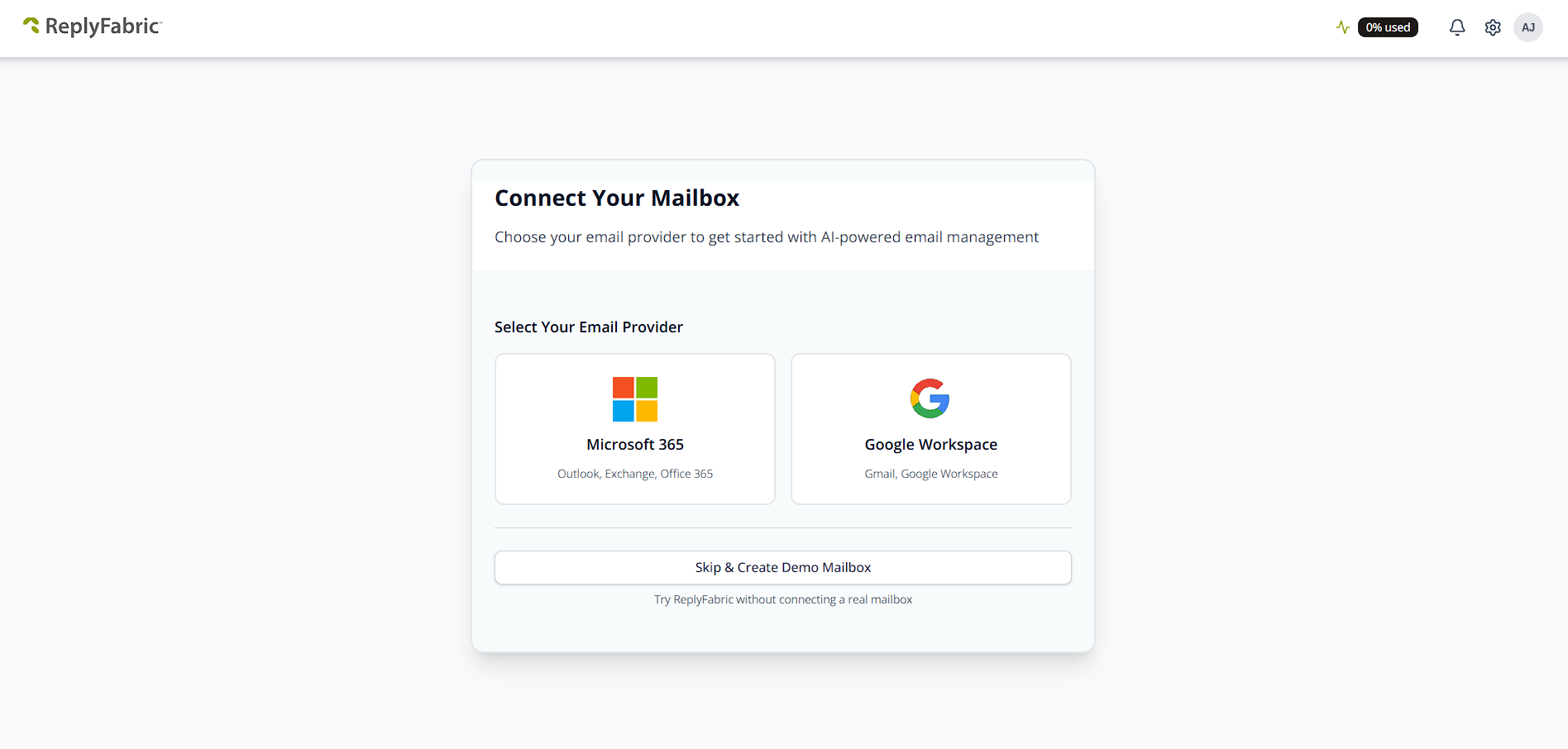
When adding a mailbox, choose Skip & Create Demo Mailbox instead of Microsoft 365 or Google Workspace.
-
Pick a category template — General Office or Minimal Setup. This choice is specific to demo mailboxes — a real mailbox starts with just General and Archive, then builds out from there either manually or through AI Setup, a feature ReplyFabric enables for your organization that configures the rest automatically. ReplyFabric assigns the demo mailbox its own address (shown at the top of this step, e.g.
demo@rf10.eu).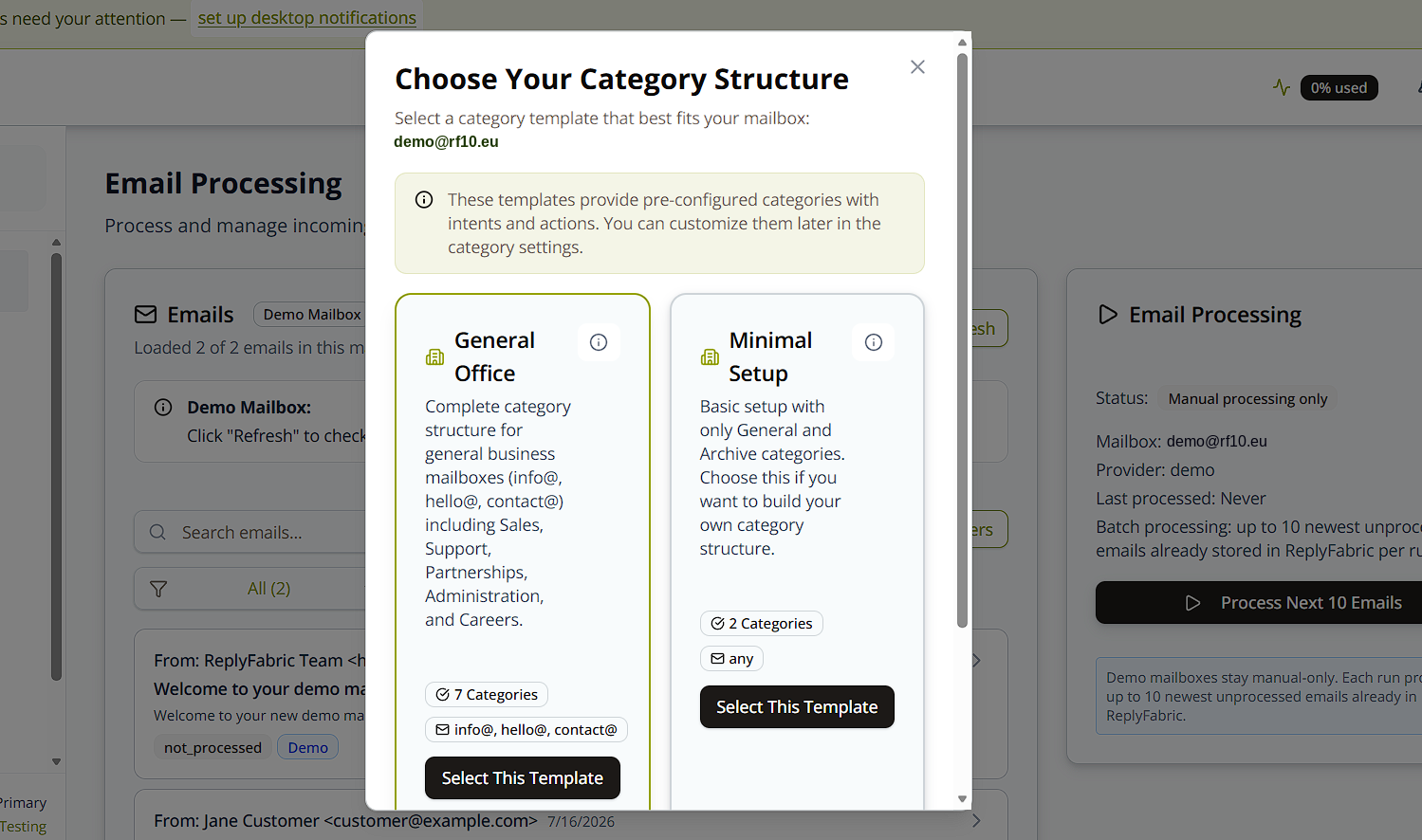
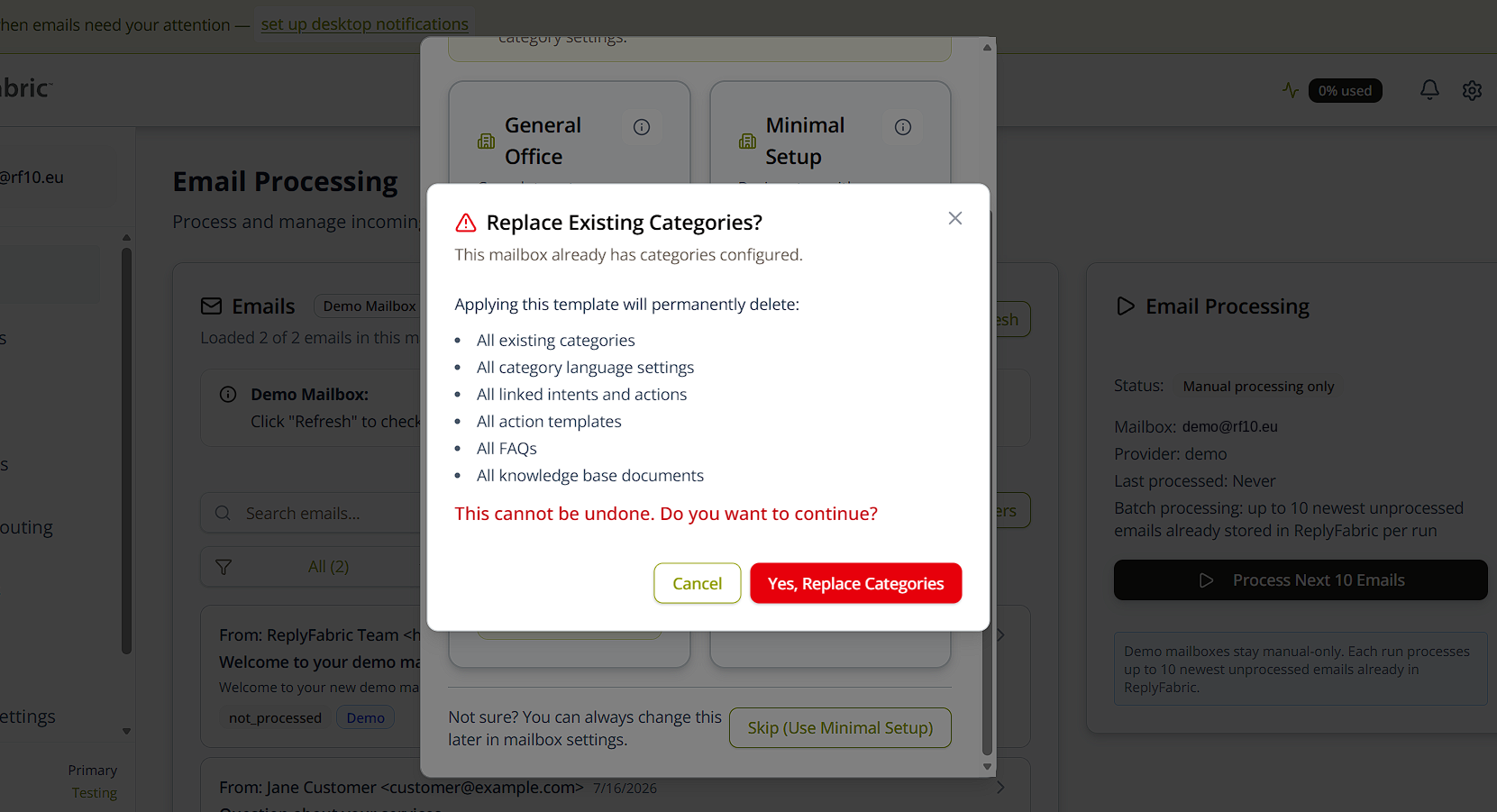
Be careful re-applying a template later: if the mailbox already has categories, applying a template permanently deletes all existing categories, settings, intents, actions, templates, FAQs, and knowledge base documents. This cannot be undone.
-
Your demo mailbox is ready, with a welcome email from the ReplyFabric team already waiting so you have something to process on your first run.
Testing with your own email
Forward a few real emails from your team's actual inbox to the demo mailbox's address to see how ReplyFabric handles the kind of email you actually receive — no need to connect anything real yet. Forward one at a time from Outlook for a quick look, or set up automatic forwarding (below) for a steady stream.
Once emails arrive, go to Email Processing and select Process Next 10 Emails to run them through ReplyFabric manually. Review the drafts, categories, and routing it produces, and adjust categories, intents, actions, or knowledge base content until you're happy with the result.
Nothing here is time-limited or one-shot — keep forwarding and processing batches for as long as you want before connecting a real mailbox.
Setting up automatic forwarding to the demo mailbox
For a steady stream of real email instead of forwarding one at a time, the simplest self-service option is Outlook's own Forwarding setting:
-
Outlook on the web: Settings → Mail → Forwarding → toggle Enable forwarding → enter the demo mailbox's address (e.g.
demo@rf10.eu) under Forward my email to.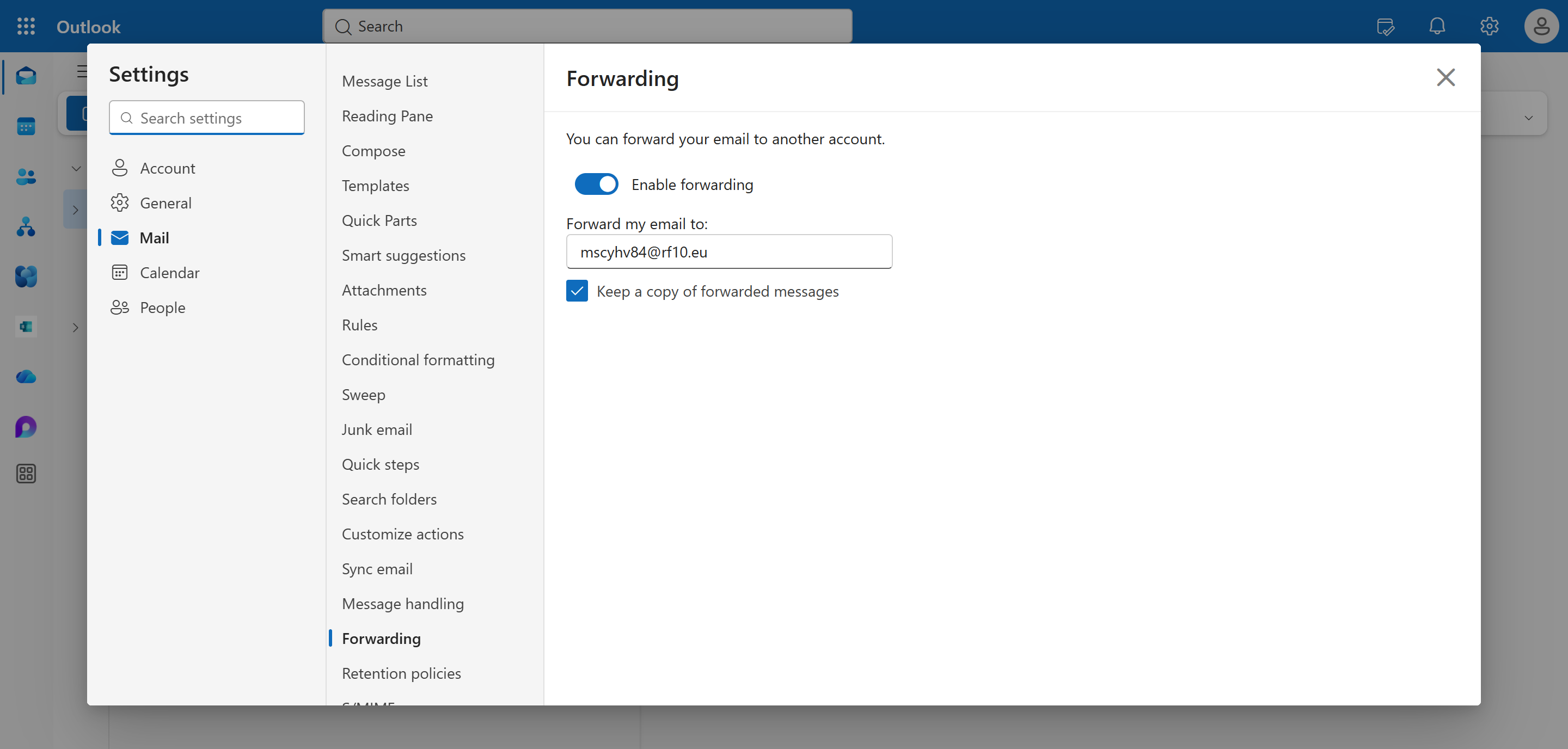
Check Keep a copy of forwarded messages before saving. Leave it unchecked and your mailbox stops receiving anything the moment forwarding is on — if the forward silently fails (blocked, misconfigured, whatever), there's no trace anywhere to notice or recover it. Checking it costs nothing and is the only way to confirm delivery independently of ReplyFabric's dashboard.
Want forwarding to apply only to some emails rather than everything? Use an Outlook inbox rule instead — Settings → Mail → Rules → Add new rule → set a condition → action: Forward to → enter the demo address. Rules always keep the original in your Inbox, since the message is delivered there first and the rule runs afterward.
Testing on behalf of a shared mailbox instead of your own? An admin can set up the identical forwarding centrally from the Exchange admin center — same setting, just configured on someone else's mailbox rather than self-service:
-
In the Exchange admin center, go to Recipients → Mailboxes, select the mailbox to forward from, and open Mail flow settings → Forwarding → Edit.
-
Choose Forward to an external email address, enter the demo address, and check Deliver message to both forwarding address and mailbox — same reasoning as the Keep a copy checkbox above.
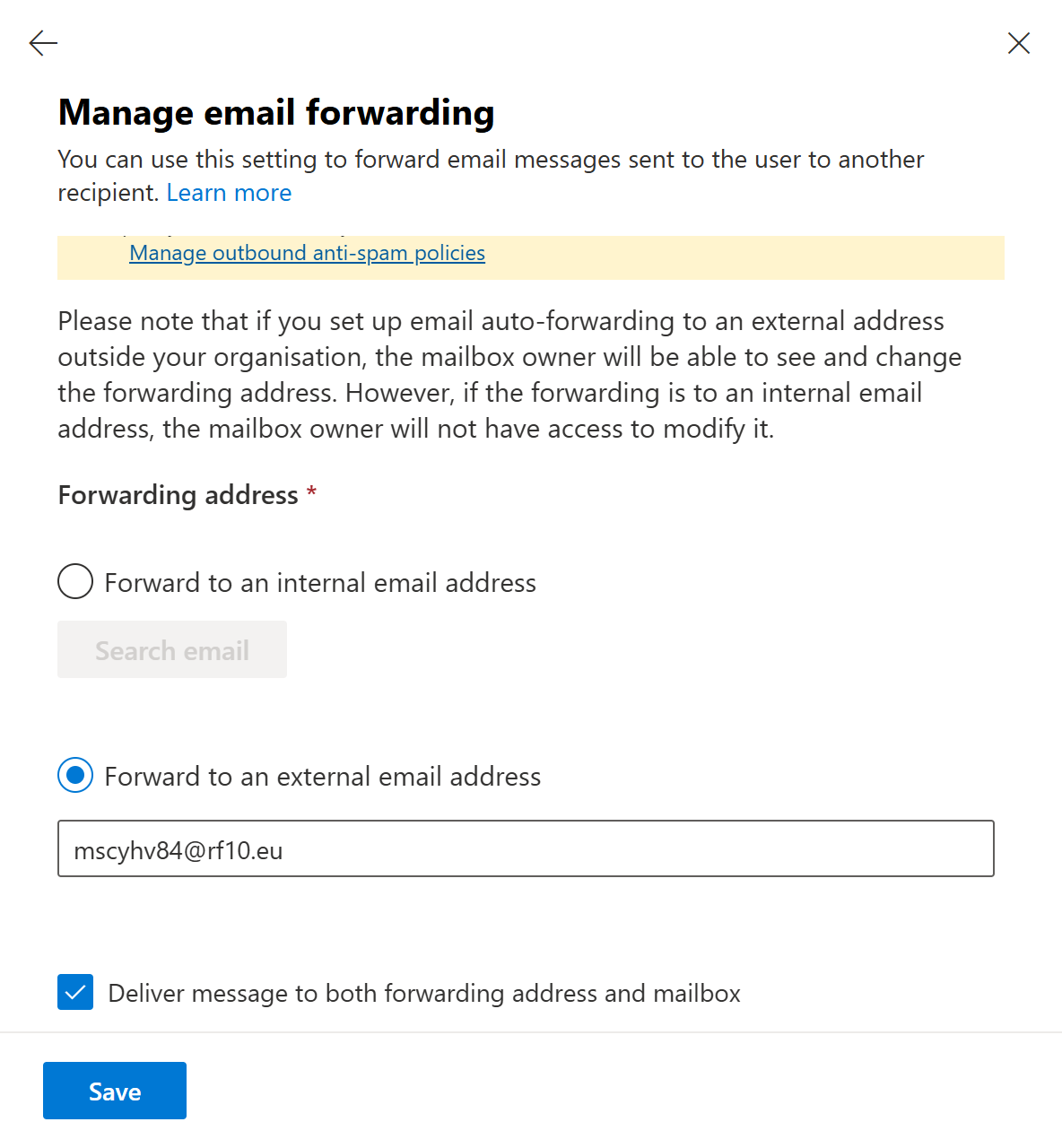
-
Save. New email sent to that mailbox now forwards automatically to the demo mailbox.
If forwarded emails don't arrive
Microsoft 365 blocks automatic external email forwarding by default — including a forwarding rule or mailbox-forwarding setup pointed at your demo mailbox's address, since it's outside your organization. This is a Microsoft setting, not a ReplyFabric one, so it needs a Microsoft 365 admin to fix rather than anything in ReplyFabric's UI.
How to tell this is what's happening: the sender gets a bounce-back email containing 5.7.520 Access denied, Your organization does not allow external forwarding.
How your Microsoft 365 admin fixes it:
-
In the Microsoft Defender portal, go to Email & collaboration → Policies & rules → Threat policies → Anti-spam → Anti-spam outbound policy (Default), edit Protection settings, and look for Automatic forwarding rules — it defaults to Automatic - System-controlled, which today behaves the same as Off:
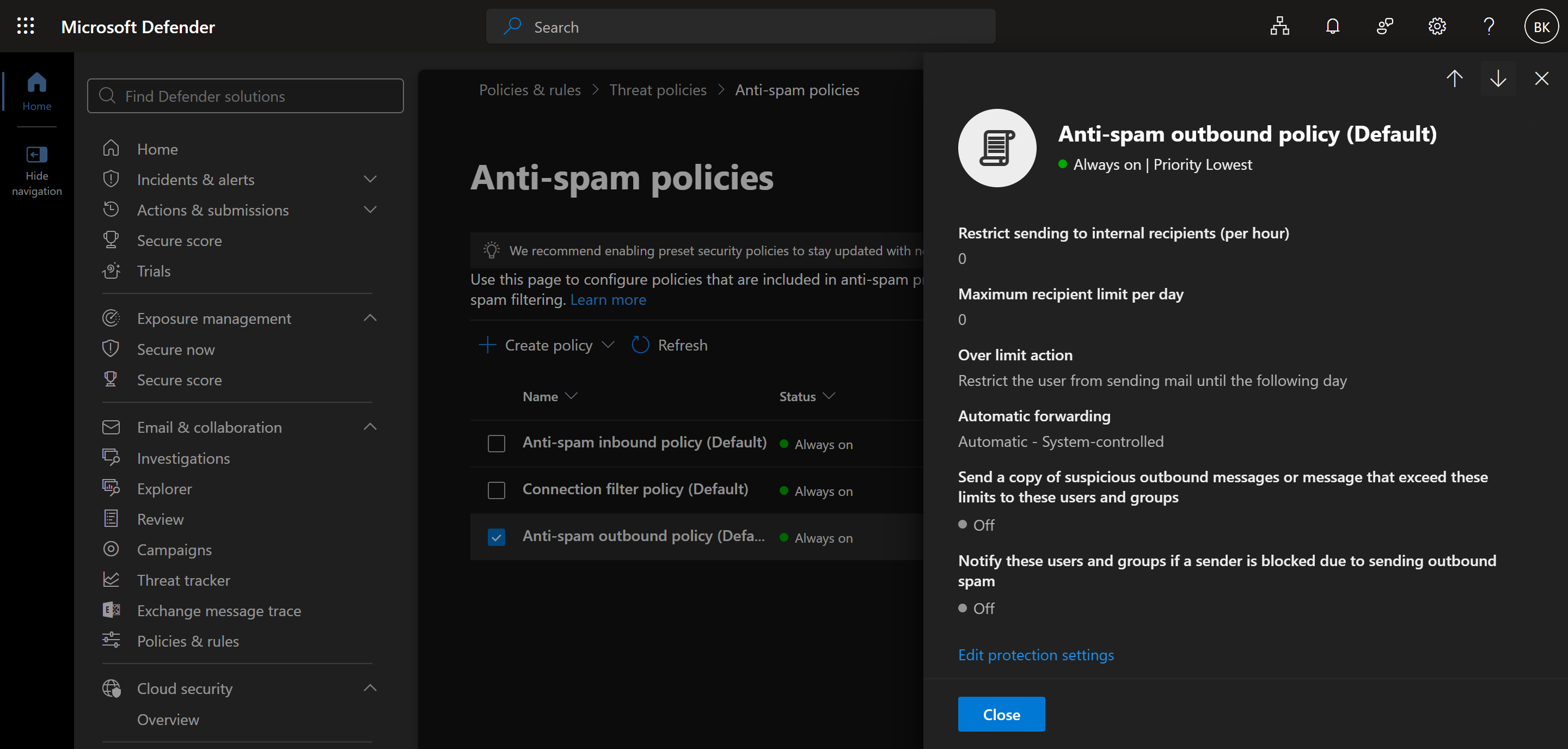
Set it to On.
-
Saving can trigger a "Complete organizational setup" prompt, and clicking through it can fail with "Sorry, we couldn't update your organization settings. Please try again":
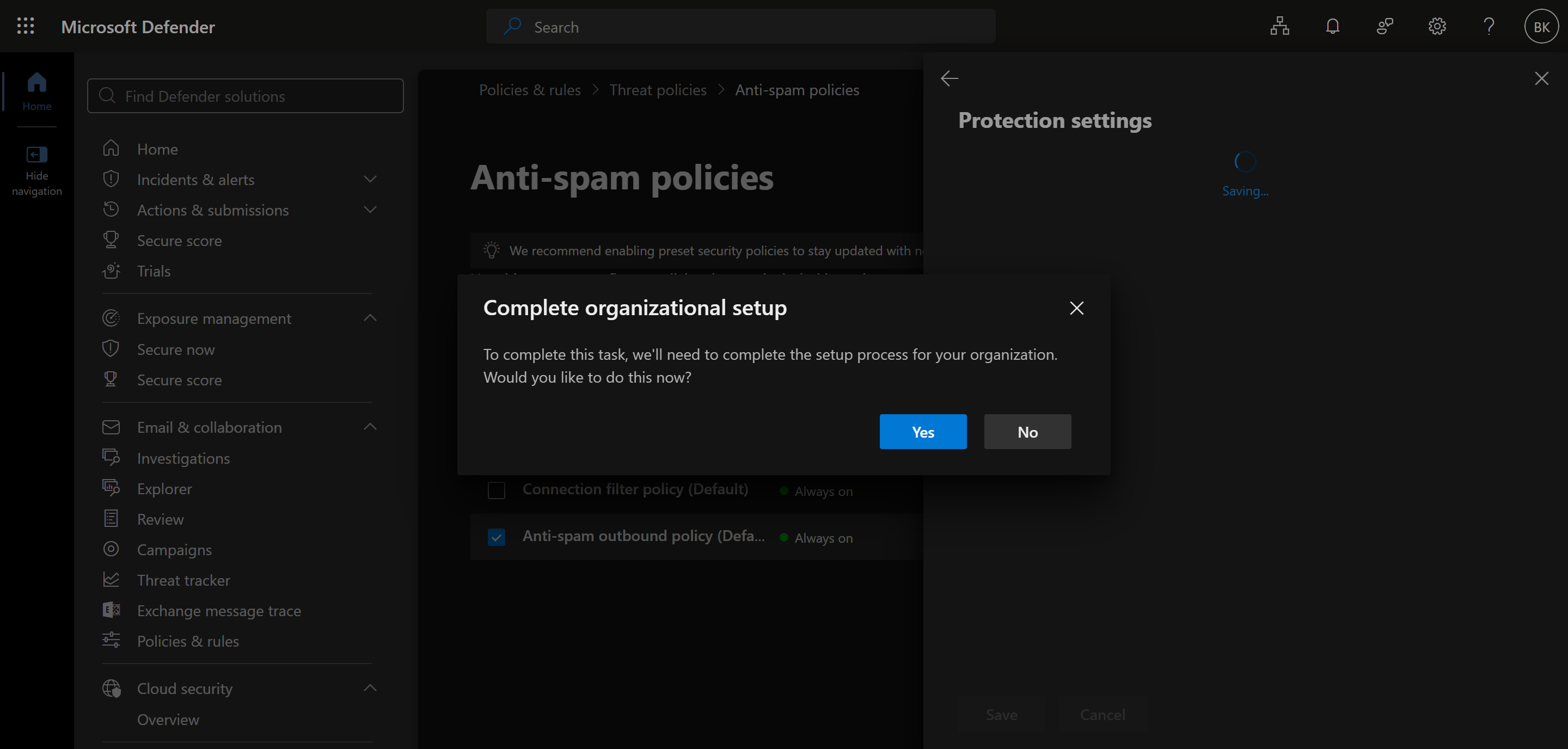
This is a known Microsoft portal issue, not a permissions problem — apply the same setting from Exchange Online PowerShell instead, which works even when the portal doesn't:
Connect-ExchangeOnline Set-HostedOutboundSpamFilterPolicy -Identity "Default" -AutoForwardingMode On -
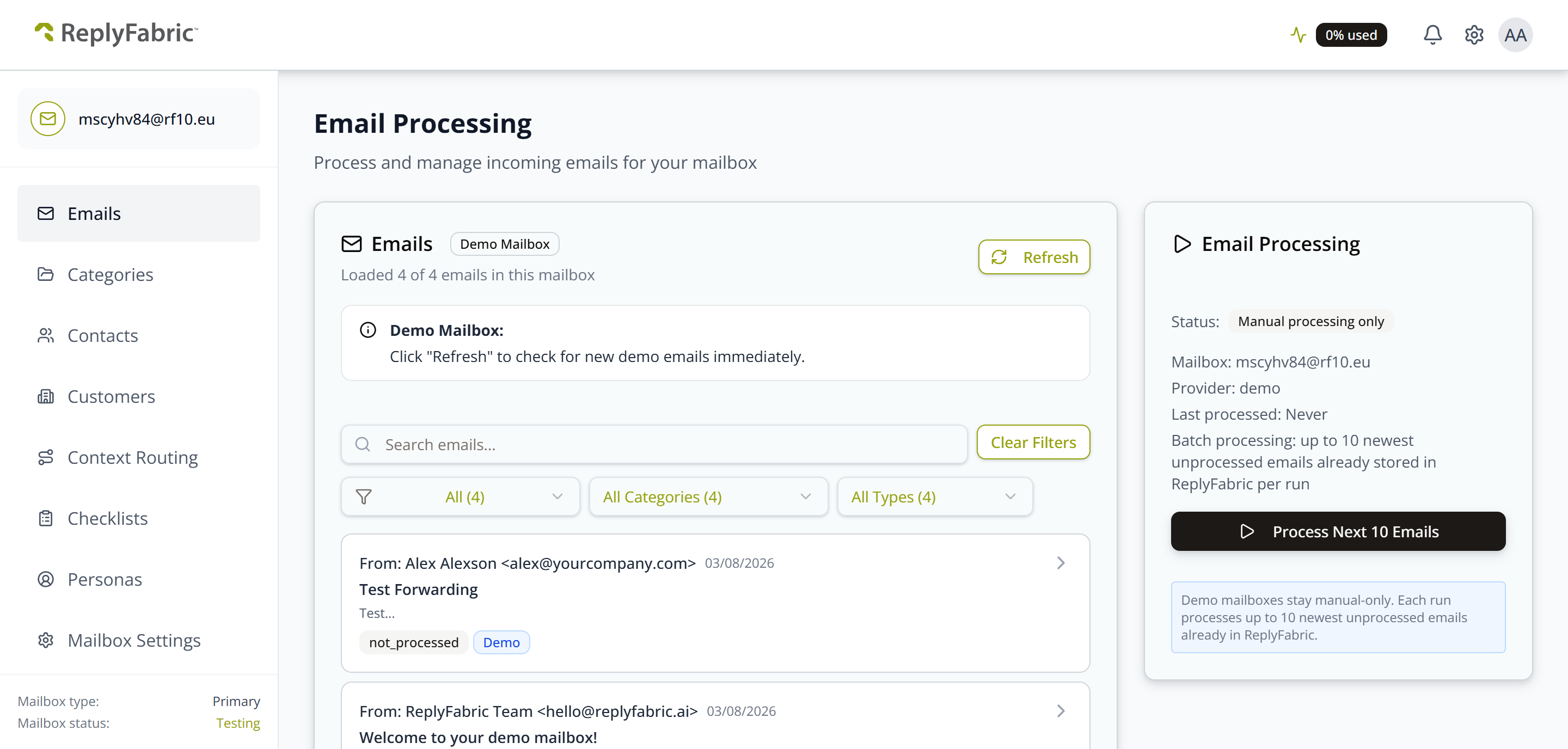
Allow a few minutes for the change to take effect, then resend the test email — it should now go through instead of bouncing, and show up under Email Processing in ReplyFabric like any other received email:
Restricting forwarding to just ReplyFabric's domain (optional)
The anti-spam toggle above allows automatic forwarding for the whole organization, not just to ReplyFabric — and it's required either way; Remote domains alone won't unblock forwarding without it. Admins who'd rather not leave forwarding open tenant-wide can layer Remote domains on top of the toggle to restrict it to just ReplyFabric's domain:
-
In the Exchange admin center, go to Mail flow → Remote domains. By default there's only the Default entry (
*), covering every external domain: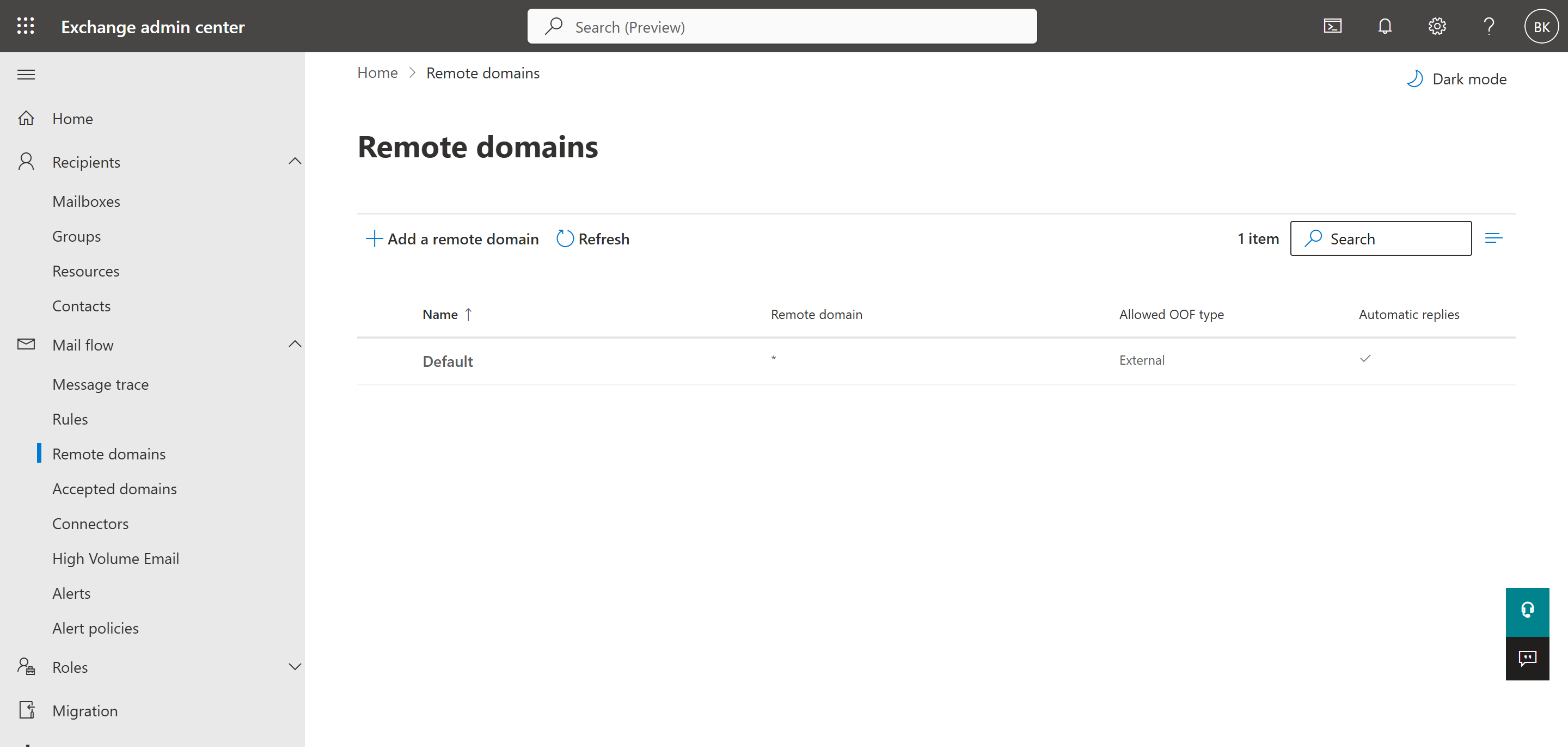
-
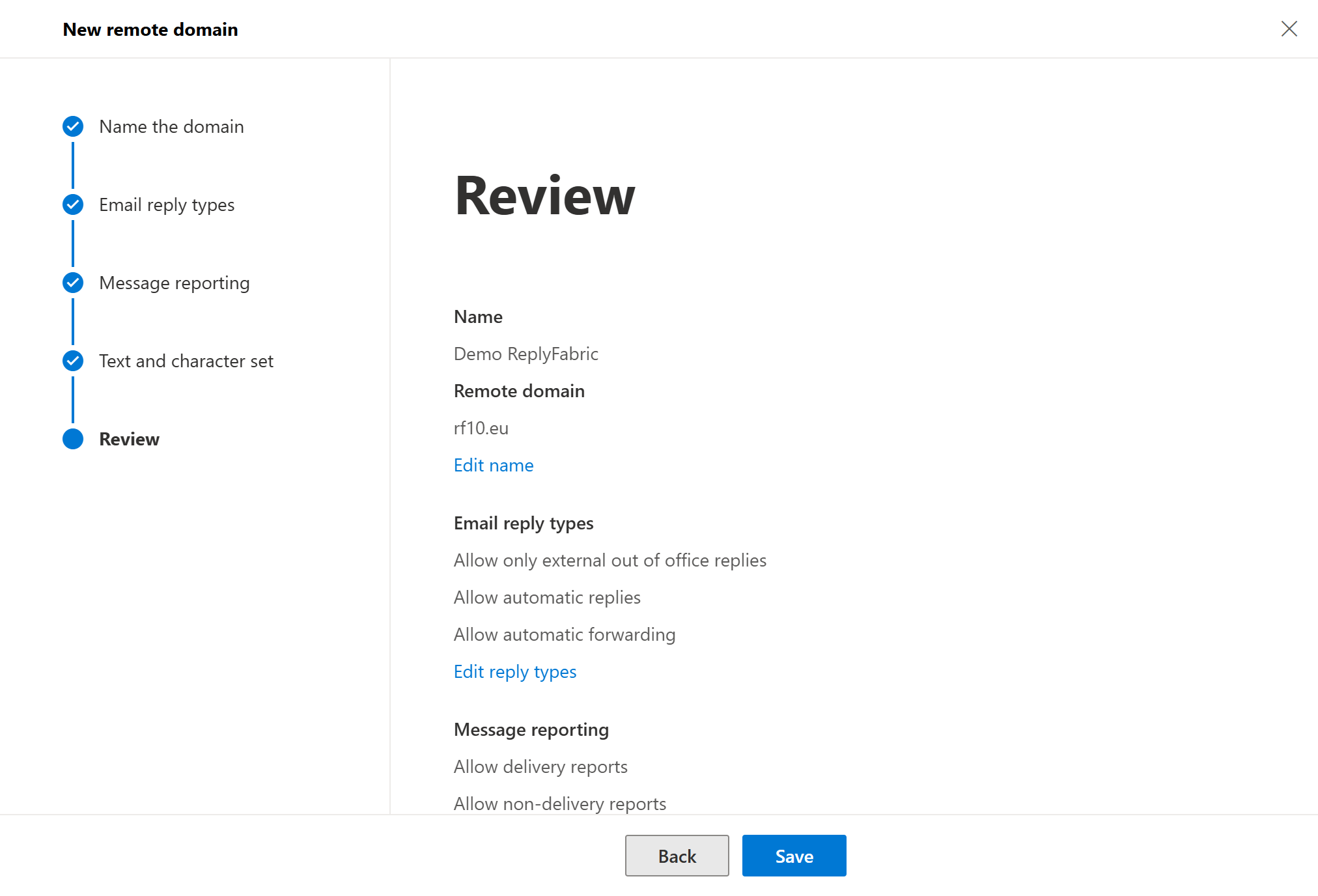
Select Add a remote domain, give it a name (e.g. "ReplyFabric Demo") and enter ReplyFabric's domain (e.g.
rf10.eu):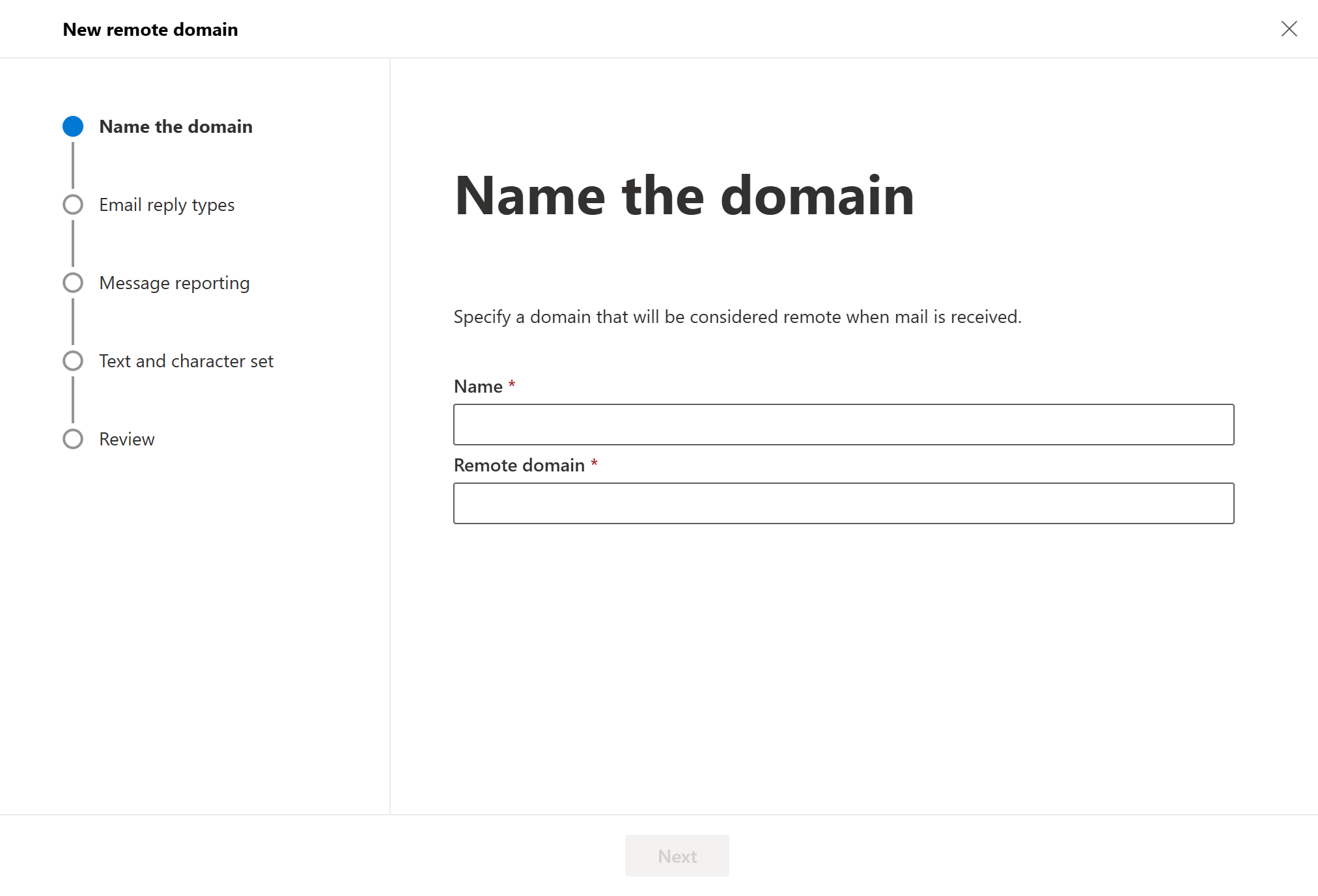
-
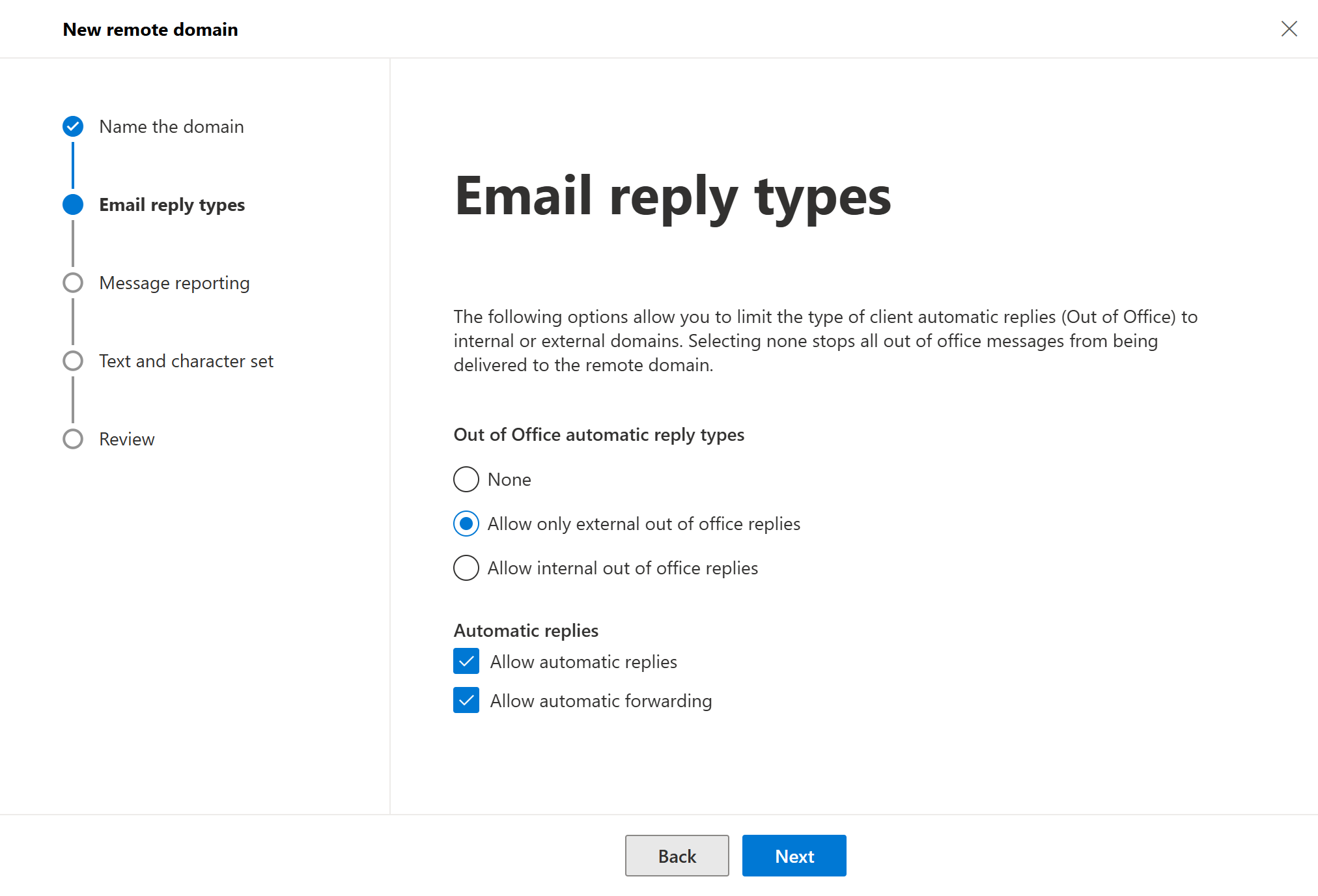
On Email reply types, under Automatic replies, check Allow automatic forwarding — this is the setting that actually matters here:
-
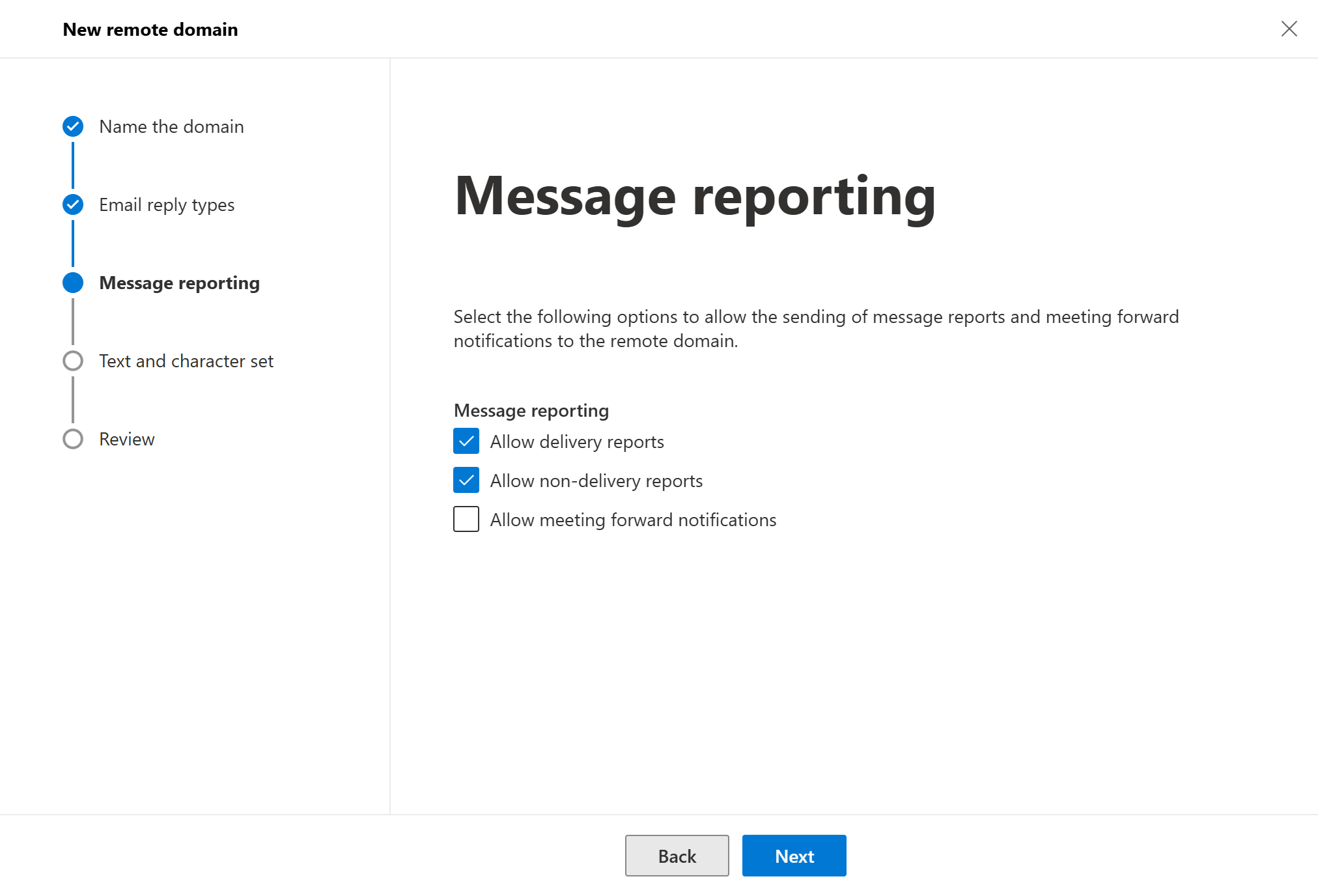
On Message reporting, leave Allow delivery reports and Allow non-delivery reports checked, so a blocked or failed forward still bounces back to the sender instead of disappearing silently:
-
Review and save:
-
Go back to Mail flow → Remote domains → Default, edit it, and uncheck Allow automatic forwarding there. This is the step that actually restricts anything — without it, Default still allows forwarding to every domain, and the entry you just added doesn't narrow that down on its own:
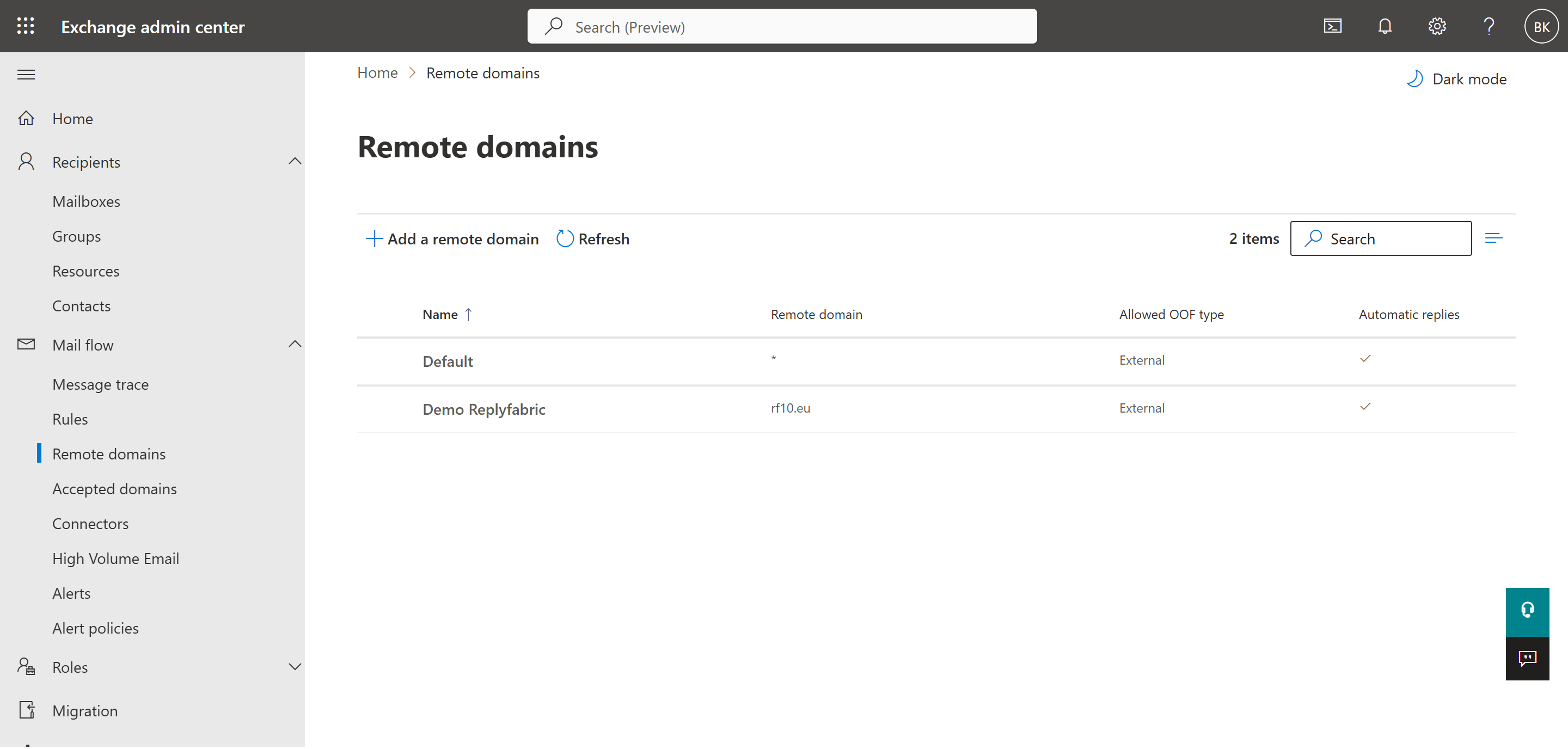
Test this before relying on it: forwarding to ReplyFabric's domain should still work, and forwarding to any other external address should now bounce with the same
5.7.520error. If it doesn't, double-check step 6 — it's the one most people skip, since it's easy to assume the new entry alone did all the work.
Moving to a real mailbox
When you're ready, add your real Microsoft 365 or Google Workspace mailbox from the same Add a shared mailbox screen — see Sign In & Connect for that flow. Settings you tuned on the demo mailbox don't carry over automatically; each mailbox keeps its own categories, intents, and actions, so revisit them on the real mailbox before going live.