Mailbox Settings: Provider-Side Interaction
The Interaction sub-tab of Mailbox Settings controls provider-side behavior after ReplyFabric processes an email — labels, folder moves, and read state. Everything here is opt-in: this mailbox uses default interaction behavior until you save a custom configuration.
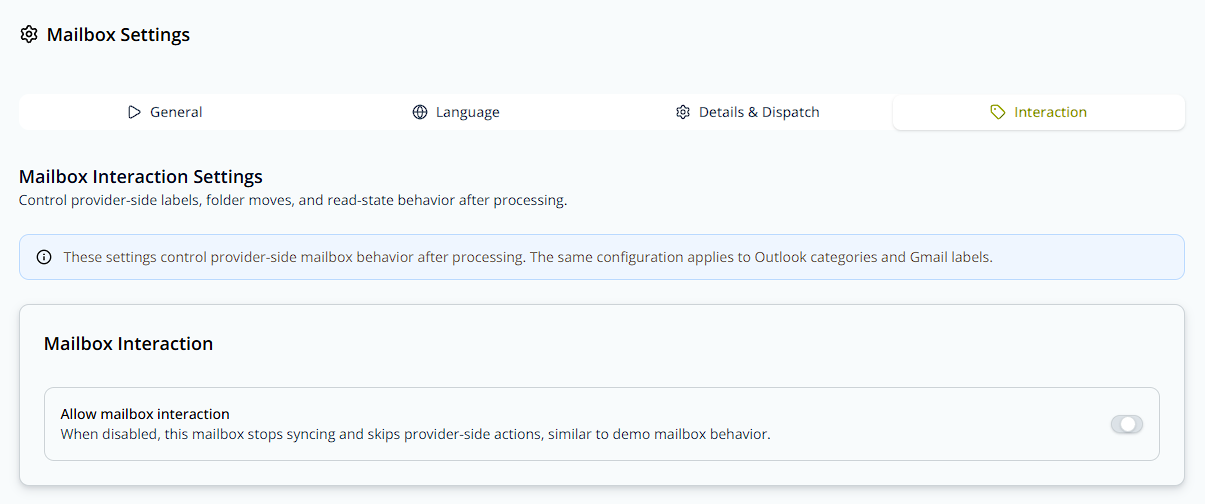
Mailbox Interaction
Allow mailbox interaction, shown at the top of the page above, is the master switch for this whole tab. When disabled, this mailbox stops syncing and skips provider-side actions entirely, similar to demo mailbox behavior.
This isn't scoped to this tab. Disabling it stops ReplyFabric from syncing and acting on this mailbox at all — the same limited state a demo mailbox is locked into. It has to be on for ReplyFabric to process email, create categories, sort, and do anything else real with this mailbox in Outlook or Gmail.
Label Management
Independent toggles controlling whether each piece of ReplyFabric's classification gets written back as an Outlook category or Gmail label on the processed email. Most are self-explanatory from their name (Category, Intent, Action, Language, Sender Domain); two are worth calling out:
- M2M — labels whether the email was machine-generated rather than sent by a person.
- Internal Responsible Initials — labels the assigned responsible person's initials.
Always Use English Action Labels forces English action names on provider-side labels regardless of the email's detected language (off by default).
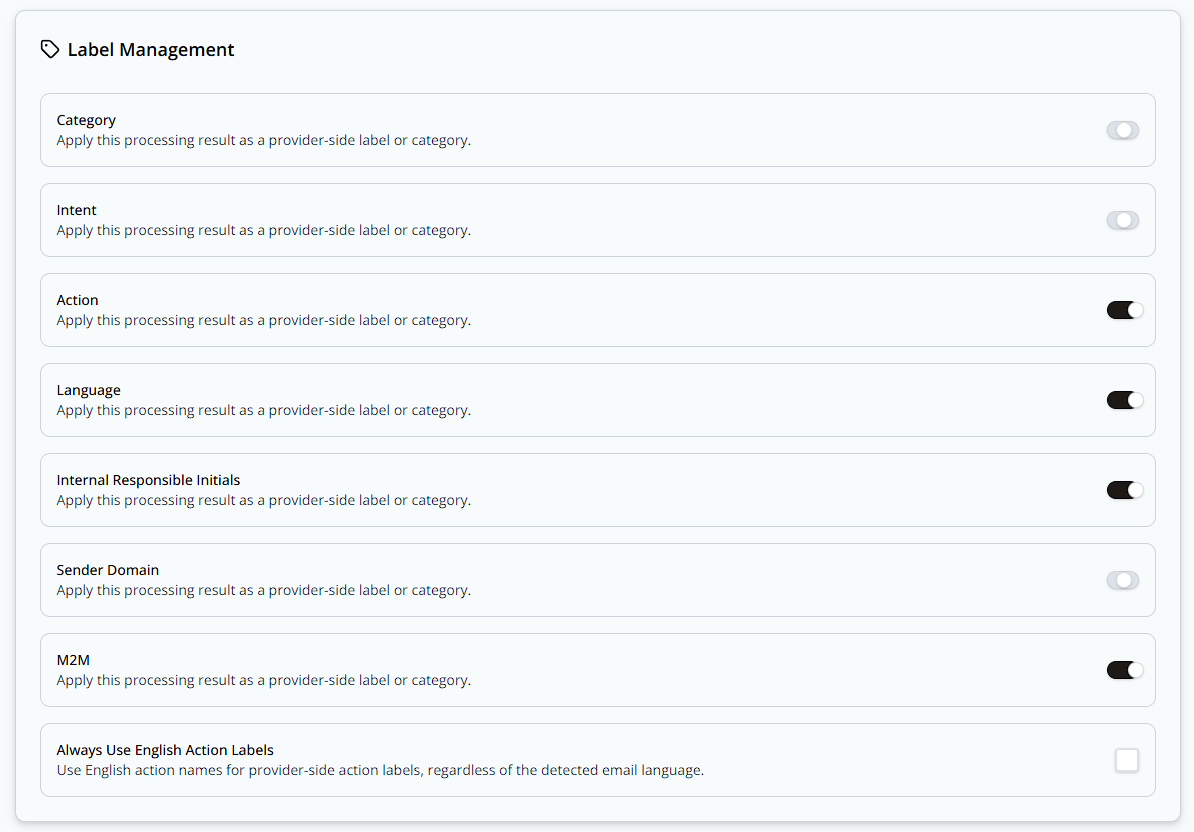
Once saved, these show up directly on the email itself — for example, an AI Forward action assigned to responsible person EP, processed in English:

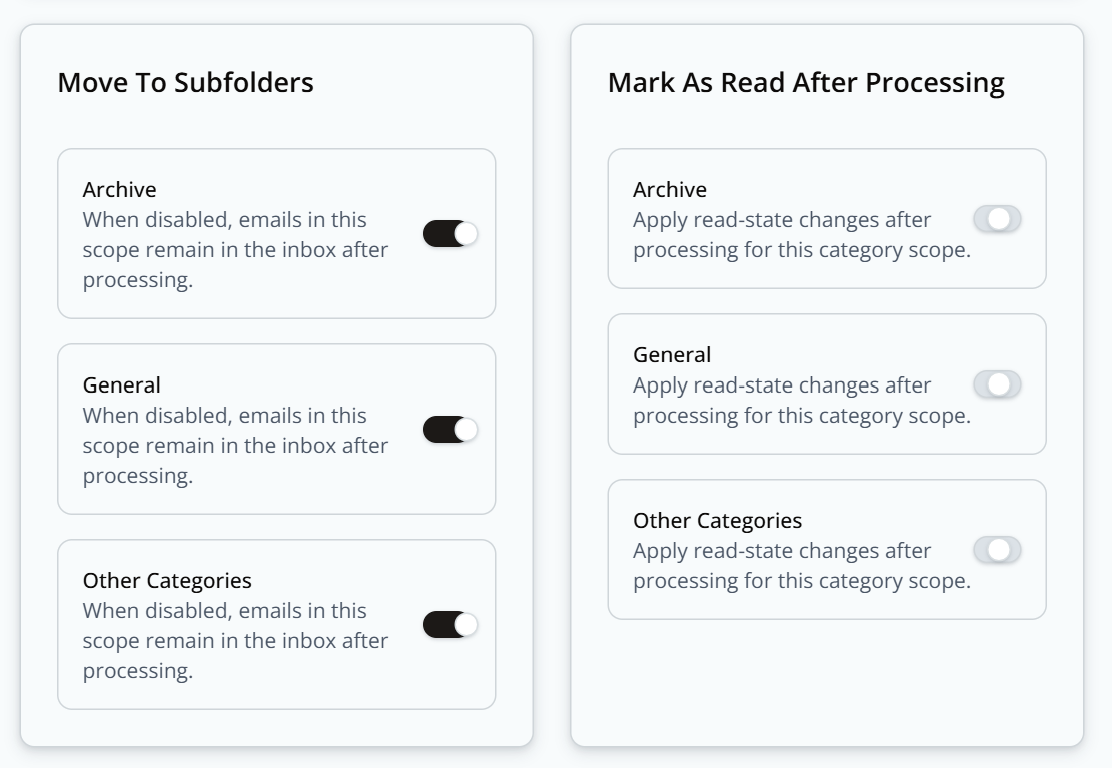
Move To Subfolders & Mark As Read After Processing
Two panels, each with Archive / General / Other Categories scope toggles:
- Move To Subfolders — when disabled for a scope, emails in that scope remain in the inbox after processing.
- Mark As Read After Processing — applies read-state changes after processing, per scope.
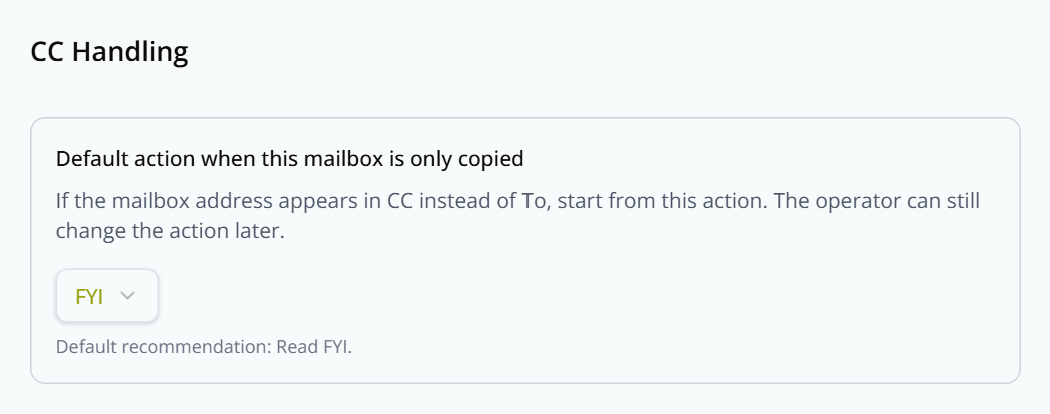
CC Handling
Sets the default action to use when this mailbox address appears in CC instead of To — the recommended default is FYI. The operator can still change the action later on a specific email. See Category Management: Understanding Intents for the full list of available actions.
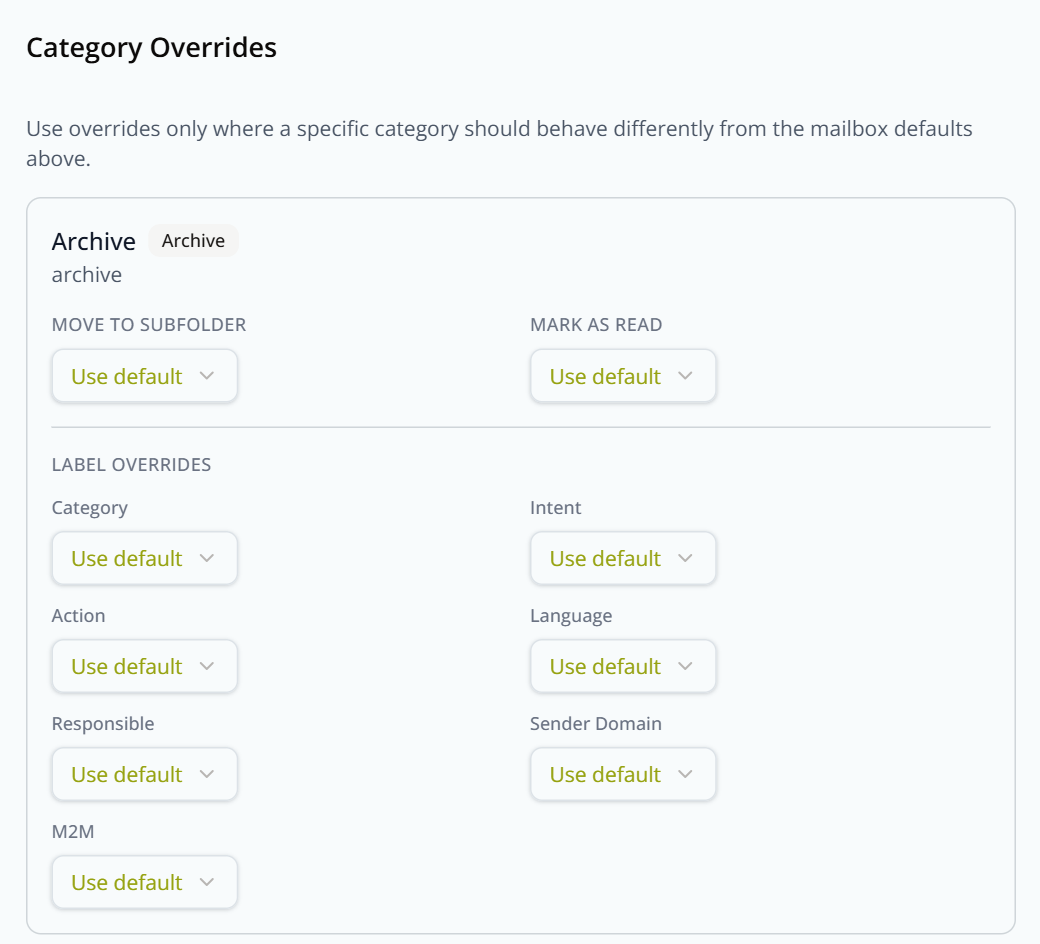
Category Overrides
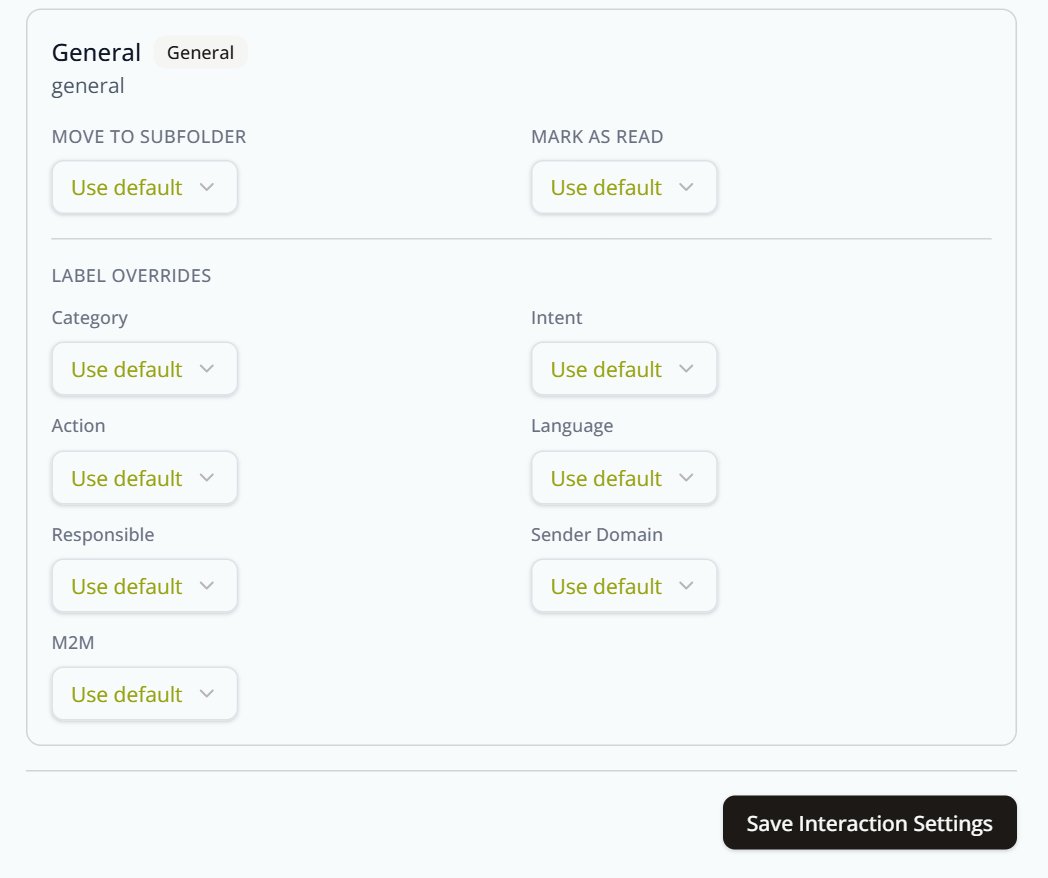
Use overrides only where a specific category should behave differently from the mailbox defaults above. Each category gets its own card with its own Move To Subfolder / Mark As Read settings and a full repeat of the Label Management toggles, defaulting to Use default until overridden.
Click Save Interaction Settings to commit everything on the page.
What's next
- Mailbox Settings: General — mailbox status and processing configuration.
- Category Management: Understanding Intents — the action vocabulary used in CC Handling and Category Overrides.