Category Management: Understanding Intents
An intent captures an email's purpose — is it a question, a complaint, a meeting request, spam? Classification happens in two steps: first an email is sorted into a category (see Category Management: Settings, Templates & Persona), then ReplyFabric detects which intent within that category best matches it. The intent is what decides what actually happens next — reply with AI, forward it, archive it, run a checklist, and so on. The same intent can be linked to multiple categories at once.
System Intents vs. Custom Intents
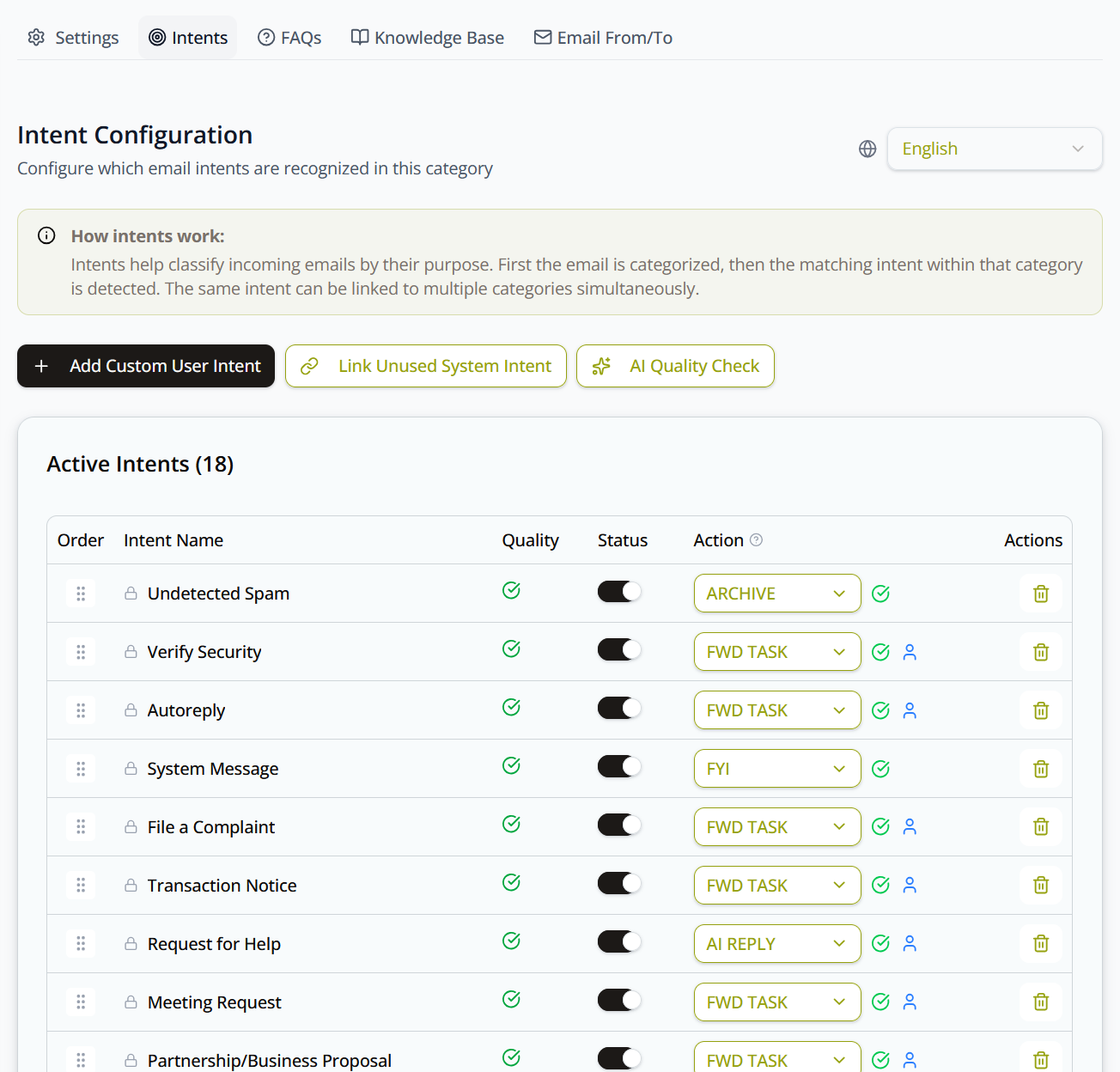
ReplyFabric ships with 18 built-in system intents, all active in the General category by default. Any other category you create starts with just one — Other/Unclassified — as a catch-all. From there, you have two options:
- Link an Unused System Intent — attach one of the other system intents not yet active in this category: click it, tick the ones you want, then confirm with the Link Intents button.
- Create a Custom User Intent — build one from scratch for something specific to your business.
The difference: a system intent is general-purpose — you can only turn it on or off per category, not edit its name or description. A custom intent is yours to edit freely, and it's the only kind that can use a message starter or the AI Forward action (both covered below).
The Active Intents table
The Intents tab lists every intent active in this category, with the count in the table's header — Active Intents (18) in the screenshot above. Each row is one intent, and the columns are:
- Order — drag to reorder. Order affects which intent is checked first when more than one could match.
- Intent Name — a 🔒 lock icon marks a built-in system intent, blocking edits to its name and description; it can still be removed from the category.
- Quality — an AI-quality-check indicator for the intent's configuration.
- Status — a toggle to enable or disable the intent for this category.
- Action — what ReplyFabric does if this intent is triggered, picked from a dropdown; see Actions below for the full set. A blue person icon can appear next to the dropdown for "Draft requires human review" — shown when the action produces AI-generated content (a drafted reply or an AI-written summary) or when the action itself is Manual.
- Actions — Delete, available for both system and custom intents: for a system intent this just unlinks it from the category — re-add it later via Link Unused System Intent — while for a custom intent it's gone for good. Edit is available for custom intents only, matching the name/description lock on system intents above.
Creating a custom intent
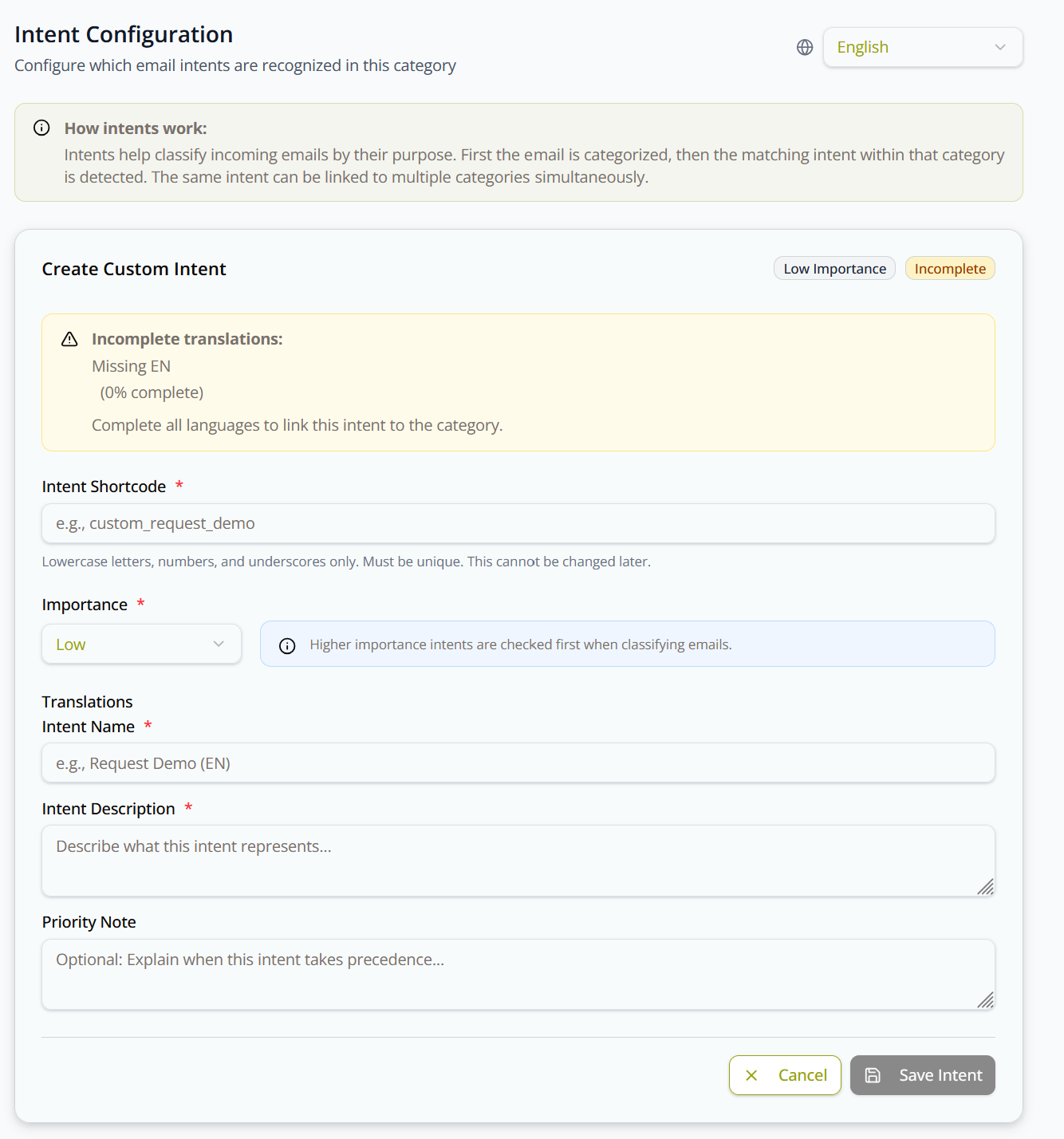
If none of the built-in intents fit, click Add Custom User Intent to open the intent editor:
- Intent Shortcode — lowercase letters, numbers, and underscores only. Must be unique, and can't be changed later.
- Importance — Low, Medium, or High. Higher-importance intents are checked first when classifying emails.
- Translations — one tab per mailbox language (EN/FR/NL/…), each with Intent Name and Intent Description (both required). Use AI Translate to auto-fill the other languages from whichever one you've written.
- Priority Note — optional; explain when this intent should take precedence over others.
- Enable intent for this category — checkbox; leave it off to save the intent without activating it yet.
- If the intent's action is AI Reply, AI Reply with Task, or AI Forward, the editor also shows a message starter card (and, for AI Forward, the recipient fields too) — see "AI Forward" and "Message Starters" below.
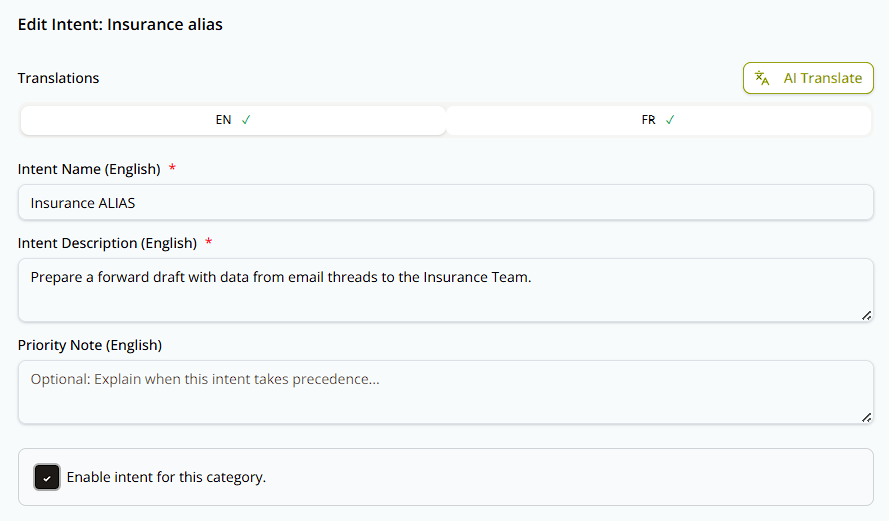
A custom intent must have complete translations for every language your mailbox uses before it can be linked to a category — an "Incomplete translations" warning shows which languages still need a name and description.
Click Save Intent to write everything — fields, enabled state, starters, and (for AI Forward) recipients — in a single transaction, or Cancel to discard the draft.
Keeping intents non-overlapping: AI Quality Check
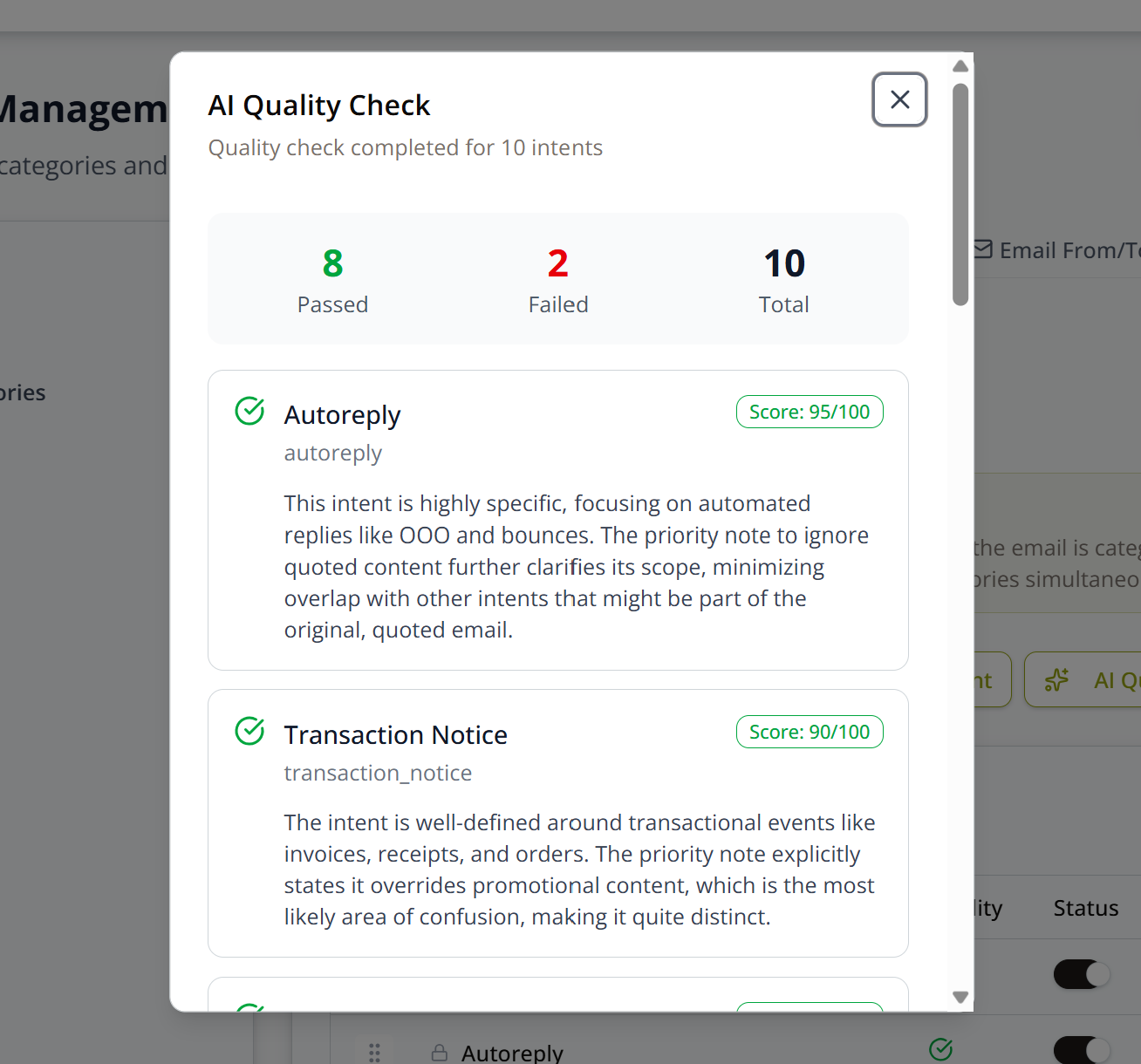
Click AI Quality Check to have ReplyFabric analyze all active intents in the category for overlap. Each intent gets a pass/fail verdict and a score out of 100, with an explanation and — if it overlaps with another active intent — a list of which ones. Use this after adding a custom intent or several system intents at once, since overlapping intents compete with each other during classification.
Actions
An intent only detects what an email is about. Its action is what ReplyFabric then does about it, set from the dropdown in the Active Intents table. The full set:
| Action | Shown as | Does |
|---|---|---|
| No action | — | — |
| Archive | ARCHIVE |
Not important, ignore |
| Execute Task | EXECUTE TASK |
Execute an operational action based on the email |
| Forward | FWD |
Forward plain (100% original), internal responsible |
| Forward with Summary | FWD SUMM |
Forward with an AI summary, read and remember, internal responsible |
| Forward with Summary & Task | FWD SUMM TASK |
Forward with an AI summary and a flagged task, internal responsible |
| Forward with Task | FWD TASK |
Forward with a flagged task, internal responsible — the recommended default |
| Manual | MANUAL |
Manual review required |
| FYI | FYI |
Less important, no forward, read when you have time |
| AI Reply | AI REPLY |
Draft a reply with AI, using FAQs and the Knowledge Base when needed |
| AI Reply with Task | AI REPLY TASK |
Draft a reply with AI, using FAQs and the Knowledge Base, and check the task first |
| AI Forward | FWD_AI |
Draft an unsent, editable external forward — persona-aware message plus the original email, for a human to send. See "AI Forward" below |
| (a saved checklist) | e.g. Warranty, Appointment Booking |
Attaches that checklist to the intent — required fields are extracted and validated from the email, then the checklist's own On Complete Action decides what happens once everything's present |
Checklists aren't a single fixed action — every checklist you save (under Checklists in the sidebar) appears as its own selectable action here, shown with a checklist icon and named after the checklist itself.
Each action draws its wording from the matching template on the category's Templates tab, so several intents sharing one action share one template — see Category Management: Settings, Templates & Persona.
AI Forward (FWD_AI)
Use FWD_AI when a category needs to send correspondence outside your team — escalating a claim to an insurer,
routing a request to a partner, looping in a supplier. ReplyFabric drafts the forwarding message using the
category's full persona, the same as an AI Reply, and leaves it as an unsent draft — original email
attached — for a teammate to review and send.
Two limits worth knowing up front. This action works only with custom intents you create yourself — it isn't offered on the 18 built-in system intents. And it never sends on its own: the result is always a draft waiting for a person, even once a recipient is configured.
Like AI Reply and AI Reply with Task, it gets a message starter to guide its wording (see below) — but AI Forward is the only one of the three that also needs a recipient configured, since forwarding requires an actual destination address. It's also the only one that skips FAQs and the Knowledge Base entirely: its job is to explain why the email is being forwarded, not to answer it.
Example. A logistics company runs a logistics@ mailbox its drivers write to. Some of that mail is about
vehicle insurance — a policy coming up for renewal, a question about who arranges it — and it needs to go to the
company's insurance partner rather than be answered in-house. So the team adds a custom intent called
Insurance ALIAS and gives it the AI Forward action.
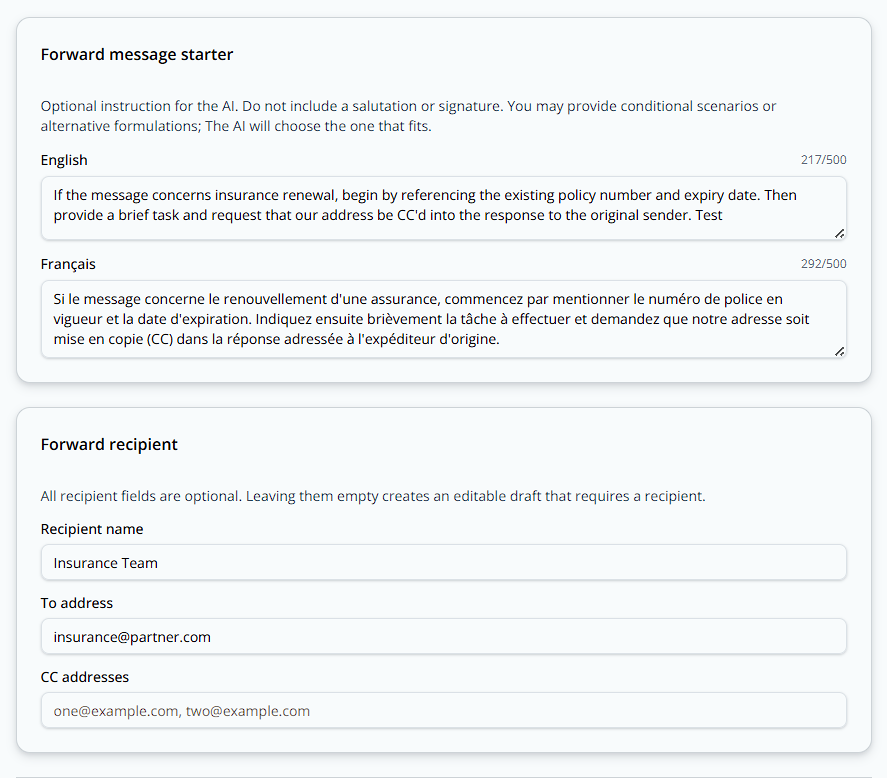
Two things get configured on that intent. Its message starter tells the AI how to open the forward: when the
message concerns an insurance renewal, reference the existing policy number and expiry date, then ask the
insurance team to CC this address into their response. Its forward recipient is the destination — recipient
name "Insurance Team", To address insurance@partner.com:
Now a driver emails in to say his truck's policy expires on 18 August, asking whether he arranges the renewal or
the company does. ReplyFabric matches it to the Insurance ALIAS intent and creates an unsent draft in the
mailbox, addressed to insurance@partner.com, whose forwarding message opens with the policy number and expiry
date exactly as the starter asked — with the driver's original email quoted underneath. It waits there until
someone reviews it and hits send:
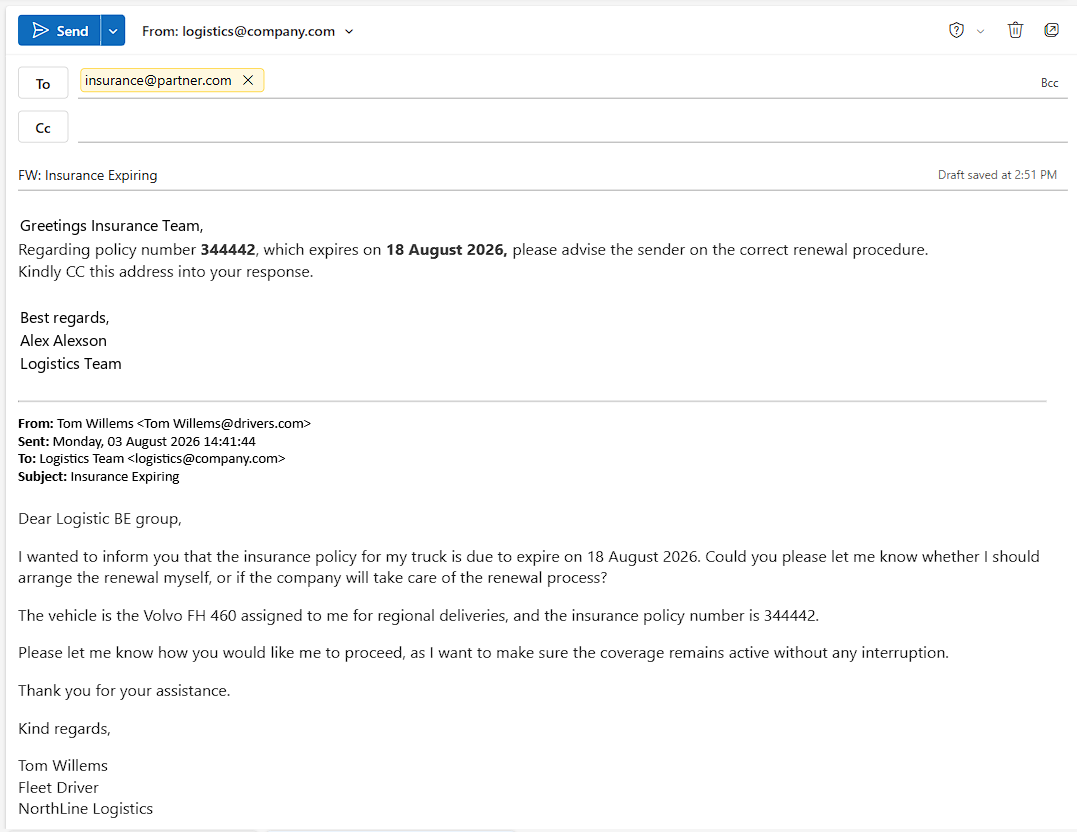
The AI wrote only the middle of that draft — the forwarding message itself. The "Greetings Insurance Team,"
above it and the sign-off below come from this category's own AI Forward template, set per category and per
language on the category's Templates tab: a greeting line using [FWDRecipient], then [AIForward] for the
AI's text, then a closing and [YourName]. Leave that template at its default — just [AIForward] — and the
draft arrives as the forwarding message alone, with nothing wrapped around it. Each category can wrap its
forwards differently, or not at all. See
Category Management: Settings, Templates & Persona for the template
editor and the full placeholder list.
Message Starters
The message starter is where you write that guidance — the Insurance ALIAS screenshot above is one, and the AI-written part of the draft below it opens with exactly the policy number and expiry date the starter asked for. A few things worth knowing:
- AI Reply, AI Reply with Task, and AI Forward custom intents all get a starter field — no other action does.
- One per mailbox language, each capped at 500 characters — the counter above each box (
217/500in the screenshot) tracks it as you type. - Skip the greeting and the signature. The template adds those, and the field's own help text says the same.
- You can cover a couple of scenarios in one starter (e.g. "if it's a renewal question, mention X; otherwise mention Y") and the AI picks whichever applies — as the Insurance ALIAS starter does with "if the message concerns insurance renewal…".
What's next
- Checklists — build the checklists that show up as actions in the table above.
- Category Management: Settings, Templates & Persona — the category an intent lives in, and the templates each action draws its wording from.
- Category Management: FAQs and Category Management: Knowledge Base — the content an AI Reply drafts from once an intent triggers it.
- Personas — the tone and hard rules applied to what the AI drafts.
- Category Management: Email Address Routing — send an email straight to a category by sender or recipient address, before intents are considered.