Personas
Every reply ReplyFabric drafts waits for someone on your team to review before it sends — that's not a setting you can turn off, it's how the product works. A persona is what makes that review quick instead of exhausting: it's the voice the AI writes in, set once, so the draft your teammate opens already sounds like something they'd send themselves, instead of something they have to rewrite from scratch.
A persona doesn't decide what is said — facts come from your FAQs and Knowledge Base, and greetings and signatures come from your templates. It only decides how it's said: how formal, how it's structured, which words it uses.
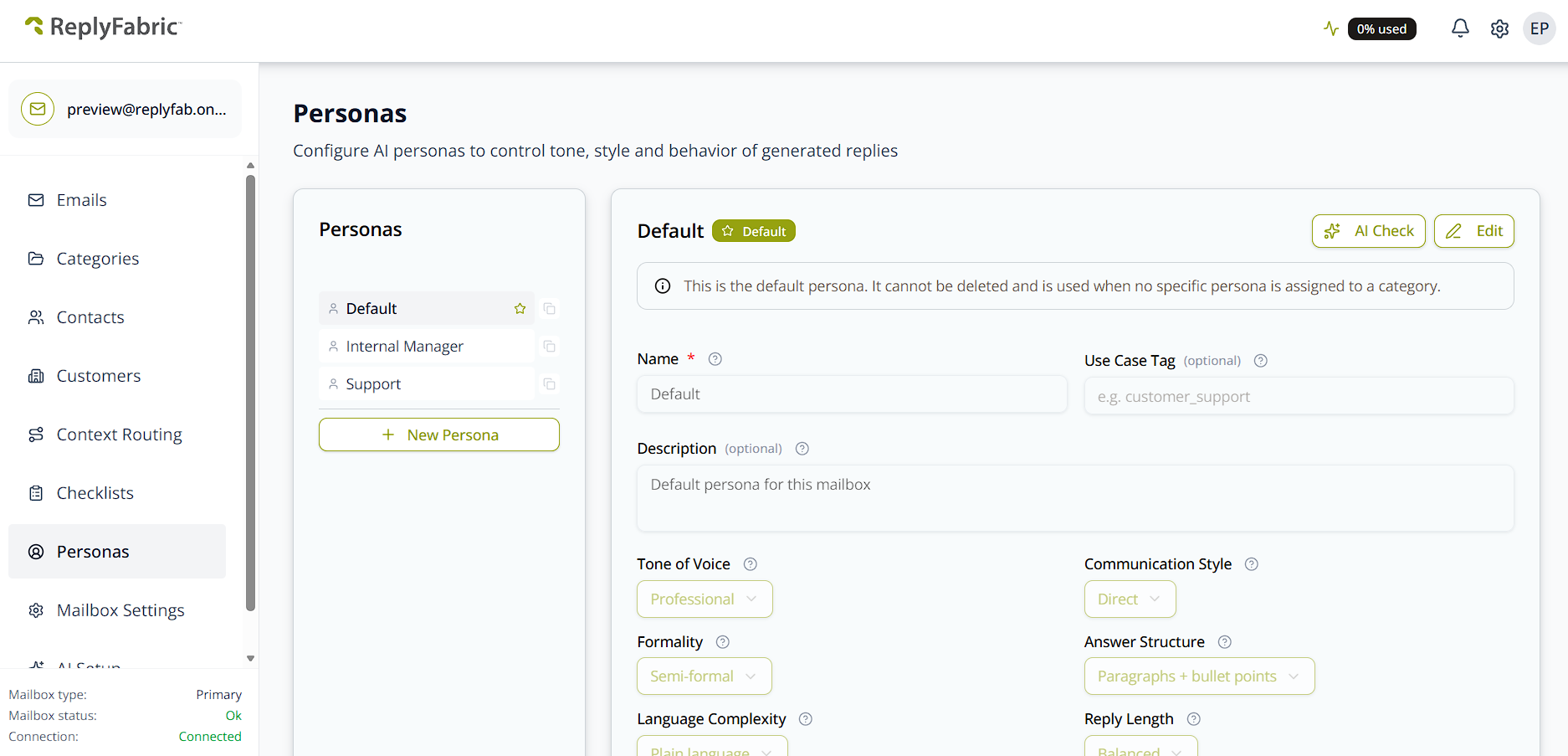
Find it under Personas in the mailbox sidebar.
New to this? Two things worth knowing before you touch anything. Your mailbox already has a working default persona, and every category uses it until you say otherwise — so start by editing that one rather than creating a new one. And a persona has no effect until a category is set to use it.
Before you start
- Personas are mailbox-scoped — each mailbox has its own set.
- The default persona can't be deleted, and it's used by any category that hasn't been given one of its own. Keep it broad enough that you'd be happy sending it untuned.
- The minimum that works: a name and the six style dropdowns. Response Steps, Guardrails and language cards are all optional — add them once the basic voice sounds right.
Setting the voice
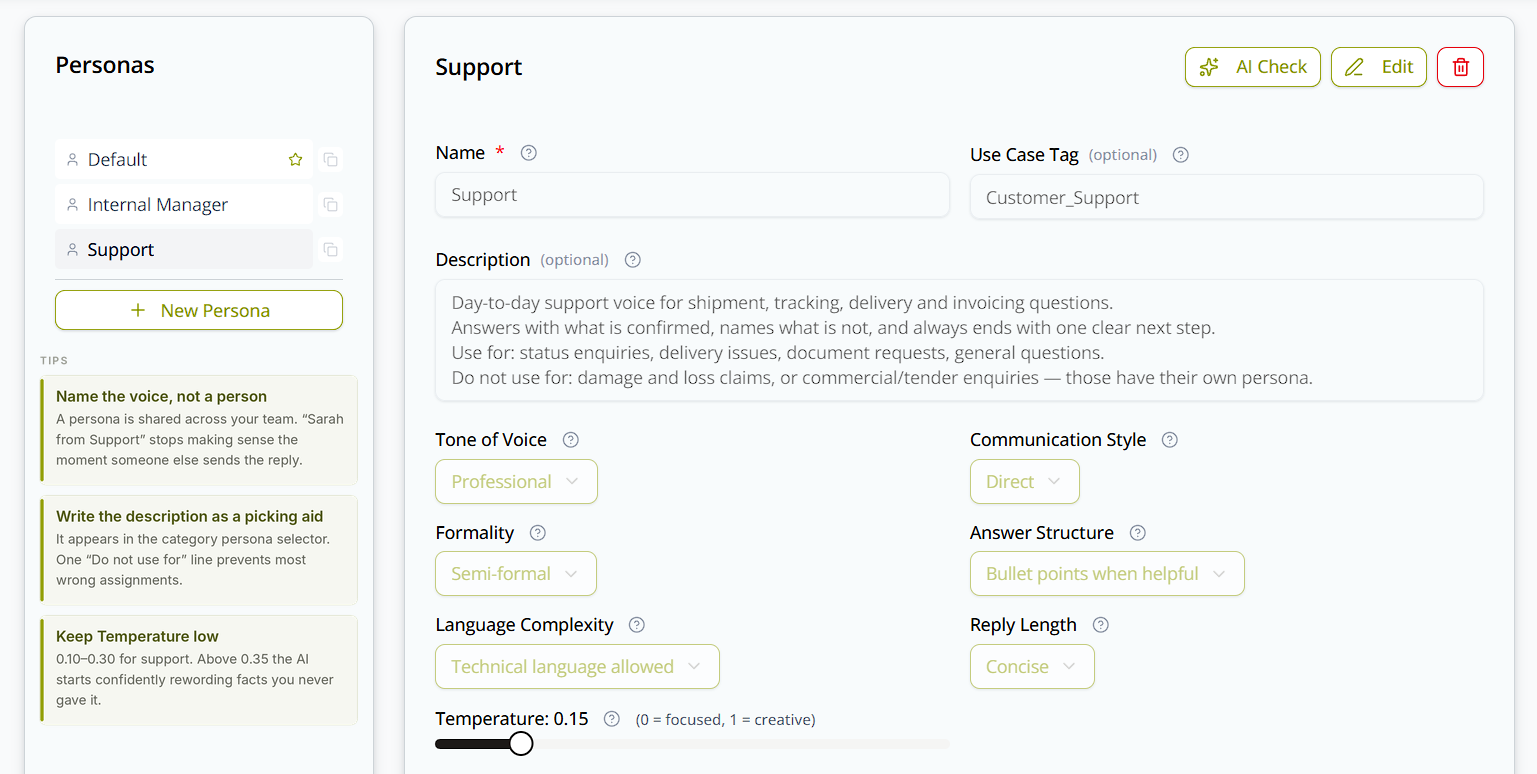
Every persona starts with a Name (required) — a short internal label like Support, Sales, Executive,
shown in the category selector. Name the voice, not a person: "Sarah from Support" stops making sense the
moment someone else replies.
Two more fields help you and your team pick the right persona later: a Use Case Tag (optional), a short machine-readable label for your own organisation — not used by the AI itself — and a Description (optional), shown alongside the name wherever you pick a persona. Worth spending a minute on the description — it's what stops the wrong persona being assigned six months from now. For example: "Day-to-day support voice for shipment, tracking, delivery and invoicing questions. Answers with what is confirmed, names what is not, and always ends with one clear next step. Use for: status enquiries, delivery issues, document requests, general questions."
Six dropdowns set the actual voice. They apply in every language automatically.
| Dropdown | Options |
|---|---|
| Tone of Voice The emotional register |
Professional — formal and neutral · Friendly — warm · Empathetic — acknowledges feelings · Neutral — matter-of-fact, no emotional lean · Persuasive — guides towards an action |
| Communication Style How information is delivered |
Direct — gets to the point immediately · Conversational — natural and human · Structured — clear sections and formatting |
| Formality How formal the language is |
Informal — contractions and casual phrasing · Semi-formal — polite but not stiff · Formal — courteous and businesslike |
| Answer Structure How the body is formatted |
Paragraphs only — no bullets at all · Paragraphs + bullet points — both · Bullet points when helpful — the AI decides |
| Language Complexity Vocabulary level |
Simple — short words, short sentences · Plain language — clear and accessible · Technical language allowed — domain terms when relevant |
| Reply Length How long replies usually run |
Concise — short and to the point · Balanced — complete with just enough context · Detailed — thorough and explanatory |
Temperature — a slider from 0 to 1. Low is focused and predictable; high is varied and creative. Stay between 0.10 and 0.30 for support. Above roughly 0.35 the AI starts producing confident-sounding rewordings of facts you never gave it.
Response Steps and Guardrails
An AI can draft fluently without actually knowing where the lines are — it predicts a plausible next sentence, it doesn't reason about what's safe to say. Response Steps and Guardrails are where a human draws those lines once, so the AI isn't guessing on every single reply.
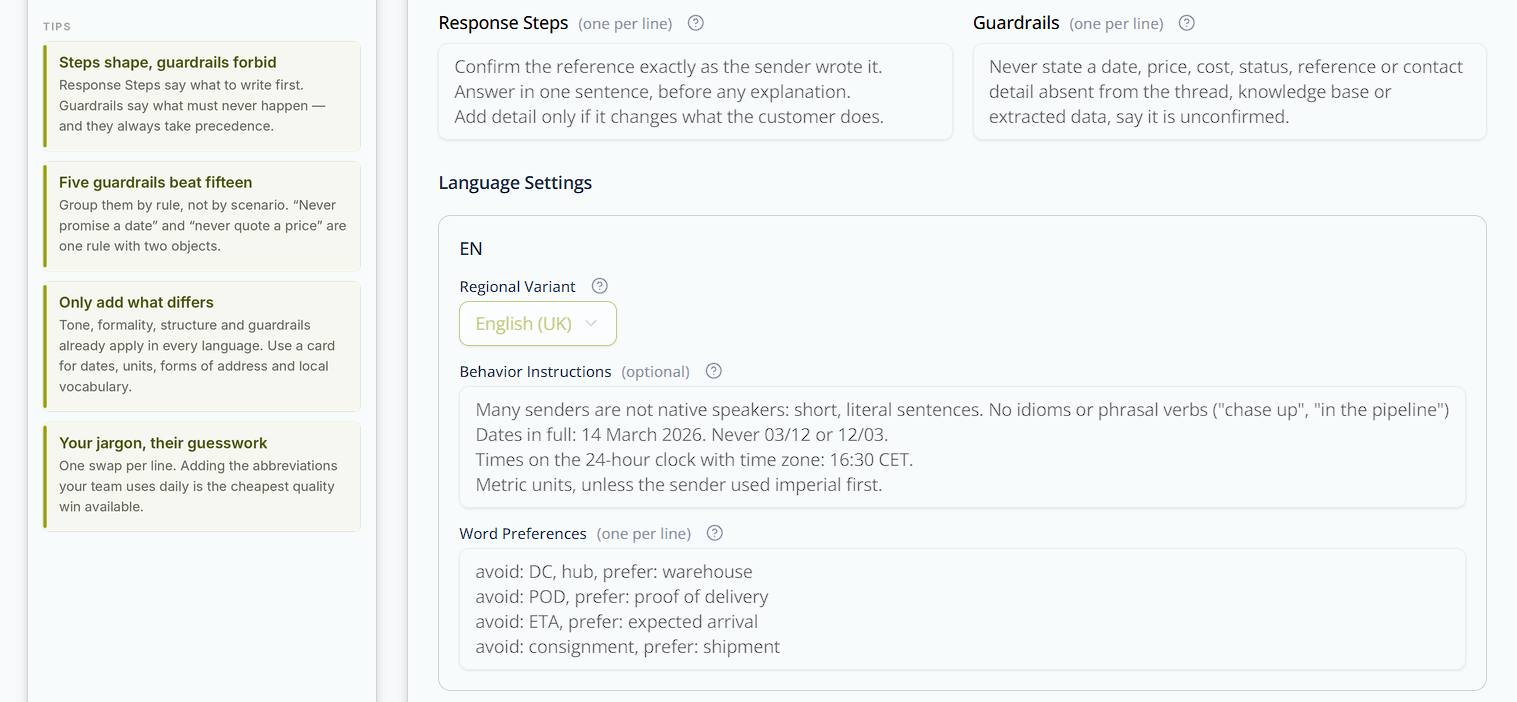
Response Steps tell the AI what to write first, second, third — one short instruction per line. Leave it empty and the AI decides the structure itself.
Guardrails are hard prohibitions — one per line. They apply in every language and always take precedence — nothing in a language card can override them.
Does a rule belong here? Ask whether getting it wrong once would cost money, a customer, or a regulator's attention. If yes, it's a guardrail. If it's a matter of taste, it belongs in a style dropdown or word preferences.
Guardrails control what the AI says, not where work goes. Routing is decided by categories and intents.
Language Settings
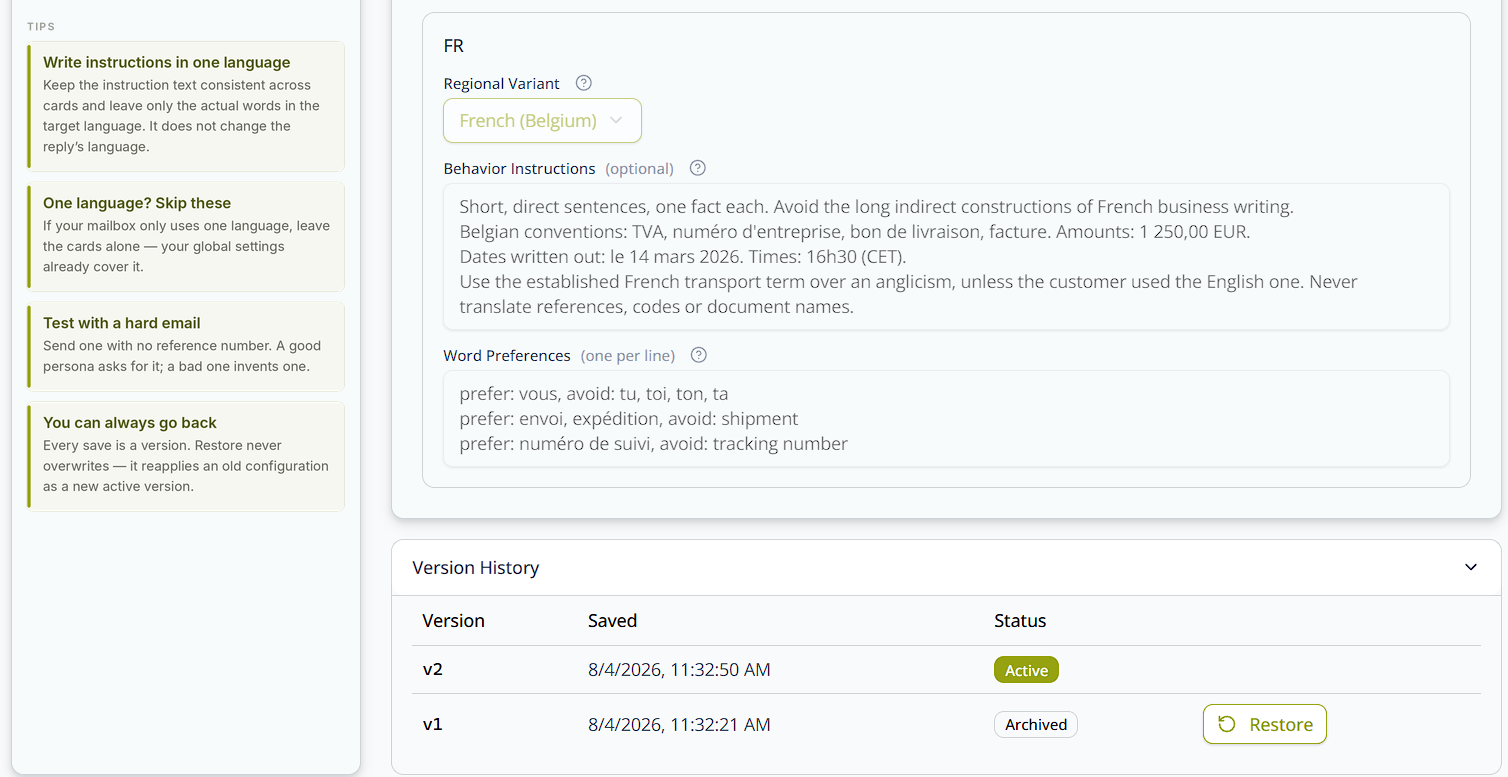
One card per language enabled on your mailbox. If your mailbox only uses one language, skip this section — your global settings already cover it.
- Regional Variant — e.g. English (UK), French (Belgium). Defaults to No preference.
- Behavior Instructions (optional, up to 4,000 characters) — how the persona writes in this language. Your global style and guardrails already apply here, so only note what genuinely differs: date and time formats, units, forms of address, local conventions.
- Word Preferences — one swap per line:
avoid: ETA, prefer: expected arrival. This is the cheapest quality win in the whole persona. Every internal abbreviation your team uses daily is one your customer has to guess at.
Only one card is used per reply — never a blend. The reply's language picks a single card. If there's no card for that language, your global settings apply on their own.
Check it with AI Check
Before you rely on a change, click AI Check in the editor header. It reviews your persona per language and flags contradictions before a customer sees them — typically a guardrail that forbids something a language's word preferences require.
Assign it to a category
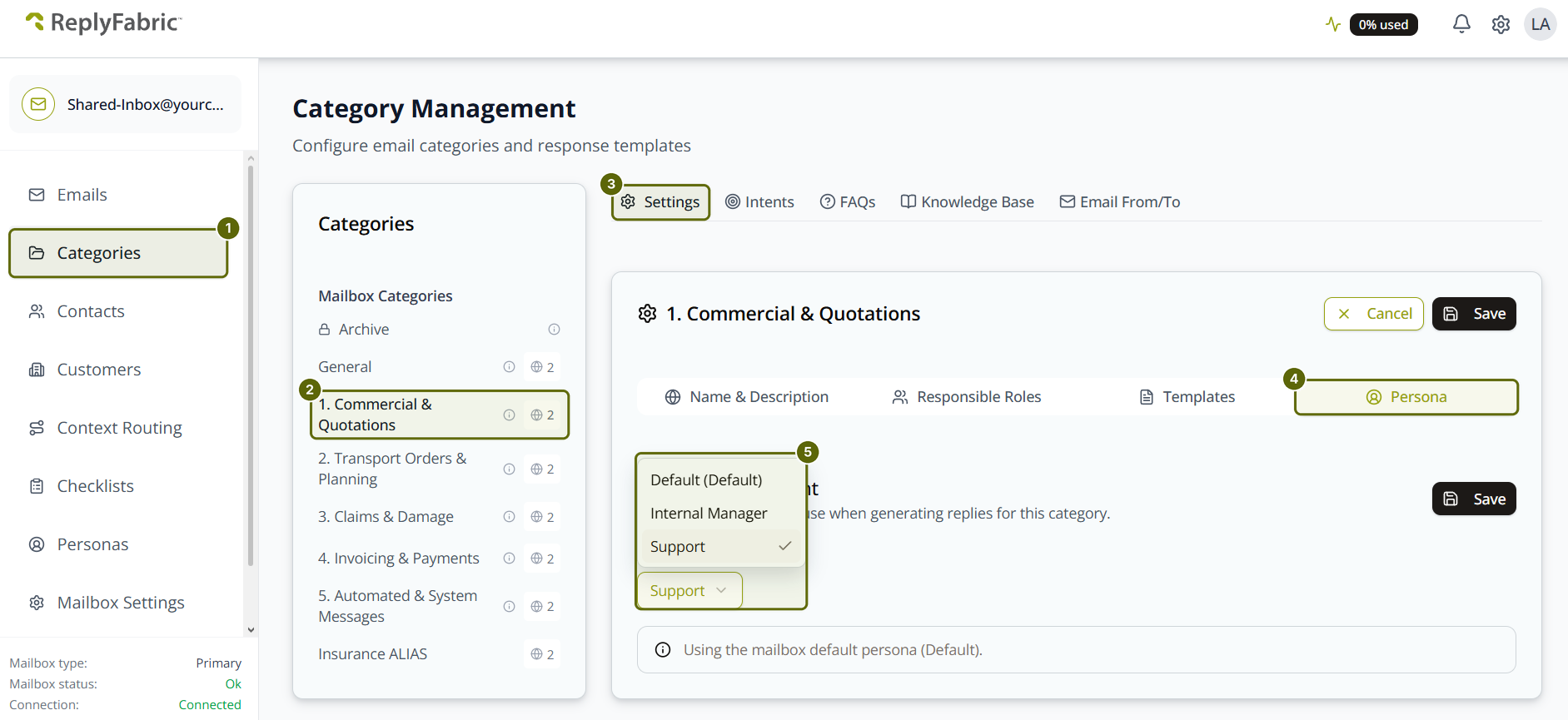
This is the step people miss. A persona has no effect until a category is set to use it. From Categories
in the sidebar, open the category you want to change, go to its Settings tab, then its Persona sub-tab,
and pick a persona from the dropdown — the mailbox default is shown with (Default) after its name. Click
Save.
A banner under the dropdown always tells you which persona is actually in force, e.g. "Using the mailbox default persona (Default)."
Every category starts on the mailbox default. Override it only where the voice genuinely changes — a claims persona that's more formal and deliberately unemotional is a real second persona. Same voice, different topic is not.
See it working
Every draft still waits in Emails for someone on your team to review before it sends — a persona doesn't change that, it changes how much rewriting that review actually takes. These three checks tell you fast whether it's doing its job:
- Send an email with no reference number. A well-configured persona asks for it. A badly configured one invents one or answers vaguely.
- Run the same few emails through each language. If one language comes out noticeably longer, its card is probably re-adding formality your global settings already handle.
- Read one reply out loud. Anything that makes you wince is a word preference you haven't written yet.
Version History
A collapsible panel at the bottom of the editor. Every save creates a version, listed with its number, when it was saved, and its status — one Active, the rest Archived.
Restore appears on archived versions. It doesn't rewind: it reapplies that configuration as a new active version, so nothing is lost and you can always go back again.
Save once per meaningful change. Ten exploratory saves give you ten versions you can't tell apart, since history doesn't show a field-by-field comparison yet.
Troubleshooting
| Symptom | Where to look |
|---|---|
| Replies are fine in one language, wrong in another | That language's card — only one is used per reply |
| A language I configured is ignored | Its card is empty, so it wasn't saved |
| The AI broke a rule I wrote | The rule is in a language card, not in Guardrails |
| Two greetings, or two closings | A greeting or sign-off was written into a persona field. Templates own those — add the offending phrase to avoid: |
| The AI stated a date or price nobody gave it | Lower Temperature, and add the missing prohibition to Guardrails |
| I changed the persona but nothing changed | The category may still be on the default persona |
| The facts are wrong | FAQs and Knowledge Base. (AI Forward drafts don't use either — they explain why an email was forwarded, not answer it.) |
What's next
- Category Management: Settings, Templates & Persona — assign a persona to a specific category, and everything else a category controls.
- Category Management: Understanding Intents — how ReplyFabric decides an email's purpose before a persona ever gets to draft the reply.