Category Management: FAQs
FAQs give ReplyFabric ready-made question-and-answer pairs that feed its RAG (retrieval-augmented generation) system — when a matching intent triggers an AI Reply, ReplyFabric retrieves the relevant FAQ (and Knowledge Base) content and uses it to ground the generated response, rather than inventing an answer. This is configured per category, per language, from that category's FAQs tab in Category Management.
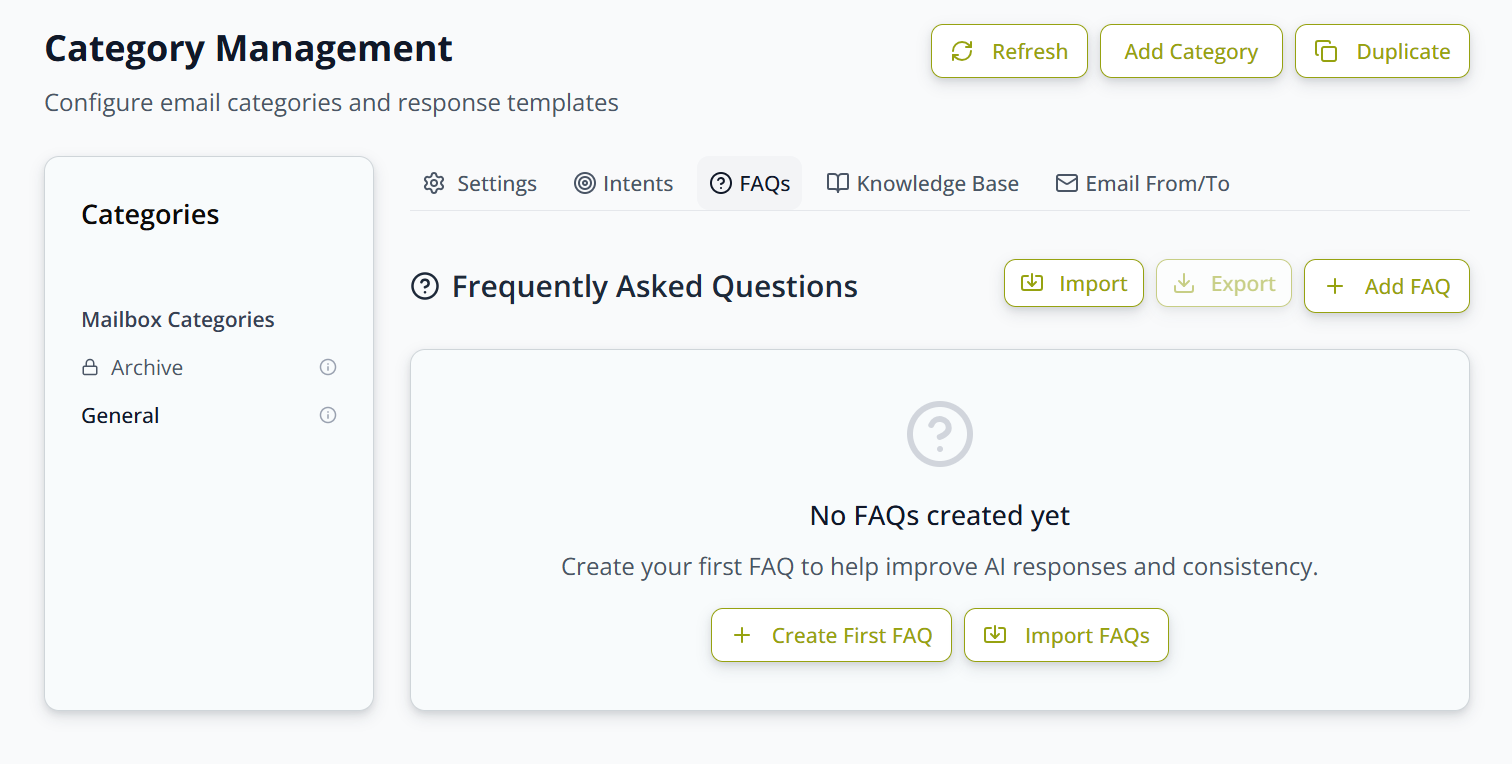
Adding a FAQ manually
Click Add FAQ (or Create First FAQ) to open the Add New FAQ panel:
- Question — up to 120 characters.
- Answer — up to 400 characters.
- Active — a checkbox to enable or disable the FAQ without deleting it.
Fields repeat per language configured on the mailbox, with English shown as the default language block.
Bulk import and export via CSV
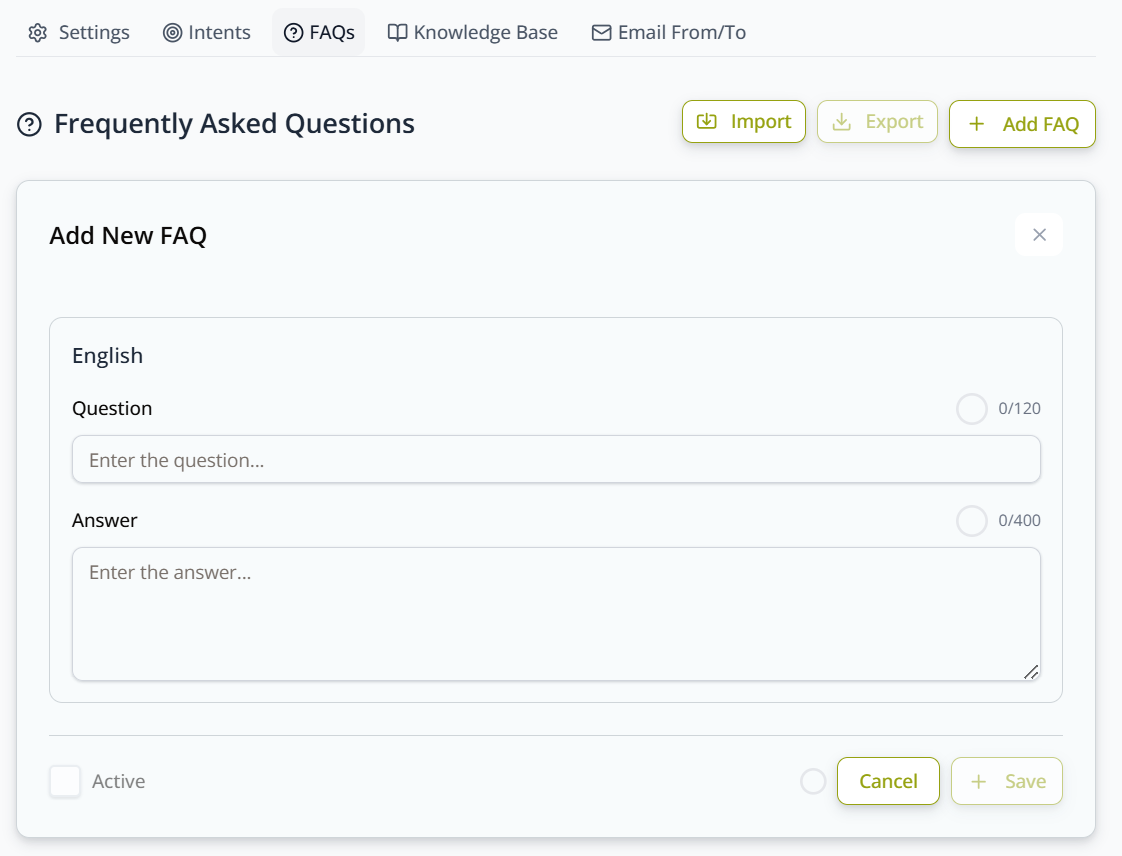
Click Import to open the Import FAQs dialog: download the CSV template, fill in your FAQs, then upload the file. You can also download the template here to see what it looks like before you start.
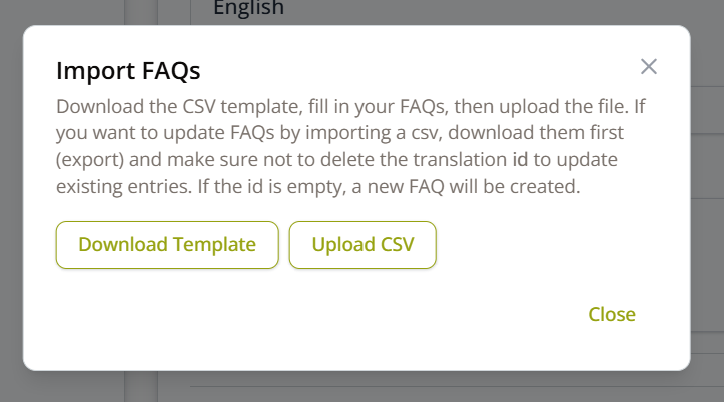
The template has one column pair per language configured on the mailbox — question_<lang> and answer_<lang> —
plus an id column, and the same 120/400 character limits as the manual form. Its first data row is a filled-in
example explaining the convention; add your own FAQs underneath. The copy linked above comes from a mailbox
running English and Dutch, and contains exactly this:
| id | question_en | answer_en | question_nl | answer_nl |
|---|---|---|---|---|
| How do i use this template? | For each new FAQ, add the ISO alpha language code (e.g. EN, FR, NL). Then enter the question and its answer. Questions may contain up to 120 characters, and answers up to 400 characters. | Question in NL | Answer in NL |
The column pairs always follow the languages your own mailbox is set up for — a mailbox running English and
French gets question_fr and answer_fr instead, as in the screenshot below. Use the copy above to get familiar
with the format, but take the template from the Import dialog when you're ready to fill one in, so the
language columns match the mailbox you're importing into.
The id column
id is ReplyFabric's own identifier for a FAQ. It creates one on import, so you never type an id yourself —
what matters is knowing when to leave it alone and when to clear it.
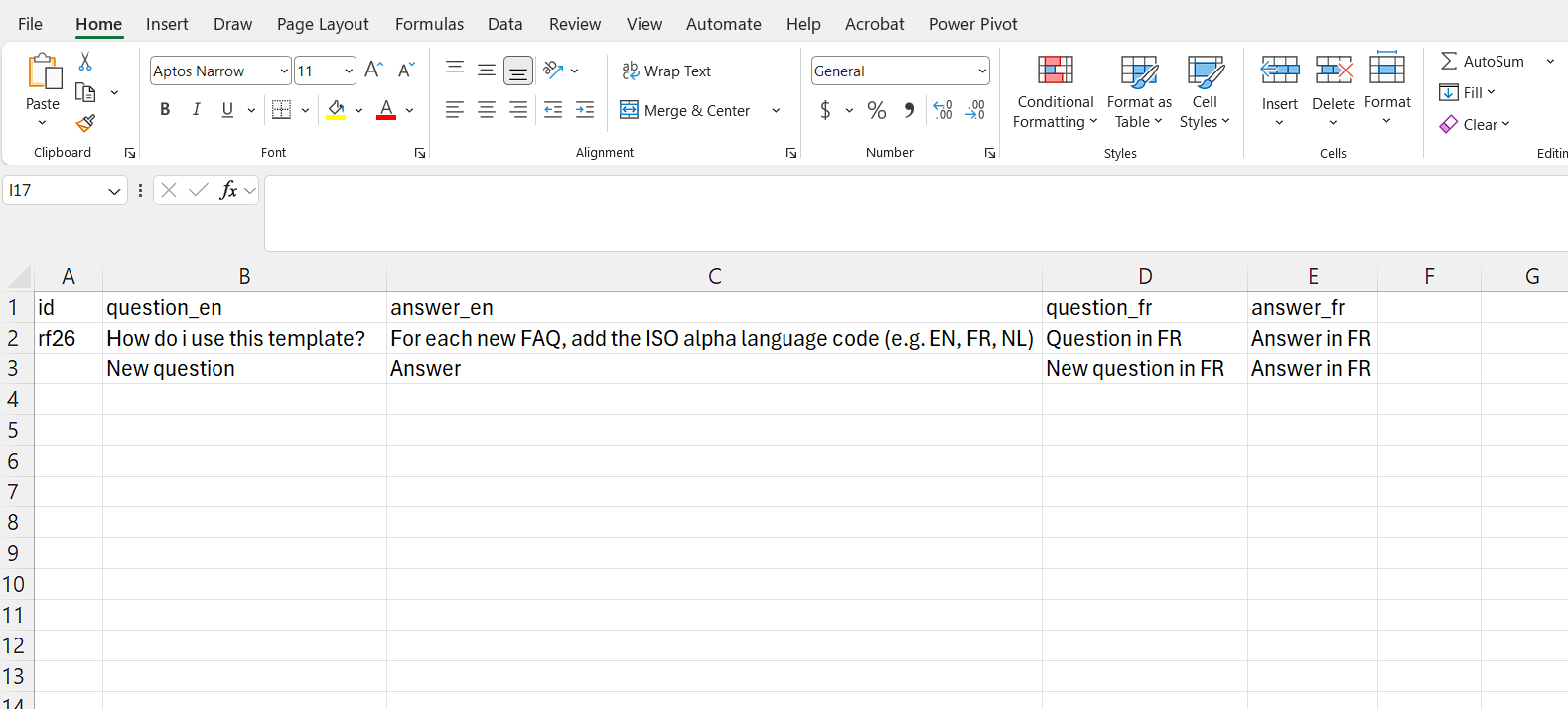
The screenshot below is an export rather than a blank template, which makes the difference easy to see. The
first row is a FAQ that already exists, so it carries its id (rf26). The row added underneath it is new, so its
id cell is left empty:
On import, ReplyFabric reads each row's id to decide what to do with it:
id cell |
What happens |
|---|---|
| Empty | Creates a new FAQ and assigns it an id. |
| Filled in | Updates the existing FAQ with that id, instead of creating another one. |
Which is why a new question must have id empty. Leave an id on it — by copying a row, say — and ReplyFabric
treats it as one it has already created and updates that FAQ rather than adding yours.
Three workflows follow from that:
- Adding FAQs in bulk — start from a downloaded template and leave
idempty on every row. - Editing existing FAQs in bulk — click Export in the FAQs tab first, so every row comes back with its
real
id. Edit the questions and answers and re-upload: each row updates the FAQ it came from. Rows added underneath are created as new, provided theiridis left blank. - Copying FAQs to another category — export, then clear the
idcolumn before importing into the second category. Ids aren't portable between categories, so keeping them would point at FAQs that don't exist there.
File format
- Save as a CSV file, not an Excel workbook. Excel defaults to
.xlsx— use File → Save As and choose CSV (Comma delimited) before uploading. - Commas inside an answer are fine. A spreadsheet wraps those cells in quotes when it saves, which is why the example answer above appears quoted in the raw file. If you edit the CSV in a plain text editor, keep the quotes.
What's next
- Category Management: Knowledge Base — uploaded documents, the other source the AI draws from alongside FAQs.
- Category Management: Understanding Intents — how ReplyFabric narrows down an email's purpose within a category before drafting a reply.