Category Management: Settings, Templates & Persona
Category Management is one of ReplyFabric's most important features: it's what routes each incoming email to the right Outlook folder, assigns a responsible person, and gives the AI the context it needs to draft (or forward) a reply correctly.
Every mailbox starts with two built-in categories — Archive and General — and you can add as many more as you need from Category Management, using Add Category (or Duplicate to clone an existing one's settings).
Each category has five tabs. This guide covers Settings; the rest have their own guides:
- Settings — name, responsible roles, templates, and the assigned persona (covered here; personas themselves have their own guide — see Personas).
- Intents — see Category Management: Understanding Intents.
- FAQs — see Category Management: FAQs.
- Knowledge Base — see Category Management: Knowledge Base.
- Email From/To — see Category Management: Email Address Routing.
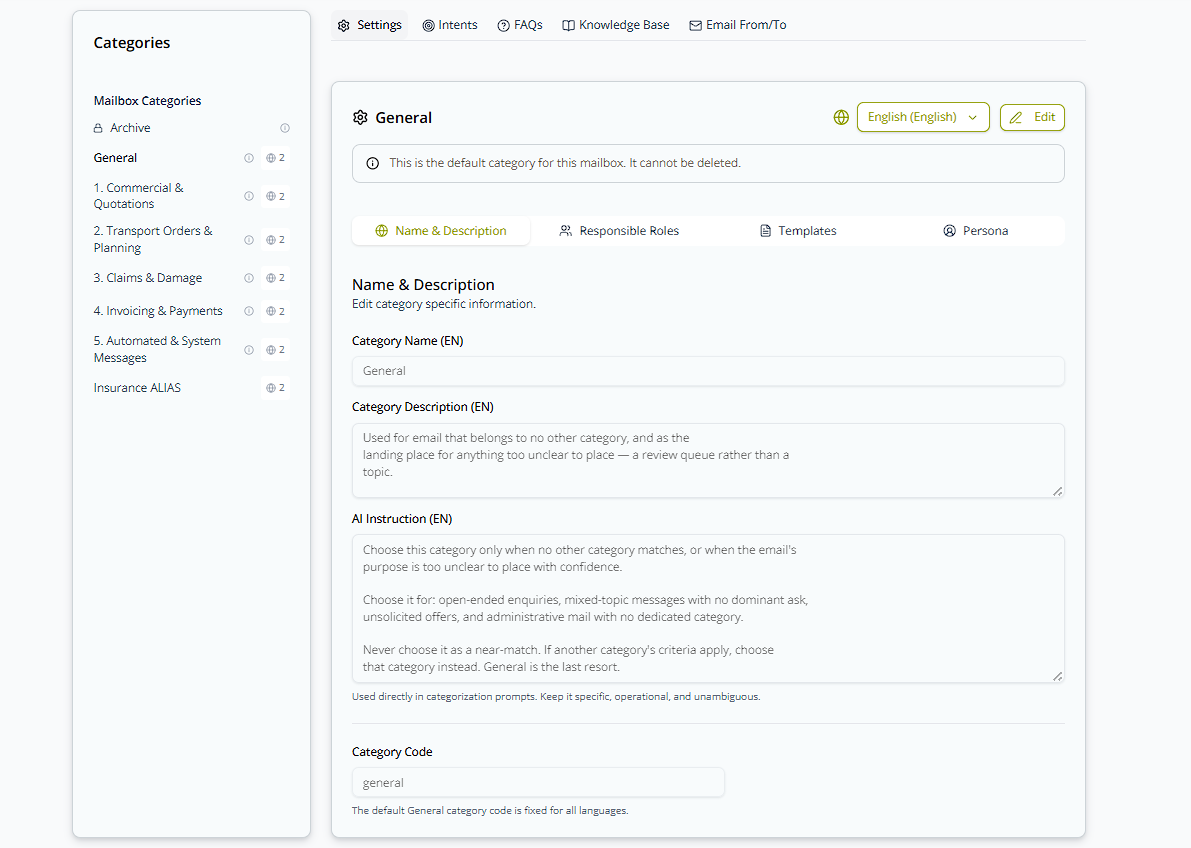
The Settings tab itself has four sub-tabs:
Name & Description
- Category Name — becomes the folder name in Outlook. Best practice: prefix every category name with a
number, and use the same number in every language — e.g.
0. General,1. Appointments & Workshop. Names are sorted alphabetically, so without a prefix the translated name of the same category sorts to a different position in each language; the number pins it, and your folder list stays in the order you intended rather than the order the alphabet happens to give you. - Category Description — a short summary of what belongs in this category. It isn't only a label for your team: it goes to the AI together with the AI Instruction below whenever an email is being categorized. Treat it as part of your categorization setup and keep it accurate rather than decorative — a vague or stale description makes the AI's job harder.
- AI Instruction — the single most important field for accurate categorization, and the one written specifically for the categorization prompt. ReplyFabric's own guidance: "Explain precisely when this category should be chosen. In people mode, describe ownership and handoff cues." Keep it specific, operational, and unambiguous.
- Category Code — a stable internal identifier, auto-generated from the category name (lowercase letters, numbers, and underscores only). It's visible and editable, not a hidden database ID — except for the default General category, whose code is fixed across all languages.
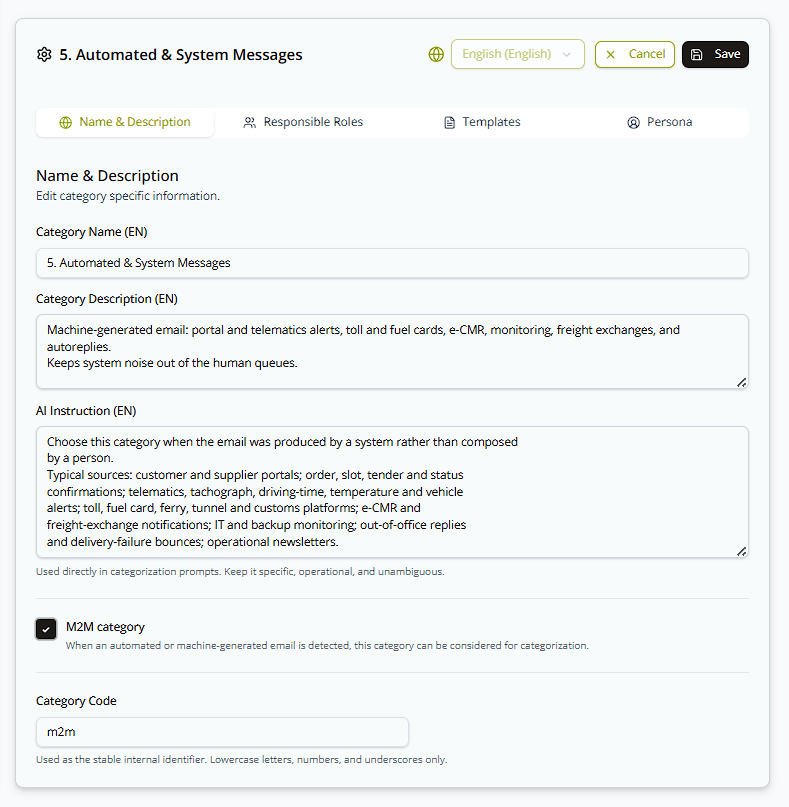
M2M category — makes this category the destination for machine-generated email: portal notifications, telematics and toll alerts, order confirmations, autoreplies, bounces. That traffic rarely belongs in your human queues, so tick this box on a category built to absorb it, as in the example above.
Need to know about M2M categories:
-
It only affects machine email. Anything written by a person is still categorized against all of your categories.
-
What happens depends on how many categories you tick:
Ticked A detected machine email None Categorized normally, against all categories. One Goes straight to that category. No AI step, so the result is always the same. Two or more The AI picks between the ticked categories only — your other categories can't be selected. -
One is the reliable setup. Tick several only if you really need the split — for example, telematics alerts to one team and portal invoicing to another.
-
Off by default, and editable only after pressing Edit.
-
It decides where email lands, not what happens to it. Archiving, forwarding, and tasks are set on the category's intents.
Setting it up: Create a category for machine traffic, tick M2M category, and save. Then add intents for the automated mail you act on and let the rest archive. Check that a few real automated emails land there before you rely on it.
Responsible Roles
Set who's accountable for emails in this category, per language:
- Primary Responsible (To) — one or more emails (comma-separated). List more than one person and ReplyFabric hands the emails out in turn — the first to the first person, the next to the second, and back to the start of the list once everyone has had one (round robin). The work is spread evenly instead of piling up on whoever happens to be listed first.
- CC Responsible — additional people CC'd on notifications.
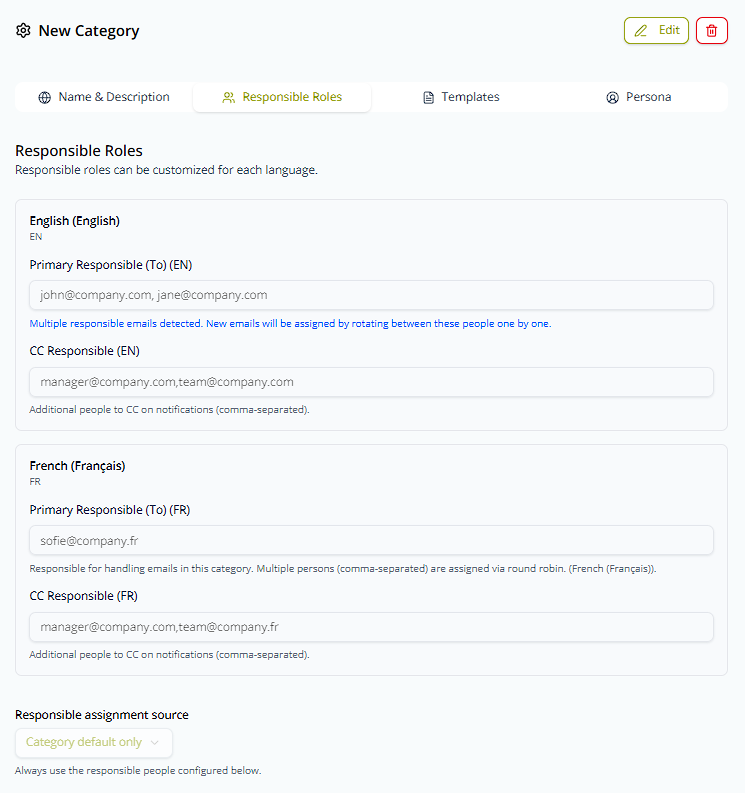
Being "responsible" isn't just an internal label: this person's initials become the email's Internal
Responsible Initials label in Outlook or Gmail (see Mailbox Settings: Provider-Side Interaction),
their name is one of the candidates for the [YourName] placeholder in an AI-drafted greeting or sign-off, and
they get a ReplyFabric notification whenever an email needing their attention comes in.
Responsible assignment source
By default, every email in the category goes to whoever is configured above — that's Category default only. Instead, you can have ReplyFabric check your Contact or Customer list first, and only fall back to the category default when there's no match:
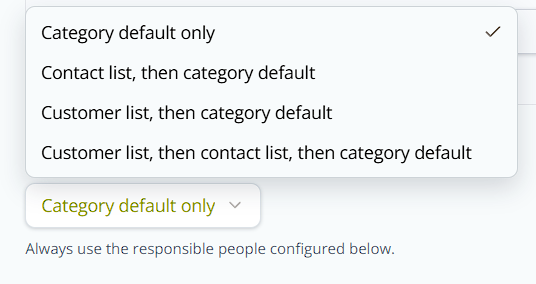
For example, say this category's default responsible is a general sales rep, but a handful of major accounts each have their own dedicated account manager set as their owner in your Contact list. Set Responsible assignment source to Contact list, then category default — email from one of those contacts goes straight to their account manager, while everyone else still falls back to the category default rep, so nothing falls through the cracks. Customer list does the same thing at the account/domain level instead of the individual sender level, and the two combined options check Customer first, then Contact, before falling back to the category default.
Templates
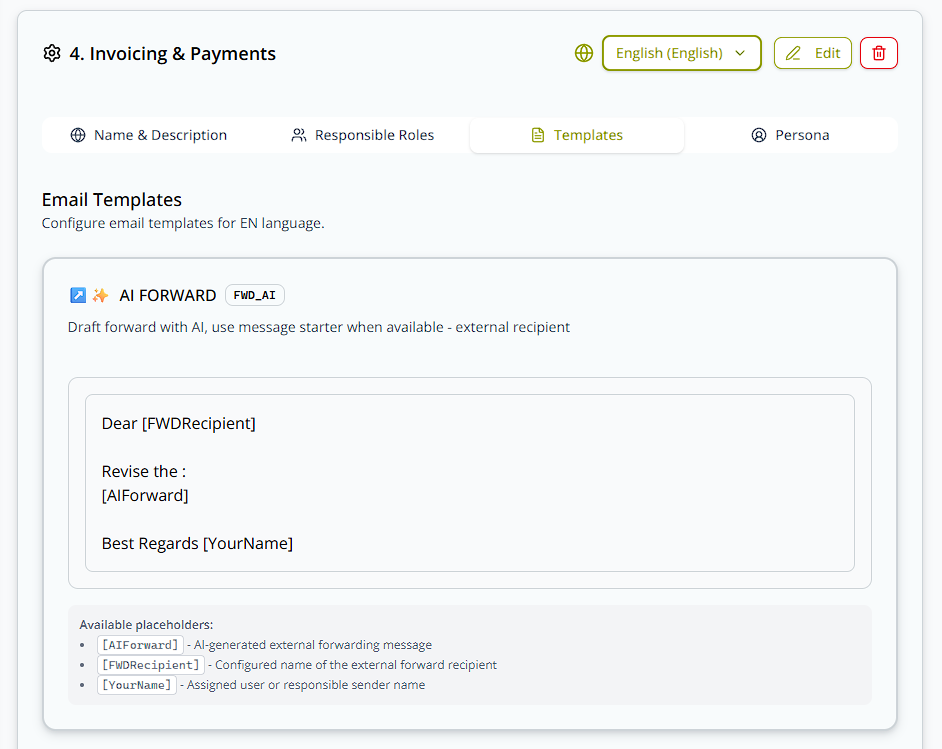
Each category has its own response templates, configured per language — one per action, which is what connects them to intents. When ReplyFabric detects an intent in this category, that intent's action decides which template is used, so the table below is really the wording behind every action in Category Management: Understanding Intents.
Because several intents can share the same action — a pricing question, a delivery question and a warranty
question might all be set to AI Reply — they all draft from that one template. Edit it once and every intent
using that action follows. Use Copy to all categories to apply a template across every category at once
instead of repeating the setup:
| Template | Code | Purpose |
|---|---|---|
| AI Forward | FWD_AI |
Draft a forward with an AI-written message, for external recipients |
| Forward (Plain) | FWD_PLAIN |
Plain forward with no AI-generated content |
| Forward with Summary | FWD_SUMM |
Forward with an AI-generated summary of the original email |
| Forward with Summary & Task | FWD_SUMM_TASK |
Forward with a summary plus a flagged action item |
| Forward with Task | FWD_TASK |
Forward with a flagged action item, no summary |
| AI Reply | REPLY_AI |
A full AI-drafted reply |
| AI Reply with Task | REPLY_AI_TASK |
An AI-drafted reply plus a flagged action item |
Each template has its own placeholders you can use in the template text. The default Forward (Plain) body is just
FYI - Please see below. [ForwardMessage]; Forward with Summary adds AI Summary: [AISummary]. AI Forward
supports [AIForward] (the AI-generated forwarding message) and [FWDRecipient] (the configured recipient's
name) — its default body is just [AIForward], though you can wrap it with a greeting and sign-off, e.g. Dear [FWDRecipient], [AIForward] Best, [YourName]. [YourName] resolves to the sender, then the responsible
person, then the mailbox name, whichever is available first; AI Reply with Task adds things like [AIreply] and
[TaskNote]. The available placeholders are listed under each template in the editor.
Persona
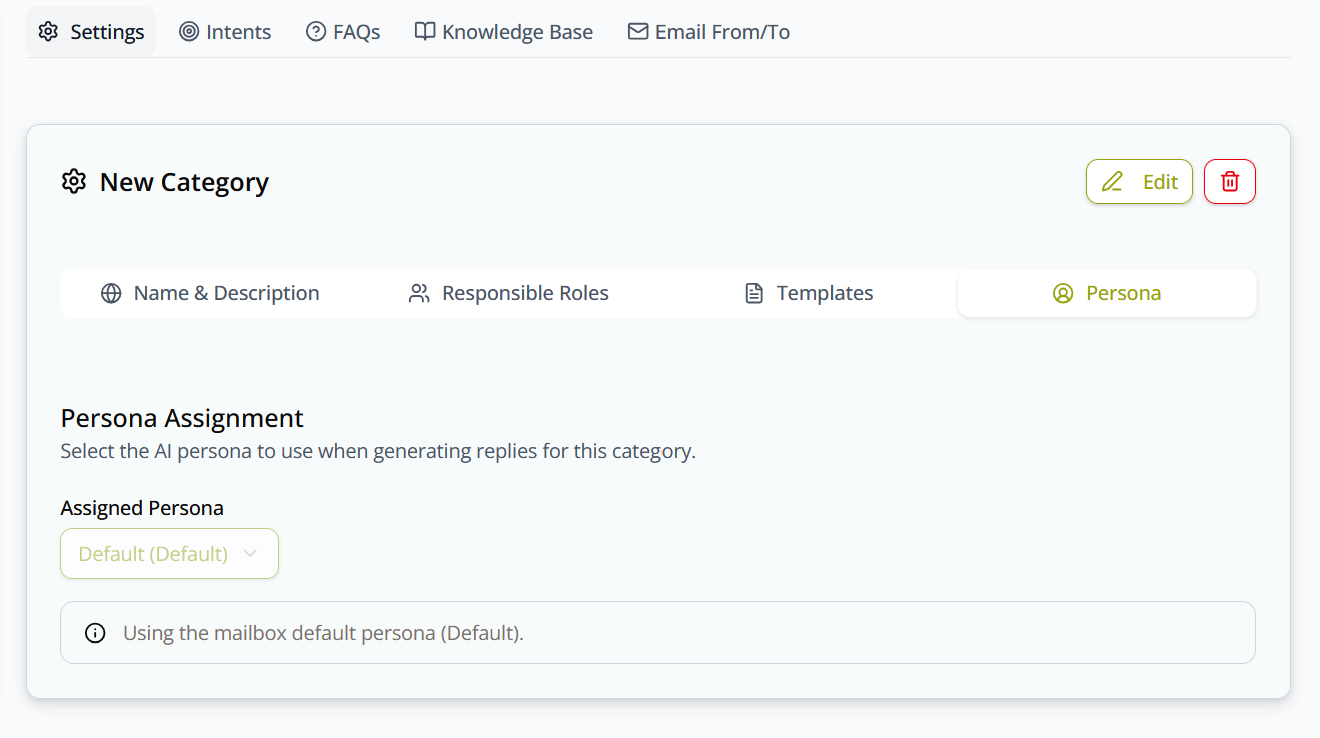
Assign which AI persona drafts replies for this category (or leave it on the mailbox's default). Personas control things like tone and drafting style — see Personas for the full guide.
What's next
- Category Management: Understanding Intents — how ReplyFabric detects the purpose of an email within a category.
- Personas — the tone, style, and hard rules an assigned persona brings to a category's AI replies.
- Category Management: FAQs and Category Management: Knowledge Base — the content the AI drafts replies from, also configured per category.
- Category Management: Email Address Routing — route emails straight to a category by sender or recipient address, bypassing AI categorization.