Category Management: Email Address Routing
Beyond AI categorization, you can route emails straight to a category based on the sender or recipient address — useful for known contacts, internal senders, or dedicated aliases. This is configured per category, from that category's Email From/To tab in Category Management.
Three things can trigger a rule, and ReplyFabric checks them in a fixed order, stopping at the first one that matches:
| Checked | Matches on | Example |
|---|---|---|
| 1st | One specific sender | sarah@partner.com |
| 2nd | Anyone at a whole domain | @partner.com |
| 3rd | The alias the email was sent to | sales@company.com |
That order is the part worth knowing, because it decides what happens when two of your own rules could both apply.
Route everything from @partner.com to one category but sarah@partner.com to another, and Sarah's email lands
in the second one: the specific address is checked before the domain it belongs to, so the narrower rule always
beats the broader one. Recipient aliases come last, so a sender rule wins over the address the email arrived on —
and that third rule does nothing at all until Alias Routing is switched on in
Mailbox Settings: General.
A match assigns the email to that category immediately and skips AI categorization entirely — ReplyFabric doesn't need to work out what the email is about, because you've already told it where that sender belongs. What a match doesn't skip is intent detection: the category's intents still run on top, so a promotional email from a routed sender can still be auto-archived. Routing works with shared-mailbox aliases and forwarded addresses too.
Address routing doesn't apply to every email — two earlier checks take precedence over it:
- M2M (machine-generated) emails follow the mailbox's M2M category setup instead (see Category Management: Settings, Templates & Persona), even if the sender or recipient also matches a different category's Email From/To rule.
- Emails that fail ReplyFabric's first security check go to the General category for human review instead, regardless of any matching Email From/To rule.
Outside of those two cases, address routing still wins over AI categorization — a match sends the email straight to that category.
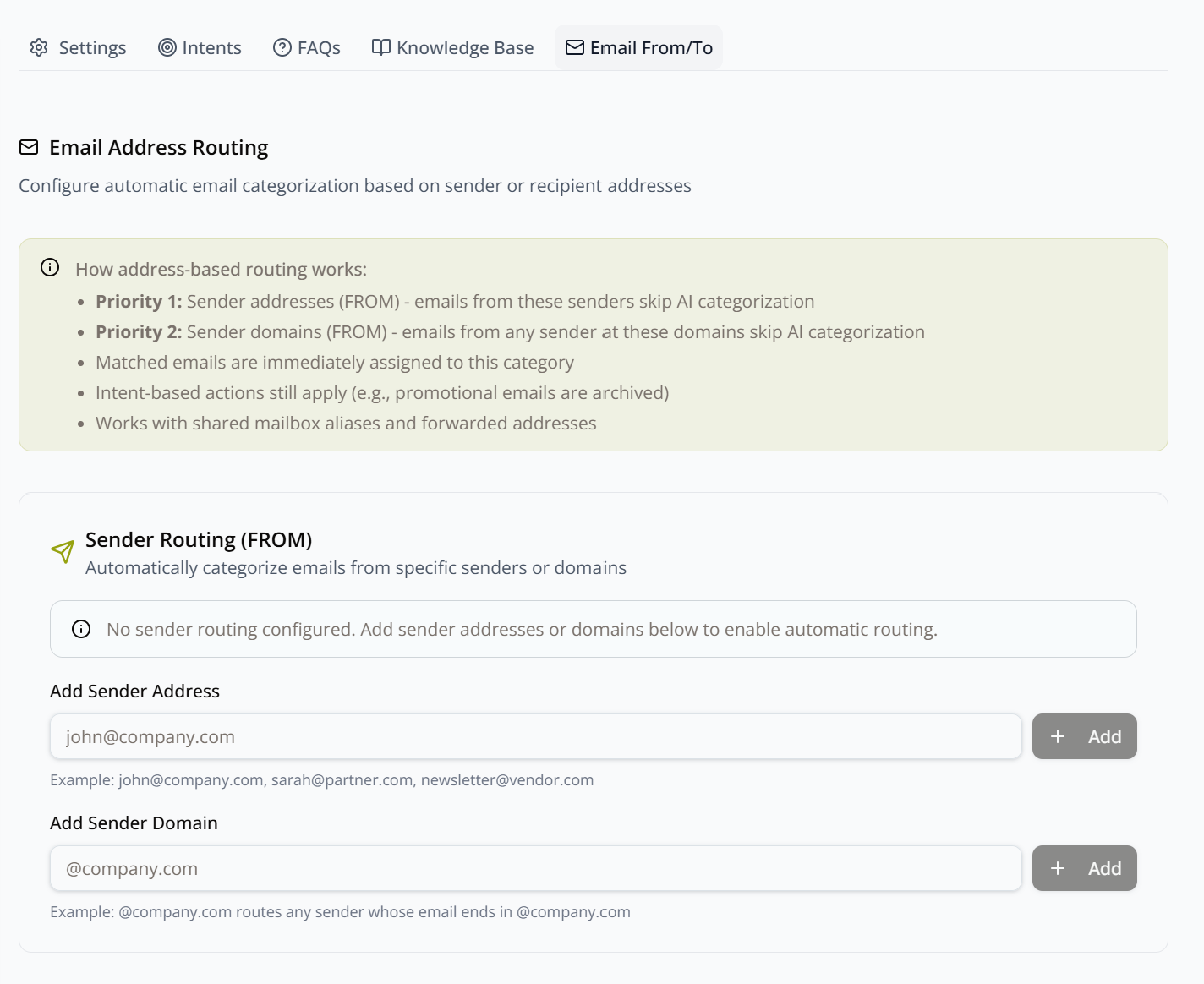
Sender Routing (FROM)
Two separate inputs:
- Add Sender Address — one or more specific email addresses (e.g.
john@company.com,sarah@partner.com,newsletter@vendor.com). - Add Sender Domain — an entire domain (e.g.
@company.comroutes any sender whose address ends in@company.com).
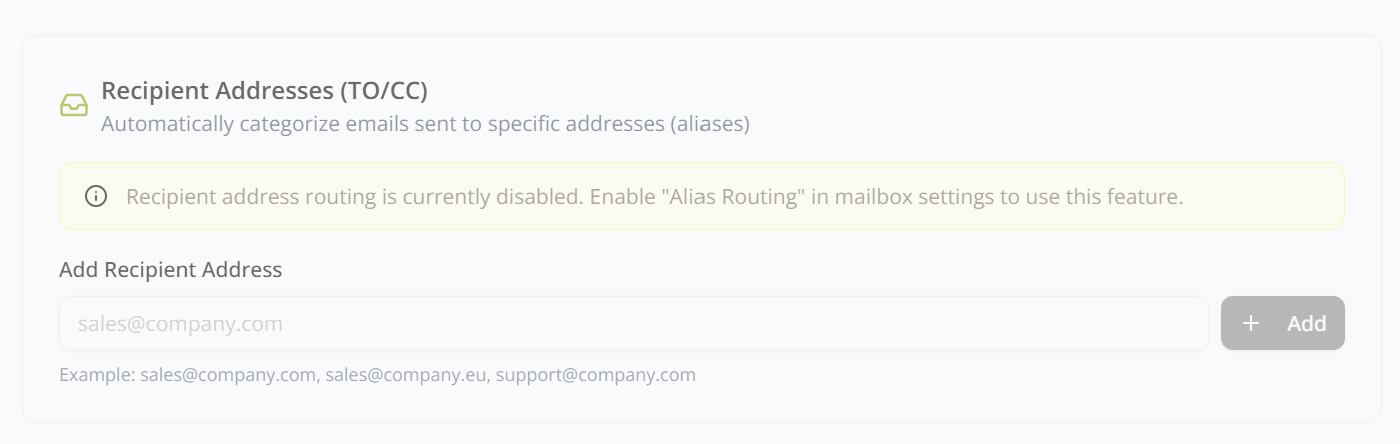
Recipient Addresses (TO/CC)
Use Add Recipient Address to categorize based on which alias the email was sent to (e.g. sales@company.com,
support@company.com). This requires Alias Routing to be enabled first, in
Mailbox Settings: General — until then, this section
stays disabled with a reminder to turn it on there.
What's next
- Category Management: Settings, Templates & Persona — the rest of what a category controls (name, responsible roles, templates, persona).
- Category Management: Understanding Intents — intent-based actions (like auto-archiving) still apply on top of address-based routing.
- Sending From an Alias in a Shared Mailbox (Microsoft 365) — enable the alias for outbound sending too, so approved replies actually leave from the address routed here.