Mailbox Settings: General
Every mailbox has its own Mailbox Settings, reached from the left sidebar. The General sub-tab controls how ReplyFabric processes email for this specific mailbox — separate from category-level settings covered in Category Management: Settings, Templates & Persona.
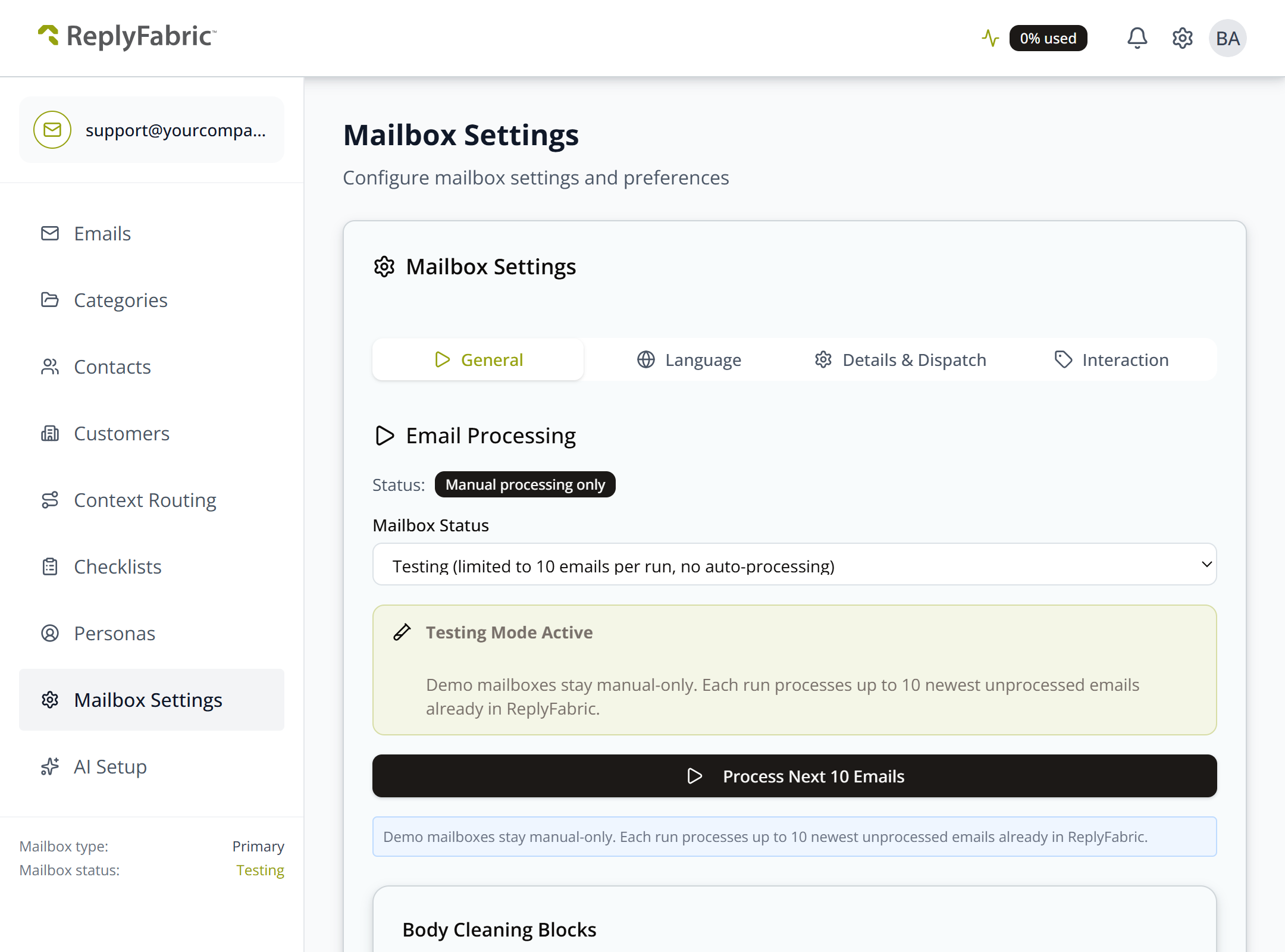
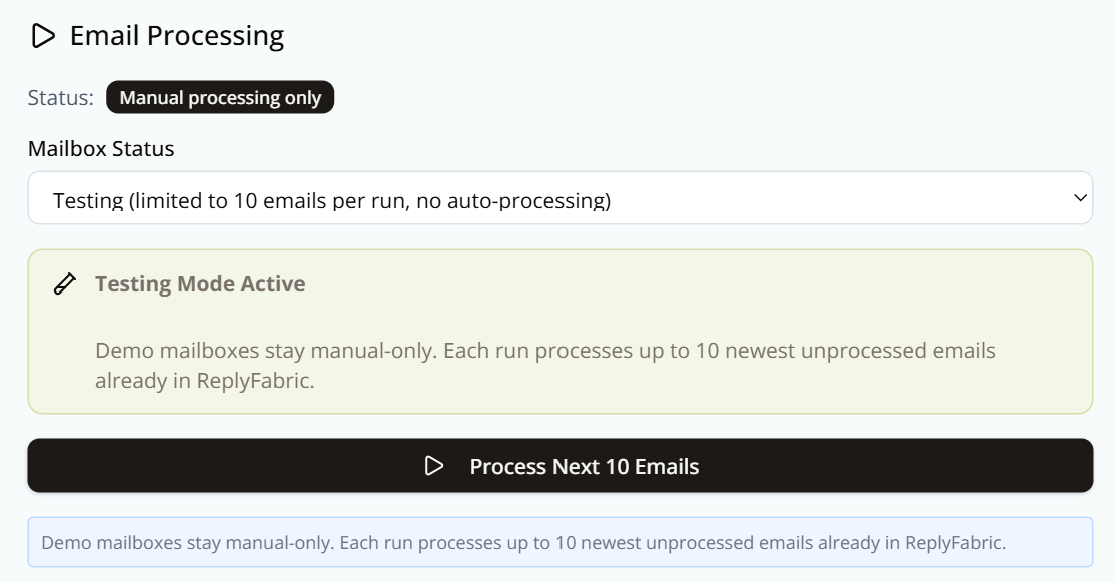
Email Processing
This is where you decide whether ReplyFabric works through this mailbox on its own or only when you tell it to. Everything further down the General tab tunes how each email is handled once processing runs; this first section sets whether that happens automatically at all. Start a new mailbox in Testing while you check its categories and drafts, then switch it to Active when you're happy for it to run unattended.
- Mailbox Status — Active (all emails processed automatically) or Testing (limited to 10 emails per run, no auto-processing). Demo mailboxes are locked to Testing.
- Process Next 10 Emails — manual trigger button, only meaningful in Testing mode.
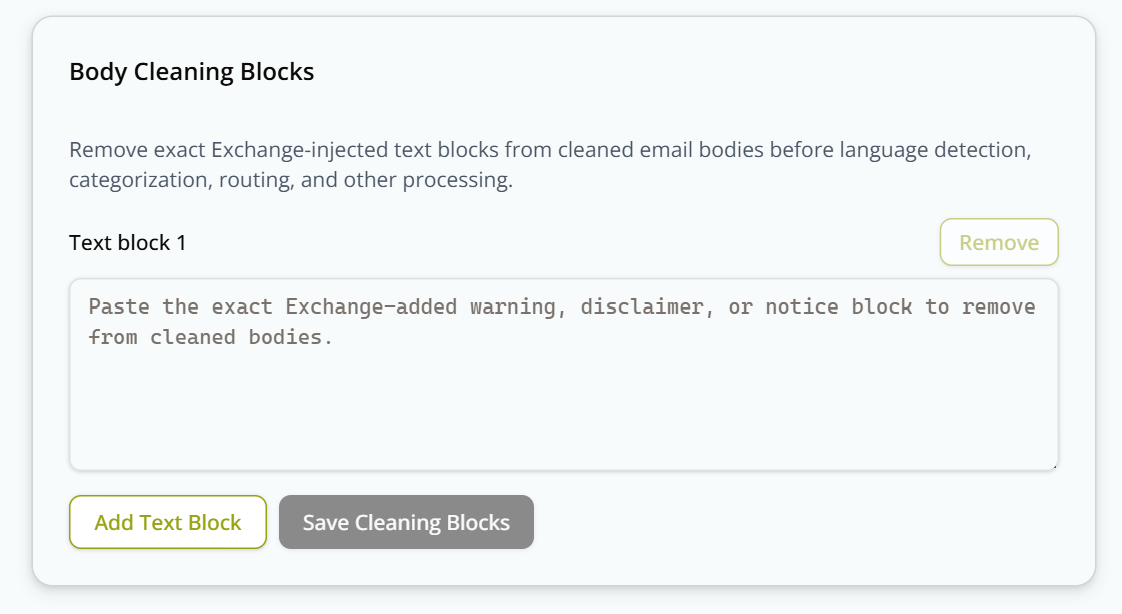
Body Cleaning Blocks
Remove exact Exchange-injected text blocks (e.g. a legal disclaimer or warning banner your mail server appends) from cleaned email bodies before language detection, categorization, routing, and other processing runs. Add one or more Text Block entries — paste the exact boilerplate text to strip — then Save Cleaning Blocks.
Attachment Processing
On by default. When enabled, ReplyFabric downloads, stores, and OCR-processes attachment text so it can be reused in AI setup and categorization — images are processed for visible text only. When disabled, attachments are ignored entirely.

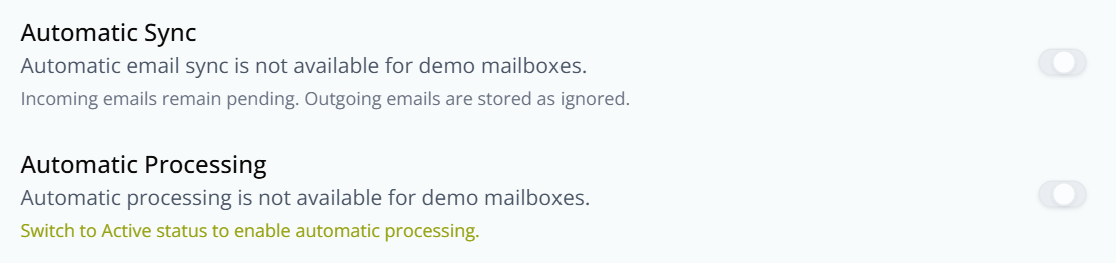
Automatic Sync & Automatic Processing
Two toggles that only take effect on an Active (non-demo) mailbox — switch Mailbox Status to Active above to enable them. Automatic Sync governs whether new email is pulled in at all; Automatic Processing governs whether what's been pulled in is categorized and drafted without you pressing anything. On a demo or Testing mailbox both are greyed out, and the panel says so directly.
Enable Alias Routing
Toggle: "Automatically route emails based on recipient address (e.g., sales@, support@)." This is the exact prerequisite referenced by Category Management: Email Address Routing's Recipient Addresses section — this toggle is what unlocks that feature.

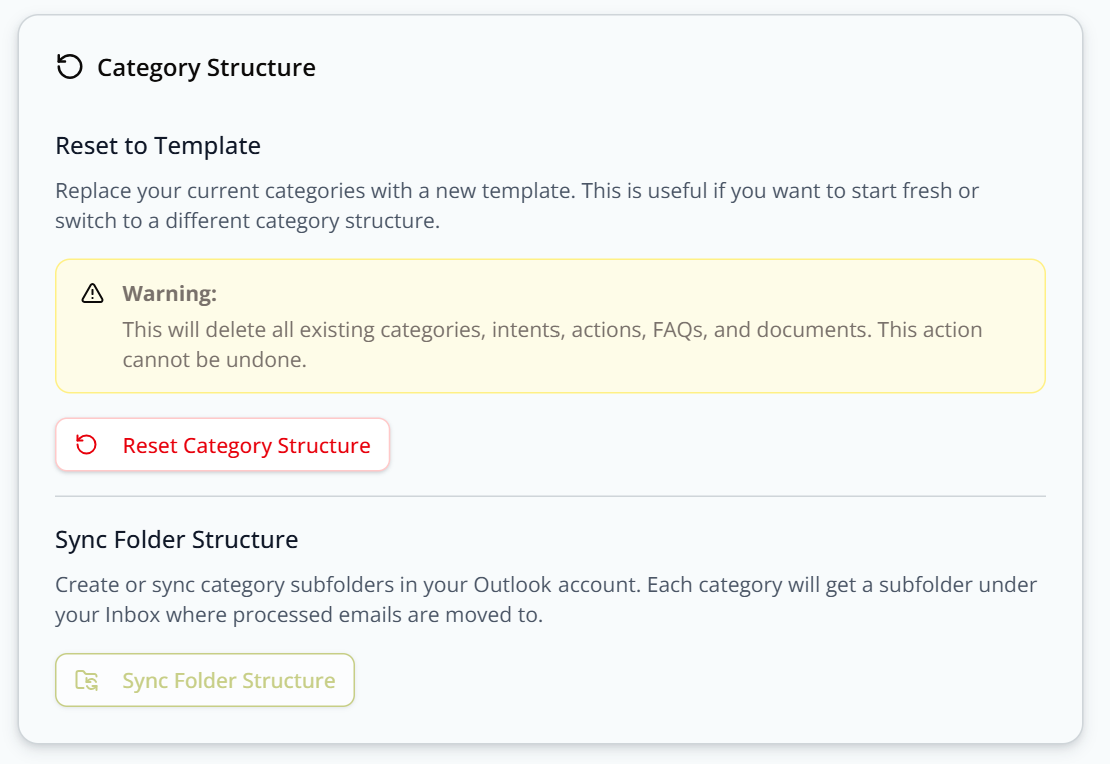
Category Structure
-
Reset to Template — replaces all current categories with a fresh template.
This will delete all existing categories, intents, actions, FAQs, and documents. This action cannot be undone.
-
Sync Folder Structure — pushes your category structure out to the mailbox. The categories in question are the ReplyFabric ones you set up in Category Management — not folders that already exist in Outlook. Running this creates a matching subfolder under Inbox in the connected mailbox for each of those categories, so processed email can be filed into the folder for the category it was assigned.
What's next
- Category Management: Email Address Routing — what Alias Routing unlocks once enabled here.
- Mailbox Settings: Language Configuration — set your mailbox's default and supported languages.
- Mailbox Settings: Details & Dispatch-Only Mode — mailbox details and an alternative to category-based processing.
- Mailbox Settings: Provider-Side Interaction — control Outlook categories, Gmail labels, and read-state behavior after processing.
- Sending From an Alias in a Shared Mailbox (Microsoft 365) — the outbound counterpart to Alias Routing above: lets the mailbox actually send from an alias, not just receive mail routed to one.