Add a New Mailbox
You're not limited to the mailbox you connected during onboarding. Add as many as your team needs, any time, from Mailbox Management.
1. Open Mailbox Management
Click the gear icon in the top-right corner, next to your initials, then click Mailbox Management under Administration. Every mailbox your organization has connected is listed under Connected Mailboxes, with its type, provider, connection method, status, languages, and quick actions to configure or remove it.
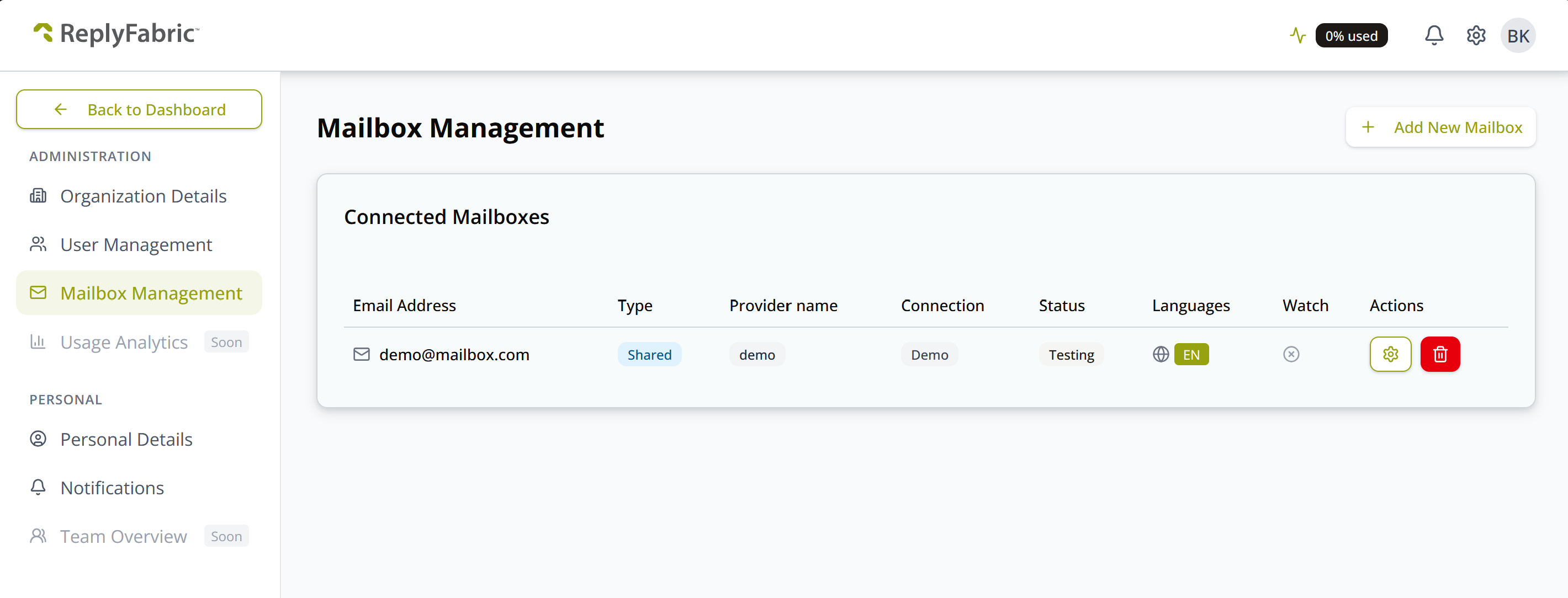
2. Click Add New Mailbox
This opens a dialog to connect a mailbox and configure its initial processing settings — the same dialog you saw during onboarding if you've connected a mailbox before.
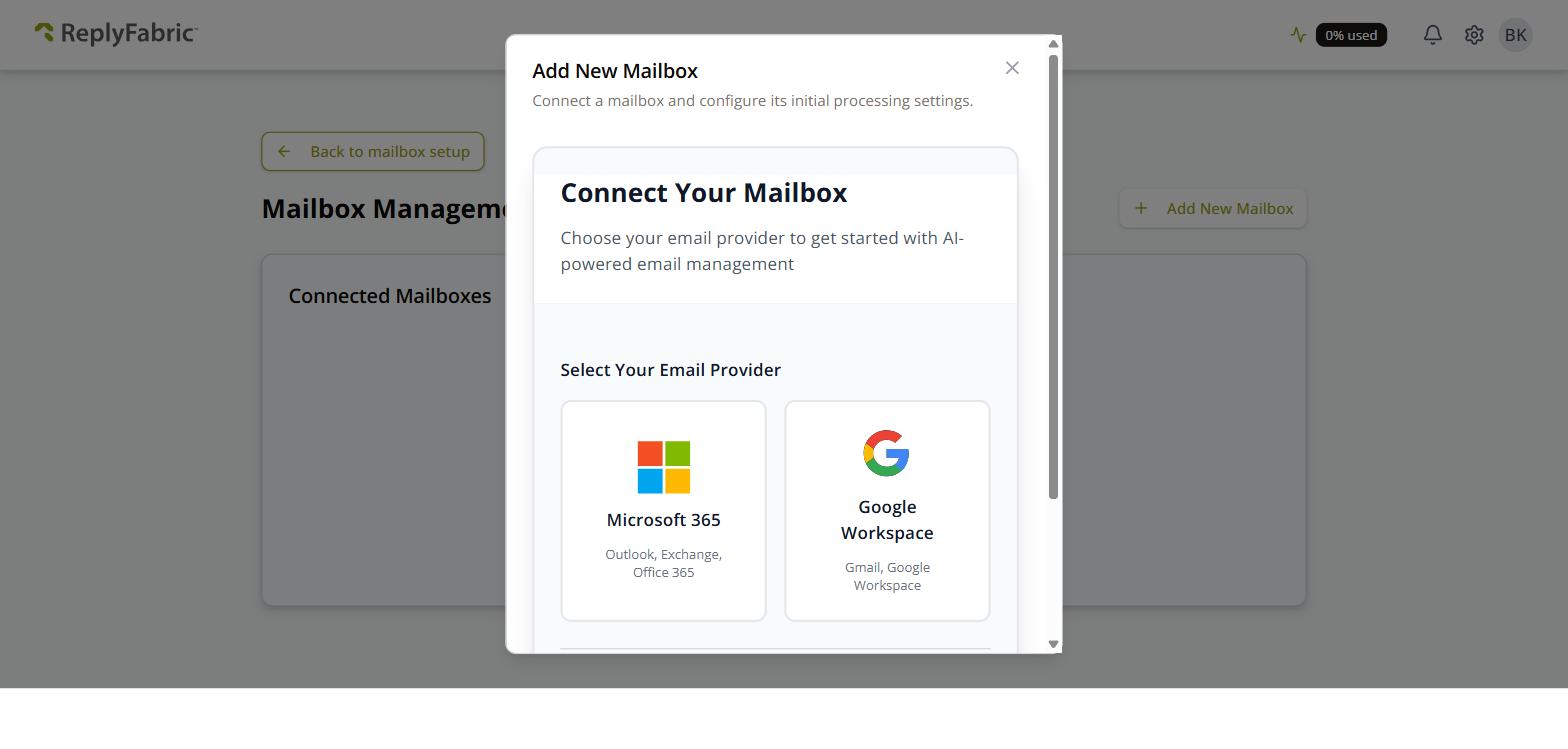
3. Choose a provider
- Microsoft 365 — Outlook, Exchange, or Office 365.
- Google Workspace — Gmail or Google Workspace.
- Skip & Create Demo Mailbox — try ReplyFabric without connecting a real account. See Demo Mailbox for how that works.
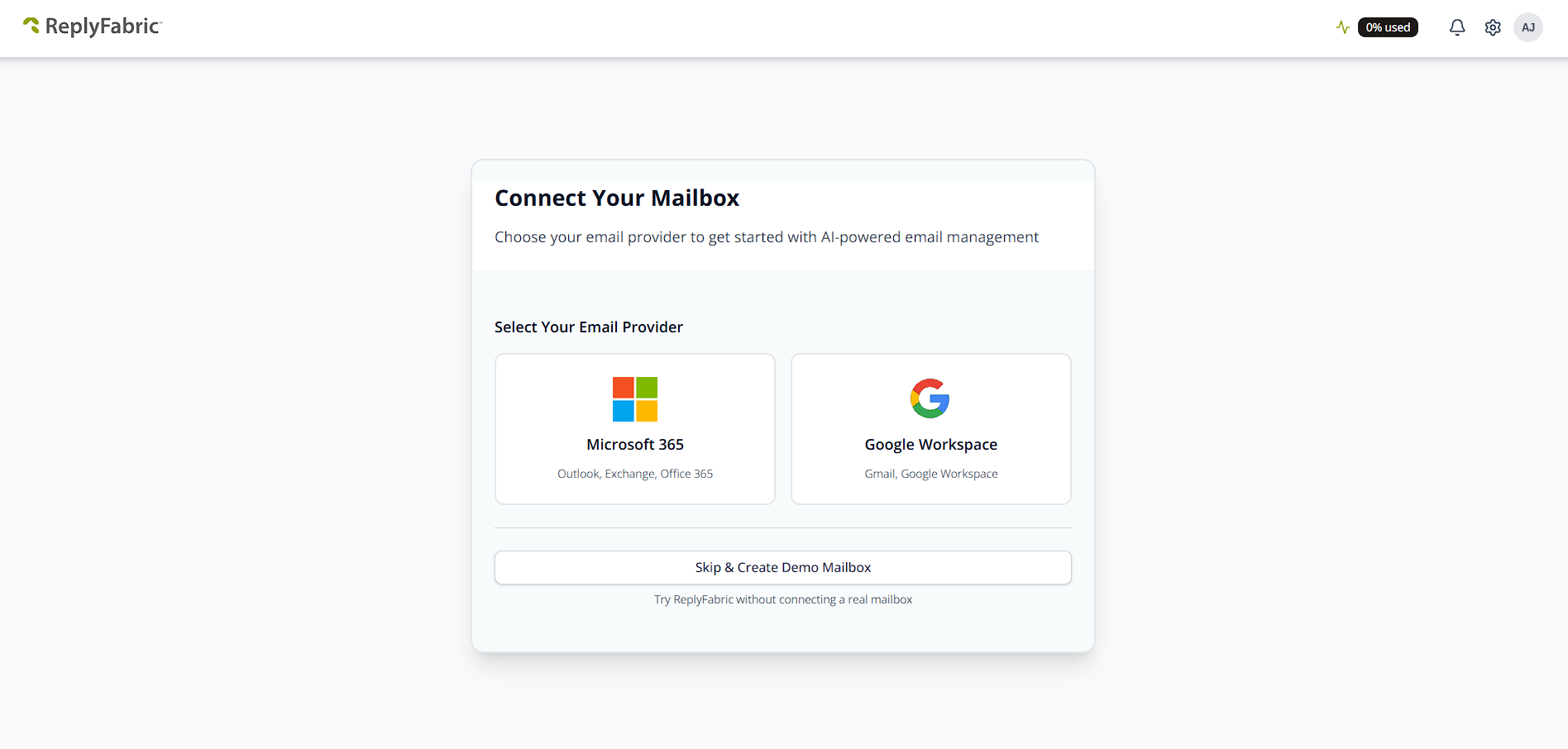
4. Enter the mailbox address and connect
Type the shared mailbox's email address (e.g. support@yourcompany.com) and click Connect & Authorize.
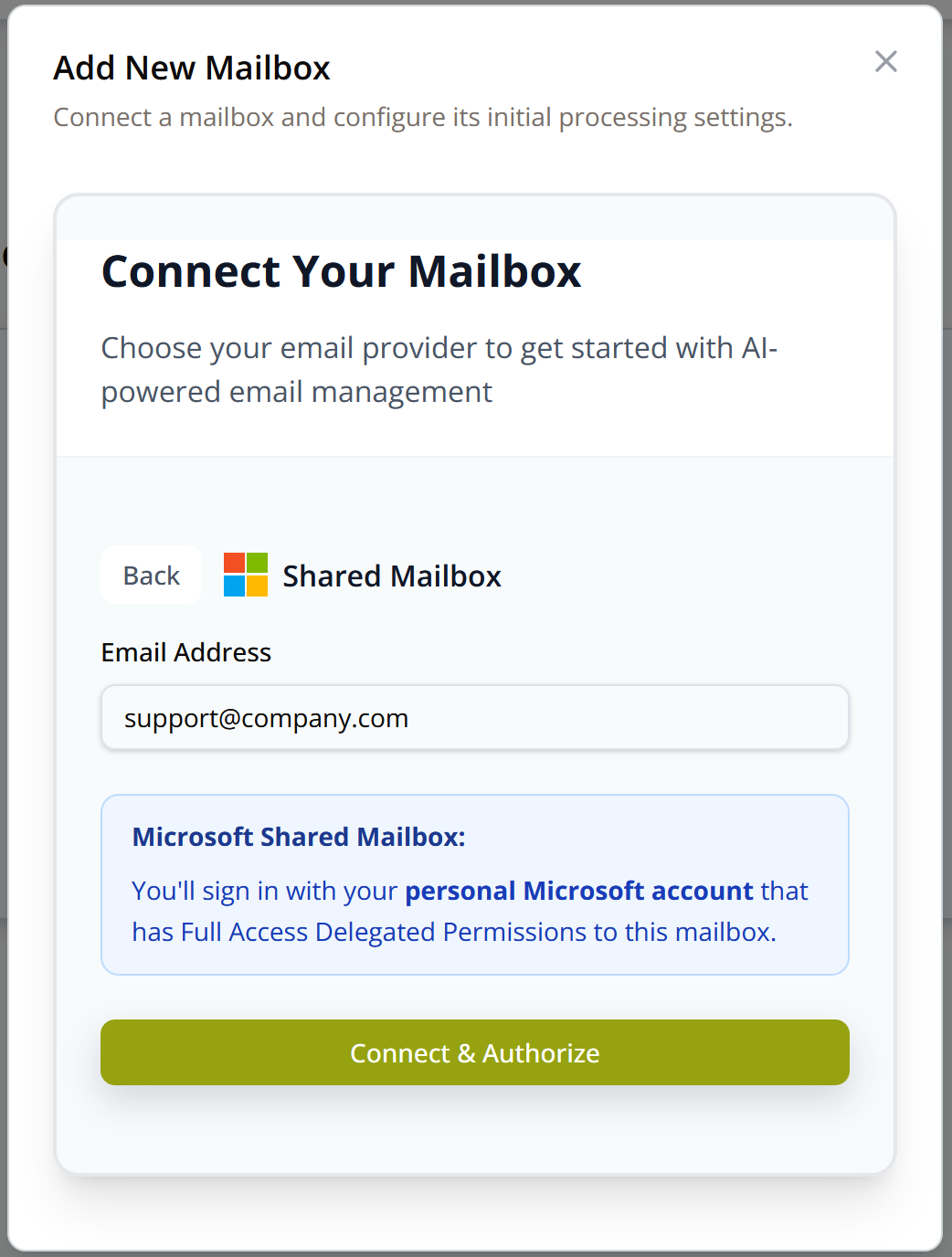
Who you sign in as depends on the provider — this trips people up, so read the note ReplyFabric shows here before continuing:
- Microsoft 365 — sign in with your own personal Microsoft account, as long as it has Full Access Delegated Permissions to the mailbox. You don't need the shared mailbox's own password. Full steps, including the one-time admin-consent screen the first mailbox in your organization needs, are in Connecting Microsoft 365 Shared Mailboxes.
- Google Workspace — sign in with the shared mailbox's own account — its own login and password — not your personal Google account. Using a Google Group rather than a dedicated shared account? That connects differently — contact support and we'll set it up with you.
You'll then be redirected to the provider's own sign-in and permissions screen — see the linked guide above for what that looks like and how to get through it.
5. Pick the right account and confirm
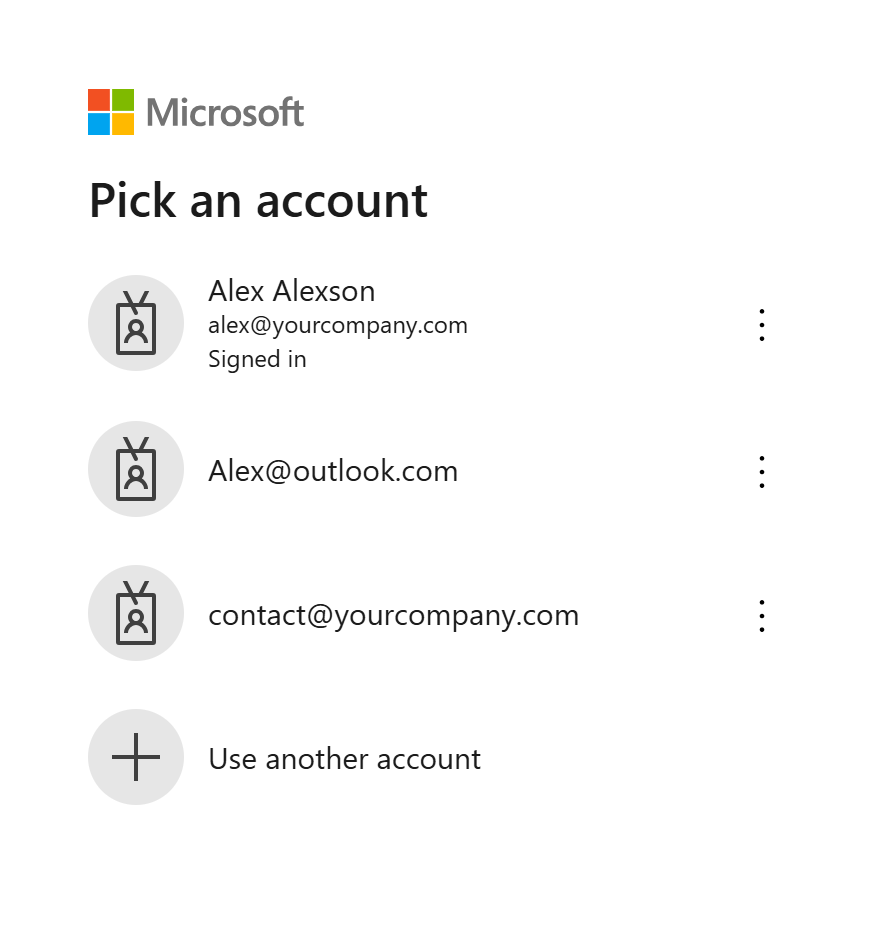
If your browser is already signed into more than one Microsoft account, Microsoft shows an account picker before anything else. It can list the shared mailbox itself alongside personal accounts — pick your own personal account with delegated access, not the shared mailbox, even if the shared mailbox's address is sitting right there in the list.
Once you've picked the right account and worked through the provider's permissions screen, ReplyFabric confirms the connection:

What's next
Once a mailbox is connected, head to Mailbox Settings: General to configure how it behaves, or invite your team so they can work from it too.